> ## Documentation Index
> Fetch the complete documentation index at: https://docs.unpage.ai/llms.txt
> Use this file to discover all available pages before exploring further.
# Disk Space Errors
```
[04:17:32 AM] CRITICAL - Disk space: / 96% used (23.4GB/24.5GB)
```
You know exactly what comes next: stumbling to your laptop, SSH'ing into the server,
running `df -h` to see which partition is full, then hunting through directories
with `du` commands to find what's consuming all the space. Maybe it's log files
that weren't rotated properly. Maybe a backup process went rogue. Maybe someone's
script started dumping debug files everywhere.
Every single disk space incident follows the same forensic pattern, yet here you
are at 4am, manually typing the same commands while your production systems are
grinding to a halt.
This is the kind of toil that keeps SREs up at night, literally.
The investigation is completely systematic, the data sources are predictable,
and the triage steps never change. It's the perfect candidate for automation.
## Example Alert
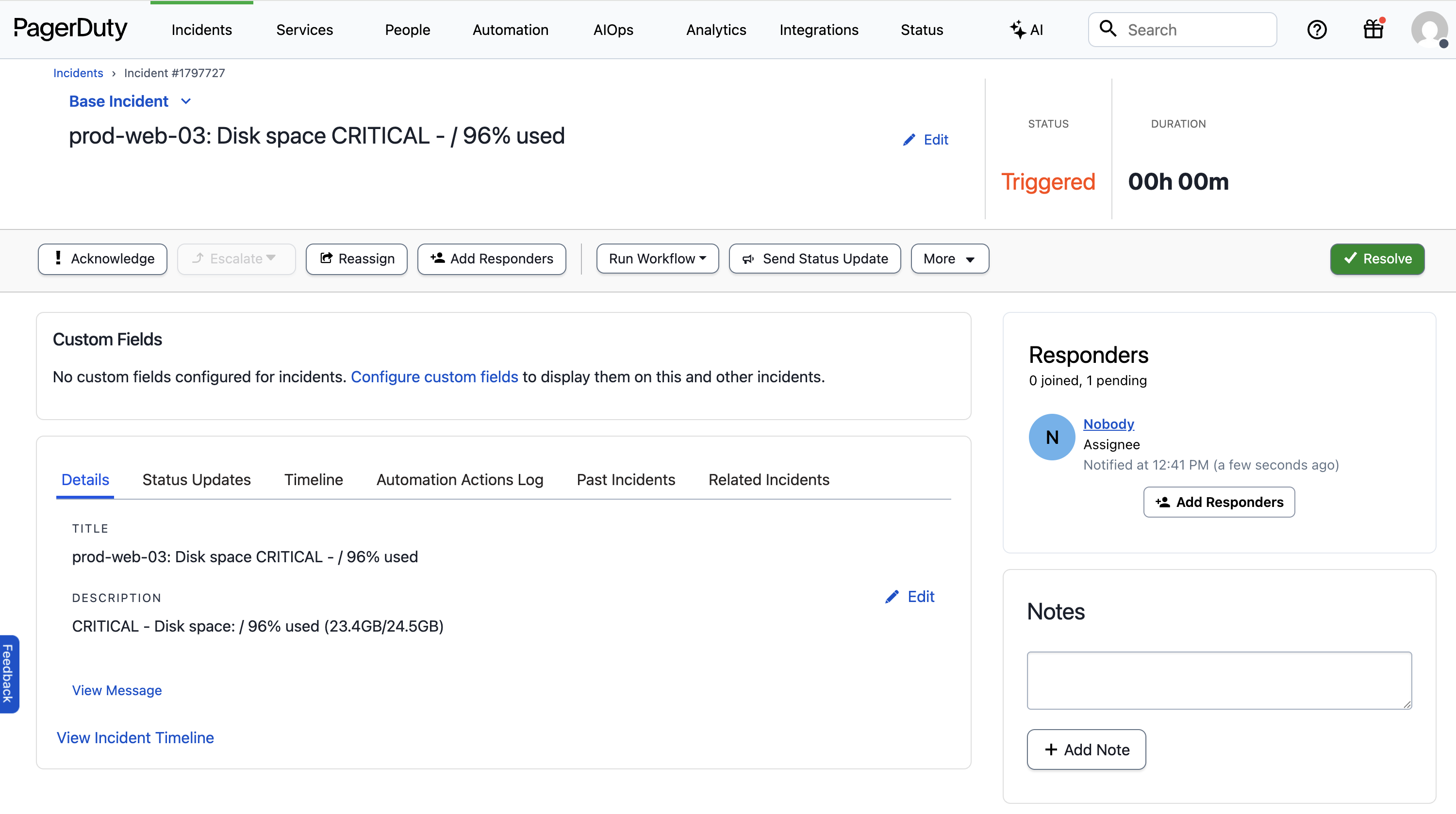
Here is an example PagerDuty disk space alert our Agent will investigate:
 ## Creating A Disk Space Investigation Agent
Let's create an Agent that runs every time we get a critical disk space alert
in PagerDuty. Our Agent will grab the host from the alert,
check disk usage remotely, identify the largest directories and files, and
search recent logs for clues about what consumed the space.
After [installing Unpage](/), create the agent by running:
```bash theme={null}
$ unpage agent create disk_space_alerts
```
A yaml file will open in your `$EDITOR`. Paste the following Agent definition
into the file:
```yaml theme={null}
description: Handle critical disk space alerts
prompt: >
- Extract the host from the PagerDuty alert
- Use shell command: `shell_check_disk_space` to get disk usage and identify largest directories
- Use shell command: `shell_check_large_files` to find large files in common problem directories
- Search SolarWinds for recent disk space warnings or errors from this host
- Create a status update with:
- Which partition is full
- Top directories consuming space
- Largest files in /var/log, /tmp, and docker directories
- Post findings to PagerDuty with add_pagerduty_status_update for manual review and action
tools:
- "shell_check_disk_space"
- "shell_check_large_files"
- "solarwinds_search_logs"
- "pagerduty_post_status_update"
```
Let's dig in to what each section of the yaml file does:
### Description: When the agent should run
The `description` of an Agent is used by the [Router](/concepts/router) to
decide which Agent to run for a given input. In this example we want the Agent
to run only when the alert is about critical disk space issues.
### Prompt: What the agent should do
The `prompt` is where you give the Agent instructions, written in a runbook
format. Make sure any instructions you give are achievable using the tools
you have allowed the Agent to use (see below).
### Tools: What the agent is allowed to use
The `tools` section explicitly grants permission to use specific tools. You can
list individual tools, or use wildcards and regex patterns to limit what the
Agent can use.
To see all of the available tools your Unpage installation has access to, run:
```bash theme={null}
$ unpage mcp tools list
```
In our example we added the `shell_check_disk_space` and `shell_check_large_files`,
which are custom [shell commands](/plugins/shell) that check disk usage and
identify large files on remote instances. Custom shell commands allow you to
extend the functionality of Unpage without having to write a new plugin.
## Defining Custom Tools
To add our custom disk space investigation tools, edit `~/.unpage/profiles/default/config.yaml`
and add the following:
```yaml theme={null}
plugins:
# ...
shell:
enabled: true
settings:
commands:
- handle: check_disk_space
description: Check the disk space of a host.
command: ssh -o StrictHostKeyChecking=no ec2-user@{host} 'df -h && echo "---" && du -h / --max-depth=2 2>/dev/null | sort -hr | head -20'
args:
host: The hostname or IP address of the host to check the disk space for
- handle: check_large_files
description: Check the large files in a host.
command: ssh -o StrictHostKeyChecking=no ec2-user@{host} 'find /var/log /tmp /var/lib/docker -type f -size +100M 2>/dev/null | xargs -I {{}} ls -lh {{}} | sort -k5 -hr | head -20'
args:
host: The hostname or IP address of the host to check the large files for
```
Shell commands have full access to your environment and can run custom scripts
or call internal tools. These commands use SSH to remotely execute disk analysis
on the affected instances. See [shell commands](/plugins/shell) for more details.
## Running Your Agent
With your Agent configured and the custom disk space investigation tools added,
we are ready to test it on a real PagerDuty alert.
### Testing on an existing alert
To test your Agent locally on a specific PagerDuty alert, run:
```bash theme={null}
# You can pass in a PagerDuty incident ID or URL
$ unpage agent run disk_space_alerts --pagerduty-incident Q1DGVOC3O61S10
```
### Listening for webhooks
To have your Agent listen for new PagerDuty alerts as they happen, run
`unpage agent serve` and add the webhook URL to your PagerDuty account:
```bash theme={null}
# Webhook listener on localhost:8000/webhook
$ unpage agent serve
# Webhook listener on your_ngrok_domain/webhook
$ unpage agent serve --tunnel --ngrok-token your_ngrok_token
```
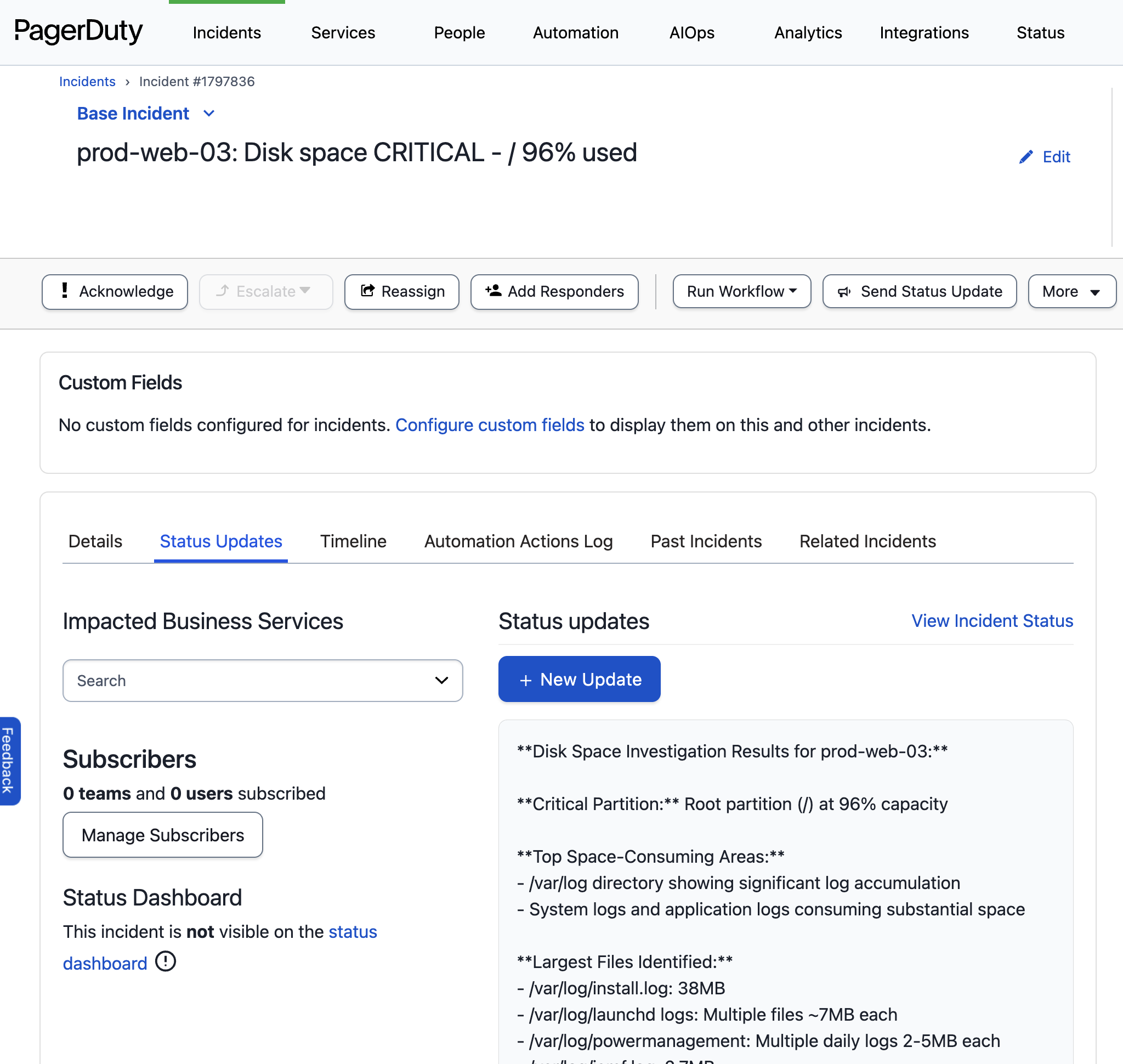
## Example Output
Your Agent will update the PagerDuty alert with:
* Current disk usage percentages for all partitions
* Top 20 directories consuming the most space
* Largest files in common problem directories (/var/log, /tmp, /var/lib/docker)
* Recent log entries from SolarWinds indicating disk space warnings
* Actionable recommendations for immediate space cleanup
## Creating A Disk Space Investigation Agent
Let's create an Agent that runs every time we get a critical disk space alert
in PagerDuty. Our Agent will grab the host from the alert,
check disk usage remotely, identify the largest directories and files, and
search recent logs for clues about what consumed the space.
After [installing Unpage](/), create the agent by running:
```bash theme={null}
$ unpage agent create disk_space_alerts
```
A yaml file will open in your `$EDITOR`. Paste the following Agent definition
into the file:
```yaml theme={null}
description: Handle critical disk space alerts
prompt: >
- Extract the host from the PagerDuty alert
- Use shell command: `shell_check_disk_space` to get disk usage and identify largest directories
- Use shell command: `shell_check_large_files` to find large files in common problem directories
- Search SolarWinds for recent disk space warnings or errors from this host
- Create a status update with:
- Which partition is full
- Top directories consuming space
- Largest files in /var/log, /tmp, and docker directories
- Post findings to PagerDuty with add_pagerduty_status_update for manual review and action
tools:
- "shell_check_disk_space"
- "shell_check_large_files"
- "solarwinds_search_logs"
- "pagerduty_post_status_update"
```
Let's dig in to what each section of the yaml file does:
### Description: When the agent should run
The `description` of an Agent is used by the [Router](/concepts/router) to
decide which Agent to run for a given input. In this example we want the Agent
to run only when the alert is about critical disk space issues.
### Prompt: What the agent should do
The `prompt` is where you give the Agent instructions, written in a runbook
format. Make sure any instructions you give are achievable using the tools
you have allowed the Agent to use (see below).
### Tools: What the agent is allowed to use
The `tools` section explicitly grants permission to use specific tools. You can
list individual tools, or use wildcards and regex patterns to limit what the
Agent can use.
To see all of the available tools your Unpage installation has access to, run:
```bash theme={null}
$ unpage mcp tools list
```
In our example we added the `shell_check_disk_space` and `shell_check_large_files`,
which are custom [shell commands](/plugins/shell) that check disk usage and
identify large files on remote instances. Custom shell commands allow you to
extend the functionality of Unpage without having to write a new plugin.
## Defining Custom Tools
To add our custom disk space investigation tools, edit `~/.unpage/profiles/default/config.yaml`
and add the following:
```yaml theme={null}
plugins:
# ...
shell:
enabled: true
settings:
commands:
- handle: check_disk_space
description: Check the disk space of a host.
command: ssh -o StrictHostKeyChecking=no ec2-user@{host} 'df -h && echo "---" && du -h / --max-depth=2 2>/dev/null | sort -hr | head -20'
args:
host: The hostname or IP address of the host to check the disk space for
- handle: check_large_files
description: Check the large files in a host.
command: ssh -o StrictHostKeyChecking=no ec2-user@{host} 'find /var/log /tmp /var/lib/docker -type f -size +100M 2>/dev/null | xargs -I {{}} ls -lh {{}} | sort -k5 -hr | head -20'
args:
host: The hostname or IP address of the host to check the large files for
```
Shell commands have full access to your environment and can run custom scripts
or call internal tools. These commands use SSH to remotely execute disk analysis
on the affected instances. See [shell commands](/plugins/shell) for more details.
## Running Your Agent
With your Agent configured and the custom disk space investigation tools added,
we are ready to test it on a real PagerDuty alert.
### Testing on an existing alert
To test your Agent locally on a specific PagerDuty alert, run:
```bash theme={null}
# You can pass in a PagerDuty incident ID or URL
$ unpage agent run disk_space_alerts --pagerduty-incident Q1DGVOC3O61S10
```
### Listening for webhooks
To have your Agent listen for new PagerDuty alerts as they happen, run
`unpage agent serve` and add the webhook URL to your PagerDuty account:
```bash theme={null}
# Webhook listener on localhost:8000/webhook
$ unpage agent serve
# Webhook listener on your_ngrok_domain/webhook
$ unpage agent serve --tunnel --ngrok-token your_ngrok_token
```
## Example Output
Your Agent will update the PagerDuty alert with:
* Current disk usage percentages for all partitions
* Top 20 directories consuming the most space
* Largest files in common problem directories (/var/log, /tmp, /var/lib/docker)
* Recent log entries from SolarWinds indicating disk space warnings
* Actionable recommendations for immediate space cleanup