> ## Documentation Index
> Fetch the complete documentation index at: https://docs.unpage.ai/llms.txt
> Use this file to discover all available pages before exploring further.
# SSL Connection Failures
SSL and TLS connection failures are common, with most SRE teams regularly having
to investigate and respond to these types of alerts. These failures happen for
various reasons—expired certificates, misconfigured cipher suites after deployments,
certificate chain issues, or DNS problems—and they often strike at the worst
times: peak traffic hours, middle of the night, or when your team is already swamped.
What makes these alerts particularly frustrating is the repetitive investigation
required. Each alert demands manually checking certificate expirations, verifying
chains, testing TLS versions, and correlating logs across systems—taking 15-30
minutes per incident. This predictable, procedural work is perfect for automation:
the investigation steps are consistent, the data sources are well-defined, and
the triage decisions follow clear patterns.
In this example, we'll show how to create an SRE agent using Unpage that will
automatically investigate SSL and TLS connection failures, so a human SRE can
resolve production SSL issues faster than ever before.
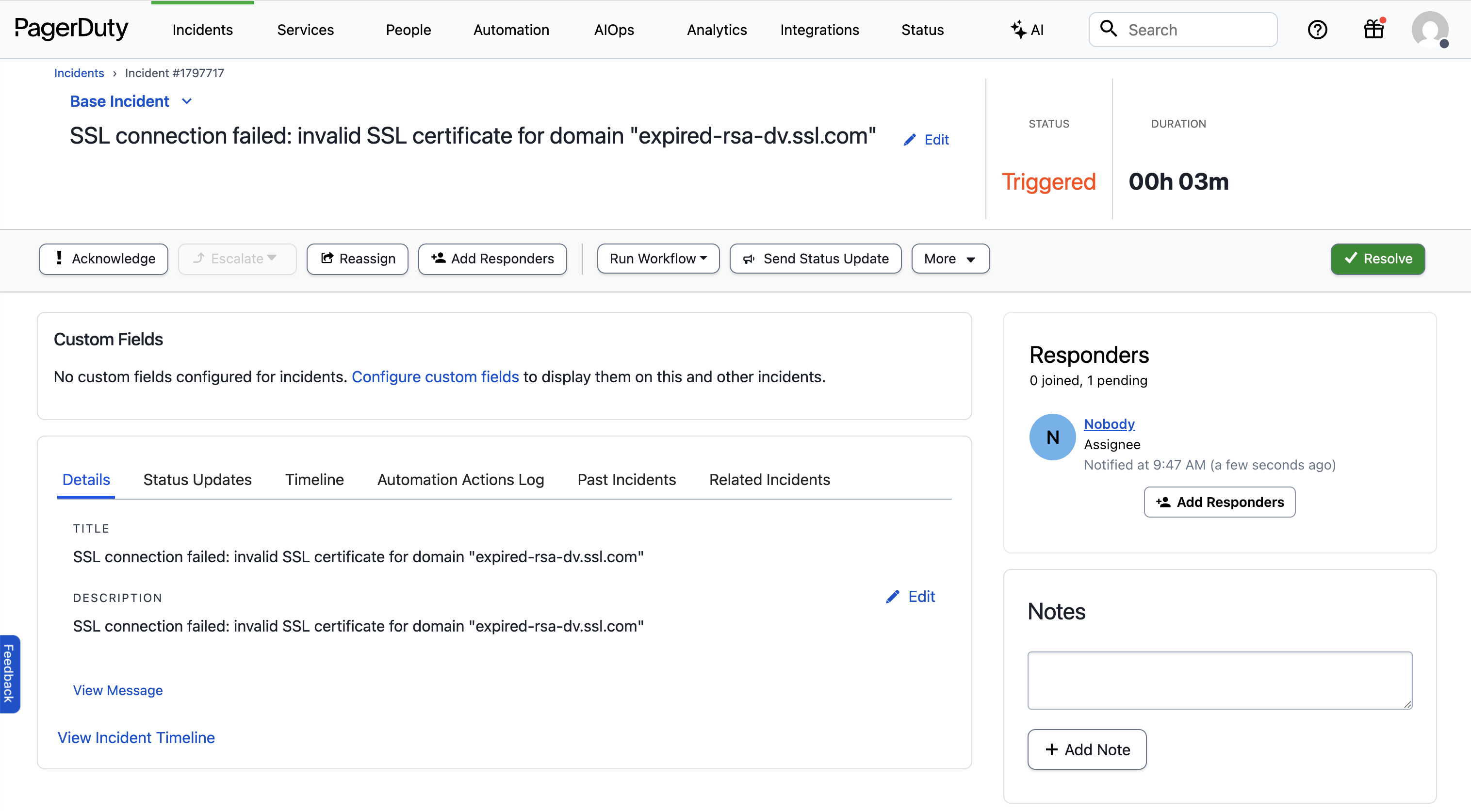
## Example Alert
Here is the example PagerDuty alert our Agent will investigate:
 ## Creating An SSL Investigation Agent
Let's create an Agent that runs every time we get an SSL connection alert
in PagerDuty. Our Agent will parse the domain name from the alert and check the
certificate's expiration date. If it's expired, the Agent will post an update
to the PagerDuty incident.
After [installing Unpage](/), create the agent by running:
```bash theme={null}
$ unpage agent create ssl_connection_failures
```
A yaml file will open in your `$EDITOR`. Paste the following Agent definition
into the file:
```yaml theme={null}
description: Investigate SSL/TLS connection failures
prompt: >
- Extract the domain/hostname from the PagerDuty alert about connection failures.
- Use shell command `shell_check_cert_expiration_date` to check the certificate expiration dates
- Parse the certificate dates to determine if the cert is expired or expiring soon
- If certificate is expired or expiring within 24 hours:
- Post high-priority status update to PagerDuty explaining the root cause
- Include the exact expiration date and affected resources
tools:
- "shell_check_cert_expiration_date"
- "pagerduty_post_status_update"
```
Let's dig in to what each section of the yaml file does:
### Description: When the agent should run
The `description` of an Agent is used by the [Router](/concepts/router) to
decide which Agent to run for a given input. In this example we want the Agent
to run only when the alert is about SSL/TLS connection failures.
### Prompt: What the agent should do
The `prompt` is where you give the Agent instructions, written in a runbook
format. Make sure any instructions you give are achievable using the tools
you have allowed the Agent to use (see below).
### Tools: What the agent is allowed to use
The `tools` section explicitly grants permission to use specific tools. You can
list individual tools, or use wildcards and regex patterns to limit what the
Agent can use.
To see all of the available tools your Unpage installation has access to, run:
```bash theme={null}
$ unpage mcp tools list
```
In our example we added the `shell_check_cert_expiration_date`, which is a
custom [shell command](/plugins/shell) that checks the expiration date of SSL
certificates. Custom shell commands allow you to extend the functionality of
Unpage without having to write a new plugin.
## Defining Custom Tools
To add our custom SSL expiration tool, edit `~/.unpage/profiles/default/config.yaml`
and add the following:
```yaml theme={null}
plugins:
# ...
shell:
enabled: true
settings:
commands:
- handle: check_cert_expiration_date
description: Check the expiration date of a certificate.
command: echo | openssl s_client -servername {domain} -connect {domain}:443 2>/dev/null | openssl x509 -noout -dates
args:
domain: The domain to check the certificate for
```
Shell commands have full access to your environment and can run custom scripts
or call internal tools. See [shell commands](/plugins/shell) for more details.
## Running Your Agent
With your Agent configured and the custom SSL expiration tool added, we are
ready to test it on a real PagerDuty alert.
### Testing on an existing alert
To test your Agent locally on a specific PagerDuty alert, run:
```bash theme={null}
# You can pass in a PagerDuty incident ID or URL
$ unpage agent run ssl_connection_failures --pagerduty-incident Q2SJPXSWCX96DA
```
### Listening for webhooks
To have your Agent listen for new PagerDuty alerts as they happen, run
`unpage agent serve` and add the webhook URL to your PagerDuty account:
```bash theme={null}
# Webhook listener on localhost:8000/webhook
$ unpage agent serve
# Webhook listener on your_ngrok_domain/webhook
$ unpage agent serve --tunnel --ngrok-token your_ngrok_token
```
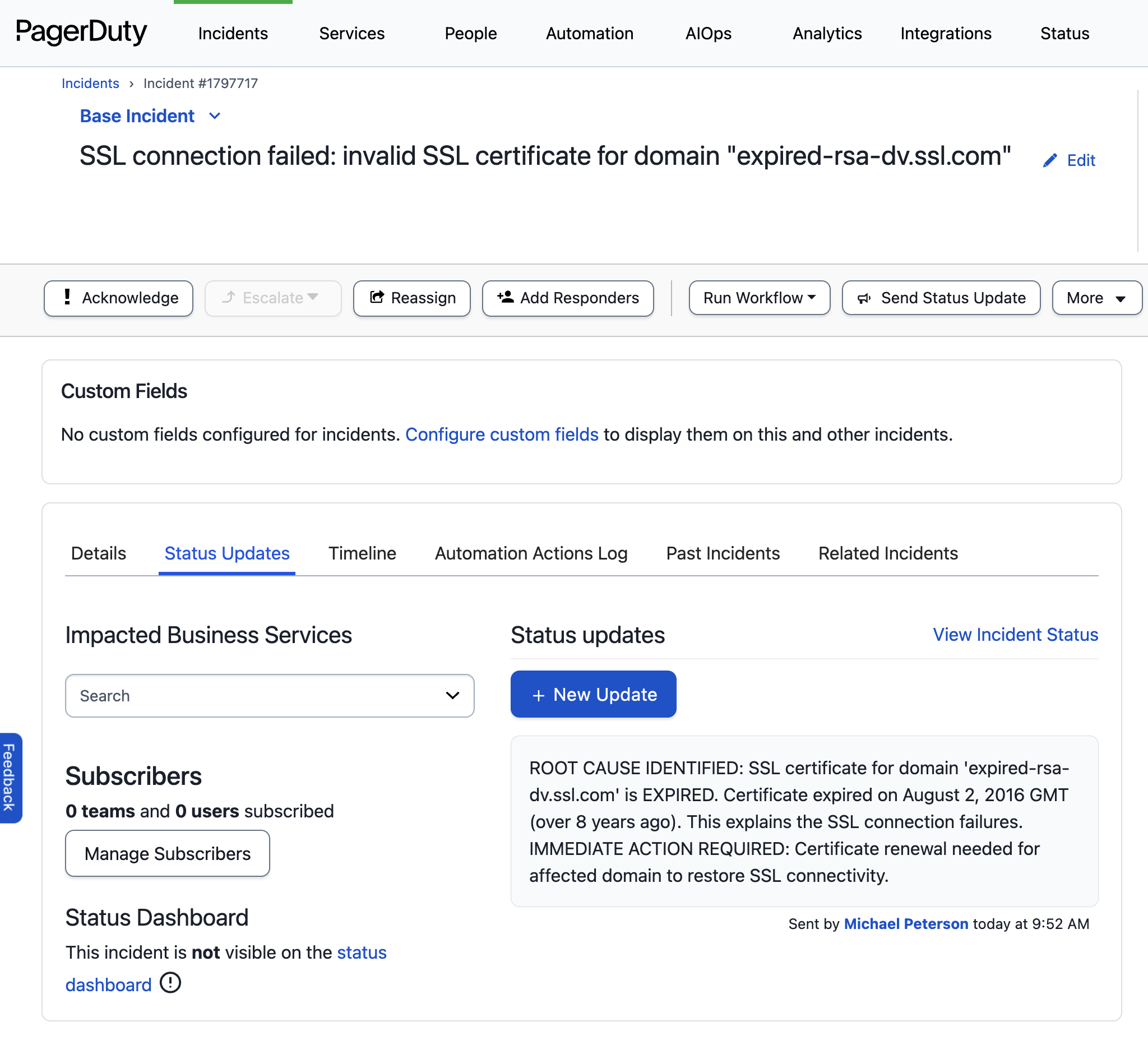
## Example Output
If your Agent finds an expired SSL certificate, it will update the PagerDuty
alert:
## Creating An SSL Investigation Agent
Let's create an Agent that runs every time we get an SSL connection alert
in PagerDuty. Our Agent will parse the domain name from the alert and check the
certificate's expiration date. If it's expired, the Agent will post an update
to the PagerDuty incident.
After [installing Unpage](/), create the agent by running:
```bash theme={null}
$ unpage agent create ssl_connection_failures
```
A yaml file will open in your `$EDITOR`. Paste the following Agent definition
into the file:
```yaml theme={null}
description: Investigate SSL/TLS connection failures
prompt: >
- Extract the domain/hostname from the PagerDuty alert about connection failures.
- Use shell command `shell_check_cert_expiration_date` to check the certificate expiration dates
- Parse the certificate dates to determine if the cert is expired or expiring soon
- If certificate is expired or expiring within 24 hours:
- Post high-priority status update to PagerDuty explaining the root cause
- Include the exact expiration date and affected resources
tools:
- "shell_check_cert_expiration_date"
- "pagerduty_post_status_update"
```
Let's dig in to what each section of the yaml file does:
### Description: When the agent should run
The `description` of an Agent is used by the [Router](/concepts/router) to
decide which Agent to run for a given input. In this example we want the Agent
to run only when the alert is about SSL/TLS connection failures.
### Prompt: What the agent should do
The `prompt` is where you give the Agent instructions, written in a runbook
format. Make sure any instructions you give are achievable using the tools
you have allowed the Agent to use (see below).
### Tools: What the agent is allowed to use
The `tools` section explicitly grants permission to use specific tools. You can
list individual tools, or use wildcards and regex patterns to limit what the
Agent can use.
To see all of the available tools your Unpage installation has access to, run:
```bash theme={null}
$ unpage mcp tools list
```
In our example we added the `shell_check_cert_expiration_date`, which is a
custom [shell command](/plugins/shell) that checks the expiration date of SSL
certificates. Custom shell commands allow you to extend the functionality of
Unpage without having to write a new plugin.
## Defining Custom Tools
To add our custom SSL expiration tool, edit `~/.unpage/profiles/default/config.yaml`
and add the following:
```yaml theme={null}
plugins:
# ...
shell:
enabled: true
settings:
commands:
- handle: check_cert_expiration_date
description: Check the expiration date of a certificate.
command: echo | openssl s_client -servername {domain} -connect {domain}:443 2>/dev/null | openssl x509 -noout -dates
args:
domain: The domain to check the certificate for
```
Shell commands have full access to your environment and can run custom scripts
or call internal tools. See [shell commands](/plugins/shell) for more details.
## Running Your Agent
With your Agent configured and the custom SSL expiration tool added, we are
ready to test it on a real PagerDuty alert.
### Testing on an existing alert
To test your Agent locally on a specific PagerDuty alert, run:
```bash theme={null}
# You can pass in a PagerDuty incident ID or URL
$ unpage agent run ssl_connection_failures --pagerduty-incident Q2SJPXSWCX96DA
```
### Listening for webhooks
To have your Agent listen for new PagerDuty alerts as they happen, run
`unpage agent serve` and add the webhook URL to your PagerDuty account:
```bash theme={null}
# Webhook listener on localhost:8000/webhook
$ unpage agent serve
# Webhook listener on your_ngrok_domain/webhook
$ unpage agent serve --tunnel --ngrok-token your_ngrok_token
```
## Example Output
If your Agent finds an expired SSL certificate, it will update the PagerDuty
alert: