# unpage agent
Source: https://docs.unpage.ai/commands/agent
Create, manage, and run Unpage agents
The `agent` command provides functionality to create, manage, and run agents that analyze incidents and alerts, leveraging the infrastructure knowledge graph and LLM capabilities.
## Usage
```shell theme={null}
unpage agent [OPTIONS] COMMAND [ARGS]...
```
## Commands
| Command | Description |
| ------------ | -------------------------------------------------------------------- |
| `create` | Create a new agent configuration file and open it in your editor |
| `delete` | Delete an agent |
| `edit` | Edit an existing agent configuration file |
| `list` | List the available agents |
| `quickstart` | Get up-and-running with an incident agent in \<5min! |
| `route` | Determine which agent will be used to analyze the given payload |
| `run` | Run an agent with the provided payload and print the analysis |
| `schedule` | Start the agent scheduler to run agents on a periodic schedule |
| `serve` | Run the Unpage Agent server to automatically process incoming alerts |
| `templates` | List the available agent templates |
## Subcommand: create
Creates a new agent configuration file based on available templates and opens it in your default editor.
### Usage
```shell theme={null}
unpage agent create [OPTIONS] AGENT_NAME
```
### Options
| Option | Description |
| ----------------- | -------------------------------------------------------------------------------------- |
| `--profile TEXT` | Use profiles to manage multiple graphs \[env var: UNPAGE\_PROFILE] \[default: default] |
| `--overwrite` | Overwrite the agent file if it already exists |
| `--template TEXT` | The template to use to create the agent file \[default: default] |
| `--editor TEXT` | The editor to use to open the agent file \[default: from \$EDITOR env var] |
| `--no-edit` | Do not open the agent file in your editor |
| `-h, --help` | Show help message and exit |
## Subcommand: delete
Deletes an existing agent.
### Usage
```shell theme={null}
unpage agent delete [OPTIONS] AGENT_NAME
```
## Subcommand: edit
Opens an existing agent configuration file in your default editor.
### Usage
```shell theme={null}
unpage agent edit [OPTIONS] AGENT_NAME
```
## Subcommand: list
Lists all available agents in your Unpage instance.
### Usage
```shell theme={null}
unpage agent list [OPTIONS]
```
## Subcommand: quickstart
Launches an interactive wizard to quickly set up an incident response agent.
### Usage
```shell theme={null}
unpage agent quickstart [OPTIONS]
```
## Subcommand: route
Tests which agent would be selected to analyze a given payload based on your routing configuration.
### Usage
```shell theme={null}
unpage agent route [OPTIONS] [PAYLOAD]
```
## Subcommand: run
Executes an agent with a provided payload and displays the analysis.
### Usage
```shell theme={null}
unpage agent run [OPTIONS] AGENT_NAME [PAYLOAD]
```
### Options
| Option | Description |
| --------------------------- | -------------------------------------------------------------------------------------- |
| `--profile TEXT` | Use profiles to manage multiple graphs \[env var: UNPAGE\_PROFILE] \[default: default] |
| `--debug` | Enable debug mode to print the history of the agent |
| `--pagerduty-incident TEXT` | PagerDuty incident ID or URL to use instead of payload or stdin |
| `--rootly-incident TEXT` | Rootly incident ID or URL to use instead of payload or stdin |
| `-h, --help` | Show help message and exit |
### Examples: Running an Agent with a Test Payload
```shell theme={null}
# Run an agent with a JSON payload from a file
unpage agent run my-agent @path/to/payload.json
# Run an agent with a JSON payload provided directly
unpage agent run my-agent '{"alert": "Disk usage exceeds 80%"}'
```
## Subcommand: schedule
Starts the agent scheduler daemon, which runs agents on a periodic schedule according to their cron expressions. This enables "background chores" like cost optimization reports, security audits, and other maintenance tasks that should run automatically on a schedule.
### Usage
```shell theme={null}
unpage agent schedule [OPTIONS]
```
### Options
| Option | Description |
| ---------------- | ---------------------------------------------------------------------------------------------- |
| `--profile TEXT` | Use profiles to manage multiple configurations \[env var: UNPAGE\_PROFILE] \[default: default] |
| `-h, --help` | Show help message and exit |
### Configuring Scheduled Agents
To schedule an agent, add a `schedule` section to your agent YAML file with a cron expression:
```yaml theme={null}
description: Run monthly cost optimization checks
schedule:
cron: "0 10 2 * *" # At 10:00 AM on the 2nd day of every month
prompt: >
Analyze infrastructure costs and identify optimization opportunities.
Use available tools to get cost data and generate recommendations.
tools:
- "aws_*"
- "graph_*"
```
Scheduled agents run with no input payload, so make sure your agent prompt specifies how to get any required inputs (e.g., via tool calls).
### Cron Expression Format
Unpage supports multiple cron formats for maximum flexibility:
#### Standard 5-field format (minute precision)
```
┌───────────── minute (0 - 59)
│ ┌───────────── hour (0 - 23)
│ │ ┌───────────── day of month (1 - 31)
│ │ │ ┌───────────── month (1 - 12)
│ │ │ │ ┌───────────── day of week (0 - 6) (Sunday to Saturday)
│ │ │ │ │
* * * * *
```
#### Extended 6-field format (second precision)
```
┌───────────── second (0 - 59)
│ ┌───────────── minute (0 - 59)
│ │ ┌───────────── hour (0 - 23)
│ │ │ ┌───────────── day of month (1 - 31)
│ │ │ │ ┌───────────── month (1 - 12)
│ │ │ │ │ ┌───────────── day of week (0 - 6) (Sunday to Saturday)
│ │ │ │ │ │
* * * * * *
```
#### Cron Aliases
For convenience, you can use these aliases instead of full cron expressions:
* `@hourly` - Run every hour (equivalent to `0 * * * *`)
* `@daily` - Run daily at midnight (equivalent to `0 0 * * *`)
* `@weekly` - Run weekly on Sunday at midnight (equivalent to `0 0 * * 0`)
* `@monthly` - Run monthly on the 1st at midnight (equivalent to `0 0 1 * *`)
* `@yearly` or `@annually` - Run yearly on January 1st at midnight (equivalent to `0 0 1 1 *`)
### Examples
```shell theme={null}
# Start the scheduler (runs all agents with schedules)
unpage agent schedule
```
#### Standard 5-field patterns (minute precision)
```yaml theme={null}
schedule:
cron: "0 * * * *" # Every hour at minute 0
cron: "*/15 * * * *" # Every 15 minutes
cron: "0 0 * * *" # Daily at midnight
cron: "0 0 * * 0" # Weekly on Sunday at midnight
cron: "0 0 1 * *" # Monthly on the 1st at midnight
cron: "0 9 * * 1-5" # Weekdays at 9 AM
cron: "*/1 * * * *" # Every minute
```
#### Extended 6-field patterns (second precision)
```yaml theme={null}
schedule:
cron: "*/2 * * * * *" # Every 2 seconds
cron: "*/10 * * * * *" # Every 10 seconds
cron: "0 */30 * * * *" # Every 30 seconds (at 0, 30 seconds of each minute)
cron: "*/5 */1 * * * *" # Every 5 seconds of every minute
```
#### Using aliases
```yaml theme={null}
schedule:
cron: "@hourly" # Every hour
cron: "@daily" # Daily at midnight
cron: "@weekly" # Weekly on Sunday at midnight
cron: "@monthly" # Monthly on the 1st at midnight
```
### Scheduler Functionality
When running, the scheduler:
1. Loads all agents from your profile that have a `schedule` configuration
2. Sets up cron jobs for each scheduled agent
3. Runs agents automatically according to their schedules
4. Logs the output of each agent run
Press Ctrl+C to stop the scheduler.
## Subcommand: serve
Starts the Unpage Agent server, which listens for incoming alerts and routes them to appropriate agents. This creates a webhook receiver that can process alerts from various systems (like PagerDuty) and intelligently selects the most appropriate agent to analyze them.
### Usage
```shell theme={null}
unpage agent serve [OPTIONS]
```
### Options
| Option | Default | Description |
| ------------------------ | ------------ | --------------------------------------------------- |
| `--host TEXT` | 127.0.0.1 | The host to bind to |
| `--port INTEGER` | 8000 | The port to bind to |
| `--workers INTEGER` | 1 | The number of workers to use |
| `--profile TEXT` | default | The profile to use for configuration |
| `--reload / --no-reload` | False | Reload the server when code changes |
| `--tunnel / --no-tunnel` | False | Tunnel the server through ngrok for external access |
| `--ngrok-token TEXT` | From env var | The ngrok token for tunneling |
| `--ngrok-domain TEXT` | None | The ngrok domain for tunneling |
### Server Functionality
When running, the agent server:
1. Exposes a `/webhook` endpoint that receives alert payloads as JSON via POST requests
2. Automatically selects the most appropriate agent based on the incoming payload
3. Processes the alert using the agent's configuration and LLM capabilities
4. Returns an analysis of the alert
### Examples
```shell theme={null}
# Start the agent server with default settings (localhost:8000)
unpage agent serve
# Start the server on a custom host and port
unpage agent serve --host 0.0.0.0 --port 9000
# Start the server with hot-reloading for development
unpage agent serve --reload
# Start the server and expose it externally using ngrok
unpage agent serve --tunnel --ngrok-token your_ngrok_token
```
## Subcommand: templates
Lists all available agent templates that can be used when creating a new agent.
### Usage
```shell theme={null}
unpage agent templates [OPTIONS]
```
## Production Deployment
For production deployments of your agents, see our comprehensive [Deployment Guide](/howto/deployment-guide).
# unpage configure
Source: https://docs.unpage.ai/commands/configure
Configure Unpage plugins and API keys
The `configure` command launches an interactive setup wizard that guides you through configuring your Unpage instance, including:
* Setting up API keys for your LLM provider
* Configuring authentication for infrastructure providers
* Enabling and configuring plugins
* Setting up alerting integrations
## Usage
```shell theme={null}
unpage configure [OPTIONS]
```
## Options
| Option | Description |
| ---------------- | ----------------------------------------------------------------------------------------- |
| `--profile TEXT` | Use profiles to manage multiple graphs \[env var: UNPAGE\_PROFILE] \[default: default] |
| `--use-uv-run` | Use uv run to start the Unpage MCP server (useful for developing Unpage) \[default: True] |
| `-h, --help` | Show help message and exit |
## Examples
### Basic Configuration
Run the configuration wizard with default settings:
```shell theme={null}
unpage configure
```
### Using a Named Profile
Configure a separate environment using a named profile:
```shell theme={null}
unpage configure --profile production
```
This allows you to maintain separate configurations for different environments (e.g., development, staging, production).
# unpage graph
Source: https://docs.unpage.ai/commands/graph
Build and manage the infrastructure knowledge graph
The `graph` command enables you to build and manage the infrastructure knowledge graph, which represents your cloud resources and their relationships.
## Usage
```shell theme={null}
unpage graph [OPTIONS] COMMAND [ARGS]...
```
## Commands
| Command | Description |
| -------- | ----------------------------------------------------- |
| `build` | Build a knowledge graph for your cloud infrastructure |
| `logs` | View graph build logs |
| `status` | Check if graph build is running |
| `stop` | Stop running graph build |
## Subcommand: build
Builds a knowledge graph by collecting information from all configured infrastructure sources and establishing relationships between resources.
### Usage
```shell theme={null}
unpage graph build [OPTIONS]
```
### Options
| Option | Description |
| -------------------- | -------------------------------------------------------------------------------------- |
| `--profile TEXT` | Use profiles to manage multiple graphs \[env var: UNPAGE\_PROFILE] \[default: default] |
| `--interval INTEGER` | Rebuild the graph continuously, pausing for the specified seconds between builds |
| `--background` | Run in background and return immediately |
| `-h, --help` | Show help message and exit |
### Examples
```shell theme={null}
# Build the graph once
unpage graph build
# Build the graph in the background
unpage graph build --background
# Rebuild the graph every 15 minutes
unpage graph build --interval 900
# Build the graph for a specific profile
unpage graph build --profile production
```
## Subcommand: logs
Shows logs from the most recent graph build or from a currently running background graph build.
### Usage
```shell theme={null}
unpage graph logs [OPTIONS]
```
### Options
| Option | Description |
| ---------------- | -------------------------------------------------------------------------------------- |
| `--profile TEXT` | Use profiles to manage multiple graphs \[env var: UNPAGE\_PROFILE] \[default: default] |
| `--follow`, `-f` | Follow log output |
| `-h, --help` | Show help message and exit |
## Subcommand: status
Checks if a background graph build is currently running.
### Usage
```shell theme={null}
unpage graph status [OPTIONS]
```
## Subcommand: stop
Stops a currently running background graph build.
### Usage
```shell theme={null}
unpage graph stop [OPTIONS]
```
# unpage mcp
Source: https://docs.unpage.ai/commands/mcp
MCP server commands for LLM interaction with infrastructure
The `mcp` command group provides functionality to start the MCP (Model Context Protocol) Server and interact with the tools exposed by plugins.
## Usage
```shell theme={null}
unpage mcp [OPTIONS] COMMAND [ARGS]...
```
## Commands
| Command | Description |
| -------- | ------------------------------------------------------ |
| `start` | Start the Unpage MCP Server |
| `tools` | List and call MCP tools available from enabled plugins |
| `client` | Debugging tools for clients of the Unpage MCP Server |
## Subcommand: start
The `start` command launches the Unpage MCP Server, which allows LLM-powered applications to interact with your infrastructure through a set of tools exposed by plugins.
### Usage
```shell theme={null}
unpage mcp start [OPTIONS]
```
### Options
| Option | Description |
| --------------------- | -------------------------------------------------------------------------------------- |
| `--profile TEXT` | Use profiles to manage multiple graphs \[env var: UNPAGE\_PROFILE] \[default: default] |
| `--disable-stdio` | Disable the stdio transport for the MCP Server |
| `--disable-http` | Disable the HTTP transport for the MCP Server |
| `--disable-sse` | Disable the HTTP transport for the MCP Server (deprecated, use --disable-http instead) |
| `--http-host TEXT` | The host to bind the HTTP transport to \[default: 127.0.0.1] |
| `--http-port INTEGER` | The port to bind the HTTP transport to \[default: 8000] |
| `-h, --help` | Show help message and exit |
### Transport Protocols
The MCP Server supports two transport protocols:
* **HTTP Transport**: Enables connection through HTTP, useful for web applications and remote clients
* **stdio Transport**: Enables communication through standard input/output, useful for direct integration with CLI tools
### Examples
#### Default Start
Start the MCP Server with both stdio and HTTP transport:
```shell theme={null}
unpage mcp start
```
#### HTTP Only
Start the MCP Server with only HTTP transport:
```shell theme={null}
unpage mcp start --disable-stdio
```
#### Custom HTTP Configuration
Start the MCP Server on a specific host and port:
```shell theme={null}
unpage mcp start --http-host 0.0.0.0 --http-port 9000
```
#### Using a Named Profile
Start the MCP Server with a specific configuration profile:
```shell theme={null}
unpage mcp start --profile production
```
## Subcommand: tools
The `tools` command provides functionality to list and manually invoke tools that are made available by plugins to the MCP server.
### Usage
```shell theme={null}
unpage mcp tools [OPTIONS] COMMAND [ARGS]...
```
### Commands
| Command | Description |
| ------- | ------------------------------------------------- |
| `list` | List all MCP tools available from enabled plugins |
| `call` | Call an MCP tool from the command line |
### Subcommand: tools list
Lists all MCP tools that are available from the currently enabled plugins.
#### Usage
```shell theme={null}
unpage mcp tools list [OPTIONS]
```
#### Options
| Option | Description |
| ---------------- | -------------------------------------------------------------------------------------- |
| `--profile TEXT` | Use profiles to manage multiple graphs \[env var: UNPAGE\_PROFILE] \[default: default] |
| `-h, --help` | Show help message and exit |
#### Examples
```shell theme={null}
# List all available tools
unpage mcp tools list
# List tools for a specific profile
unpage mcp tools list --profile production
```
### Subcommand: tools call
Calls an MCP tool directly from the command line, allowing you to test and use tools without going through an LLM.
#### Usage
```shell theme={null}
unpage mcp tools call [OPTIONS] TOOL_NAME [ARGS]
```
#### Options
| Option | Description |
| ----------------------- | -------------------------------------------------------------------------------------- |
| `--profile TEXT` | Use profiles to manage multiple graphs \[env var: UNPAGE\_PROFILE] \[default: default] |
| `--count-results`, `-c` | Count the number of results returned by the tool instead of printing the results |
| `--count-level INTEGER` | Count level for nested structures \[min: 0, max: 1] |
| `-h, --help` | Show help message and exit |
#### Examples
```shell theme={null}
# Call a tool with arguments
unpage mcp tools call aws_list_ec2_instances --region us-west-2
unpage mcp tools call solarwinds_search_logs error "2025-07-25T00:00:00+00:00" "2025-07-27T00:00:00+00:00"
# Call a tool and pipe output to jq for processing
unpage mcp tools call datadog_get_metrics | jq .
```
## Subcommand: client
The `client` command provides debugging tools for clients of the Unpage MCP Server.
### Usage
```shell theme={null}
unpage mcp client [OPTIONS] COMMAND [ARGS]...
```
### Commands
| Command | Description |
| ------- | ----------------------------------------------- |
| `logs` | Show logs for a client of the Unpage MCP Server |
### Subcommand: client logs
Show logs for a client of the Unpage MCP Server, like Claude Desktop.
#### Usage
```shell theme={null}
unpage mcp client logs [OPTIONS] COMMAND [ARGS]...
```
#### Commands
| Command | Description |
| -------- | ---------------------------------------------- |
| `claude` | Show logs for Claude Desktop Unpage MCP Server |
### Subcommand: client logs claude
Shows the location of log files for Claude Desktop's Unpage MCP Server integration.
#### Usage
```shell theme={null}
unpage mcp client logs claude
```
#### Examples
```shell theme={null}
# Show Claude Desktop log file locations
unpage mcp client logs claude
```
# unpage mlflow
Source: https://docs.unpage.ai/commands/mlflow
Debug and monitor agents using MLflow tracking
The `mlflow` command provides functionality to set up MLflow for debugging and monitoring agent performance and behavior.
## Usage
```shell theme={null}
unpage mlflow [OPTIONS] COMMAND [ARGS]...
```
## Commands
| Command | Description |
| ------- | --------------------------------------------------- |
| `serve` | Start an MLflow tracking server for agent debugging |
## Subcommand: serve
Starts a local MLflow tracking server that can be used to capture and visualize agent runs, prompts, and responses.
### Usage
```shell theme={null}
unpage mlflow serve [OPTIONS]
```
### Options
| Option | Description |
| ---------------- | -------------------------------------------------------------------------------------- |
| `--profile TEXT` | Use profiles to manage multiple graphs \[env var: UNPAGE\_PROFILE] \[default: default] |
| `--port INTEGER` | Port for MLflow server to listen on \[default: 5566] |
| `-h, --help` | Show help message and exit |
## Examples
### Start MLflow Server
```shell theme={null}
# Start MLflow server with default settings
unpage mlflow serve
# Start MLflow on a custom port
unpage mlflow serve --port 8080
```
### Use MLflow with Agents
To use MLflow tracking with your agents, set the environment variable before running:
```shell theme={null}
# Set the MLflow tracking URI
export MLFLOW_TRACKING_URI=http://127.0.0.1:5566
# Run an agent with tracing enabled
unpage agent run my-agent '{"alert": "Disk usage exceeds 80%"}'
```
# Agents
Source: https://docs.unpage.ai/concepts/agents
Creating and managing agents that automatically analyze and respond to infrastructure events
Unpage agents are the core building blocks for automating infrastructure operations with LLMs. Unlike traditional automation that requires extensive coding, Unpage agents are defined with simple YAML configurations that specify what they analyze and how they respond.
## What are Agents?
In Unpage, an agent is a specialized LLM that is:
1. **Purpose-built** for a specific type of infrastructure task or alert
2. **Context-aware** with access to your [knowledge graph](/concepts/knowledge-graph)
3. **Tool-enabled** with specific permissions to interact with your infrastructure
4. **Configuration-driven** rather than requiring custom code development
Agents act as first responders to infrastructure events, analyzing situations and taking appropriate actions based on your predefined instructions.
## Agent Configuration
Agents are defined using YAML configuration files with three key components:
### 1. Description
The description specifies when the agent should be used. This is particularly important for the [routing system](/concepts/router), which automatically selects the most appropriate agent for each incoming alert.
```yaml theme={null}
description: >
Use this agent to analyze alerts that meet the following criteria:
- CPU usage exceeds 90% on production EC2 instances
- The alert has been active for more than 15 minutes
- The instance is part of the main application cluster
```
### 2. Prompt
The prompt contains detailed instructions for the agent, defining:
* What information to gather
* How to analyze the situation
* What actions to take
* Any constraints or guidelines to follow
```yaml theme={null}
prompt: >
You are responsible for analyzing high CPU usage alerts on production EC2 instances.
Follow these steps:
1. Verify that CPU usage is indeed exceeding 90% using current metrics
2. Check if the instance is experiencing unusual load by examining:
- Recent log entries for errors or warnings
- Unusual network traffic patterns
- Scheduled jobs that might be running
3. Determine if this is an isolated incident or affecting multiple instances
4. If the issue appears to be temporary and non-critical:
- Post a status update indicating it's likely transient
5. If the issue appears serious:
- Post a detailed analysis with recommended next steps
- Highlight any potential service impacts
Always include specific metrics and timestamps in your analysis.
Never make assumptions without data to support them.
```
### 3. Tools
The tools section explicitly grants the agent permission to use specific infrastructure [tools](/concepts/tools). This follows the principle of least privilege, ensuring agents only have access to the tools they need.
```yaml theme={null}
tools:
- "core_current_datetime"
- "metrics_get_metrics_for_node"
- "metrics_list_available_metrics_for_node"
- "graph_get_resource_details"
- "graph_get_neighboring_resources"
- "solarwinds_search_logs"
- "pagerduty_post_status_update"
```
You can use wildcards and regular expressions to specify tools:
```yaml theme={null}
tools:
# Allow all metrics tools
- "metrics_*"
# Allow all tools except those that modify resources
- "/^(?!.*_modify_|.*_delete_|.*_create_).*$/"
```
### 4. Schedule (Optional)
The optional schedule section enables agents to run periodically on a cron schedule. This is useful for "background chores" like cost optimization reports, security audits, and routine maintenance tasks.
Unpage supports multiple cron formats:
```yaml theme={null}
# Standard 5-field cron (minute precision)
schedule:
cron: "0 10 2 * *" # Run at 10:00 AM on the 2nd day of every month
# Extended 6-field cron (second precision)
schedule:
cron: "*/30 * * * * *" # Run every 30 seconds
# Convenient aliases
schedule:
cron: "@hourly" # Run every hour
# cron: "@daily" # Run daily at midnight
# cron: "@weekly" # Run weekly on Sunday at midnight
# cron: "@monthly" # Run monthly on the 1st at midnight
```
Scheduled agents run with no input payload. Make sure your agent prompt specifies how to get any required inputs (e.g., via tool calls).
See the [schedule command documentation](/commands/agent#subcommand-schedule) for more details on cron formats and running scheduled agents.
## Agent File Location
Agent configuration files are stored in your Unpage profile directory:
```
~/.unpage/profiles//agents/
```
Each agent has its own YAML file, named after the agent (e.g., `cpu-alert-agent.yaml`). You can have multiple agents, each specialized for different tasks.
## Example Agent Configuration
Here's an example of a complete agent configuration:
```yaml theme={null}
# cpu-alert-agent.yaml
# Used by the router to determine which agent to use for an alert
description: >
Use this agent to analyze alerts that meet the following criteria:
- The alert is related to CPU usage exceeding thresholds
- The alert comes from AWS CloudWatch or Datadog
- The affected resource is a compute instance (EC2, container, etc.)
# Instructions for the agent
prompt: >
You are an agent specialized in analyzing high CPU usage alerts.
When investigating a CPU alert, follow these steps:
1. Check the current CPU metrics to verify the alert is still active
2. Look at CPU metrics for the past hour to see if this is a spike or sustained usage
3. Check logs from around the time the alert started for any errors or unusual activity
4. Look for any recent deployments or changes that might explain the high usage
5. Check if similar resources are experiencing the same issue
Based on your findings, update the incident with:
- Current status of the issue
- Likely cause based on available evidence
- Recommended next steps
- Whether this appears to be a critical issue requiring immediate human attention
Be concise but thorough. Include specific metrics, timestamps, and log entries
that support your analysis.
NEVER make up information or assume values you haven't verified.
# Tools the agent can use
tools:
- "core_current_datetime"
- "core_convert_to_timezone"
- "metrics_get_metrics_for_node"
- "metrics_list_available_metrics_for_node"
- "graph_get_resource_details"
- "graph_get_neighboring_resources"
- "graph_get_resource_topology"
- "solarwinds_search_logs"
- "pagerduty_post_status_update"
- "pagerduty_get_incident_details"
- "aws_describe_ec2_instance"
```
## Creating and Managing Agents
Unpage provides several commands to work with agents:
### Creating a New Agent
```bash theme={null}
unpage agent create my-new-agent
```
This creates a new agent configuration file from a template and opens it in your default editor.
### Editing an Existing Agent
```bash theme={null}
unpage agent edit cpu-alert-agent
```
### Listing Available Agents
```bash theme={null}
unpage agent list
```
### Running an Agent Manually
```bash theme={null}
# Run with a JSON payload from a file
unpage agent run cpu-alert-agent @path/to/alert.json
# Run with a direct JSON payload
unpage agent run cpu-alert-agent '{"alert": "CPU usage exceeds 90%"}'
```
### Starting the Scheduler for Periodic Agents
```bash theme={null}
# Start the scheduler to run all agents with schedules
unpage agent schedule
```
## Common Agent Use Cases
Agents can be configured for various infrastructure tasks:
### Incident Response
Automatically analyze and respond to alerts from monitoring systems:
* Triage alerts based on severity and impact
* Gather relevant logs and metrics
* Post status updates with analysis
* Suggest remediation steps
### Troubleshooting
Assist with diagnosing complex infrastructure issues:
* Analyze performance bottlenecks
* Correlate events across multiple systems
* Identify potential root causes
* Suggest debugging approaches
### Automation
Handle routine operational tasks:
* Respond to common alerts with well-defined playbooks
* Gather context for human responders
* Document incident timelines
* Check system health after changes
### Scheduled Maintenance
Run periodic "background chores" on a schedule:
* Generate cost optimization reports
* Run security audits and compliance checks
* Monitor for unused resources
* Analyze performance trends
* Generate weekly/monthly summaries
## Best Practices for Agent Design
When designing agents, follow these best practices:
1. **Specialize your agents** - Create purpose-specific agents rather than one general-purpose agent
2. **Clear descriptions** - Write detailed descriptions to help the router select the right agent
3. **Structured prompts** - Organize prompts with clear steps and expectations
4. **Principle of least privilege** - Only grant access to tools the agent actually needs
5. **Include guardrails** - Add explicit constraints in prompts about what not to do
6. **Test thoroughly** - Run your agents against sample payloads before deploying
7. **Iterative refinement** - Review agent responses and refine prompts based on performance
## Conclusion
Unpage agents provide a configuration-driven approach to infrastructure automation with LLMs. By defining specialized agents with clear instructions and appropriate tool access, you can create a responsive system that handles routine operations and provides valuable insight for complex incidents.
To learn more about how alerts are routed to the appropriate agent, see the [Router](/concepts/router) documentation.
# Knowledge Graph
Source: https://docs.unpage.ai/concepts/knowledge-graph
How Unpage builds and utilizes a comprehensive map of your infrastructure
# Knowledge Graph
The Unpage Knowledge Graph is a comprehensive representation of your infrastructure that enables AI agents to understand and reason about your systems. It's a foundational component that provides the context needed for intelligent infrastructure operations.
## What is the Knowledge Graph?
At its core, the Knowledge Graph is a directed graph where:
* **Nodes** represent infrastructure resources (servers, databases, load balancers, etc.)
* **Edges** represent relationships between these resources (connections, dependencies, etc.)
* **Properties** store metadata about each resource (configuration, status, metrics availability, etc.)
This structure creates a rich, navigable map of your infrastructure that both humans and AI agents can use to understand system topology and relationships.
## How the Graph is Built
The Knowledge Graph is populated by [plugins](/concepts/plugins) during the `unpage graph build` process. Each enabled plugin contributes resources and relationships from the systems it integrates with:
1. **Authentication**: Plugins connect to infrastructure providers using configured credentials
2. **Discovery**: Plugins query APIs to discover resources and their metadata
3. **Node Creation**: Each discovered resource becomes a node with its properties
4. **Relationship Detection**: Plugins identify connections between resources
5. **Edge Creation**: These connections become edges in the graph
6. **Metadata Enrichment**: Additional capabilities like metrics/logs are noted
For example, the AWS plugin might discover EC2 instances, their security groups, attached volumes, and load balancer relationships—all represented as nodes and edges in the graph.
```mermaid theme={null}
graph LR
A[EC2 Instance] -->|Attached to| B[EBS Volume]
A -->|Member of| C[Security Group]
D[Load Balancer] -->|Routes to| A
E[RDS Database] -->|Connected to| A
F[S3 Bucket] -->|Used by| A
```
## Graph Structure
The Knowledge Graph has these fundamental components:
### Nodes
Nodes represent distinct infrastructure resources, each with:
* **Type**: What kind of resource it is (EC2 instance, RDS database, container, etc.)
* **ID**: A unique identifier for the resource
* **Name**: Human-readable name
* **Properties**: Configuration details, status information, etc.
* **Capabilities**: What operations can be performed on this resource
### Edges
Edges represent relationships between resources, capturing:
* **Source**: The originating node
* **Target**: The destination node
* **Type**: The nature of the relationship (connects\_to, depends\_on, etc.)
* **Properties**: Additional metadata about the relationship
### Special Attributes
Certain nodes have special attributes that enable additional functionality:
* **HasLogs**: Indicates log data is available for this resource
* **HasMetrics**: Indicates metric data is available for this resource
* **Alertable**: Resource can generate or receive alerts
* **Manageable**: Resource supports direct management operations
## Accessing the Graph
The Knowledge Graph can be accessed in multiple ways:
### Through Agents
[Agents](/concepts/agents) use the graph to gain context about your infrastructure when analyzing situations. They can traverse the graph to:
* Understand the topology around an affected resource
* Identify dependencies that might be impacted
* Find related metrics and logs
* Determine potential root causes
### Through Graph Tools
The Graph plugin provides tools that can be used directly:
* `graph_search_resources`: Find resources by name, type, or properties
* `graph_get_resource_details`: Get detailed information about a specific resource
* `graph_get_neighboring_resources`: Explore connections between resources
* `graph_get_resource_topology`: Visualize the neighborhood around a resource
### Through the CLI
You can interact with the graph directly via CLI commands:
```shell theme={null}
# Build the graph
unpage graph build
# Visualize graph (outputs visualization options)
unpage visualize
```
## Use Cases
### Initial Setup
Build a complete representation of your infrastructure to give agents full context:
```shell theme={null}
# Build the graph for the first time
unpage graph build
```
This creates the foundation for all agent operations, providing the context they need to understand your infrastructure.
### Continuous Updates
Keep the graph current with regular rebuilds to reflect infrastructure changes:
```shell theme={null}
# Rebuild every hour
unpage graph build --interval 3600
# Run a background rebuild process
unpage graph build --background
```
This ensures agents always have up-to-date information when analyzing situations.
### Troubleshooting
When graph building encounters issues, investigate and resolve them:
```shell theme={null}
# Check graph build logs
unpage graph logs
# Check if a background build is running
unpage graph status
# Stop a problematic background build
unpage graph stop
```
### Environment Management
Maintain separate graphs for different environments using profiles:
```shell theme={null}
# Build graph for production
unpage graph build --profile production
# Build graph for staging
unpage graph build --profile staging
```
This allows agents to work with the appropriate context for each environment.
## Best Practices
To get the most value from your Knowledge Graph:
1. **Enable multiple plugins** to create a comprehensive view of your infrastructure
2. **Configure regular rebuilds** to keep the graph current
3. **Use profiles** to separate different environments or scopes
4. **Review graph build logs** to identify any connection issues
5. **Start with the most critical infrastructure** and expand coverage over time
## Graph Persistence
The Knowledge Graph is persisted to disk as a JSON document in your Unpage profile directory:
```
~/.unpage/profiles//graph.json
```
This allows the graph to be loaded quickly when needed without rebuilding.
## Conclusion
The Knowledge Graph is the foundation that enables Unpage agents to understand your infrastructure context. By maintaining an accurate, comprehensive graph, you ensure that agents have the information they need to provide meaningful analysis and take appropriate actions.
For more information on how plugins populate the Knowledge Graph, see the [Plugins](/concepts/plugins) documentation.
# Plugins
Source: https://docs.unpage.ai/concepts/plugins
How Unpage plugins connect to infrastructure and provide LLM capabilities
Plugins are the foundation of Unpage's extensible architecture, serving two essential purposes:
1. **Building the Knowledge Graph**: Plugins gather infrastructure data from various sources and add it to the [knowledge graph](/concepts/knowledge-graph).
2. **Providing LLM Tools**: Plugins expose capabilities to LLMs through MCP server [tools](/concepts/tools), enabling agents to interact with your infrastructure.
## Dual Purpose Architecture
Each plugin is designed to bridge the gap between your infrastructure and LLM-powered agents:
Plugins connect to infrastructure providers, observability tools, and other systems to:
* Discover resources (instances, databases, clusters, etc.)
* Collect metadata and properties from each resource
* Identify relationships between resources
* Add nodes and edges to the knowledge graph
This happens during the `unpage graph build` process, creating a comprehensive representation of your infrastructure.
The same plugins also:
* Define tools that LLMs can use through the MCP protocol
* Handle authentication and permissions for tool access
* Process tool inputs and return structured outputs
* Provide capabilities like querying metrics, accessing logs, and managing resources
These tools become available when running `unpage mcp start` to launch the MCP server.
## Plugin Categories
Unpage plugins fall into several categories based on the systems they integrate with:
### Infrastructure Providers
These plugins connect to cloud platforms and infrastructure services:
* [AWS](/plugins/aws): Provides access to EC2 instances, RDS databases, load balancers, and more from Amazon Web Services
* [Kubernetes](/plugins/kubernetes): Integrates with Kubernetes clusters to access pods, deployments, services, and other resources
* [Aptible](/plugins/aptible): Connects to Aptible for container management, databases, and endpoints
### Observability Tools
These plugins bring logs and metrics into your knowledge graph:
* [Datadog](/plugins/datadog): Accesses metrics, logs, and monitors from Datadog
* [Papertrail](/plugins/papertrail): Retrieves logs from the Papertrail service (DEPRECATED)
* [SolarWinds](/plugins/solarwinds): Retrieves logs from the SolarWinds service
* [Metrics](/plugins/metrics): Provides a unified interface for metrics across different sources
### Core Functionality
These plugins provide essential capabilities:
* [Core](/plugins/core): Basic utility tools like datetime handling and calculations
* [Graph](/plugins/graph): Tools for traversing and querying the knowledge graph
* [Shell](/plugins/shell): Enables execution of predefined shell commands
* [Networking](/plugins/networking): Provides network diagnostic tools like ping and DNS lookups
* [PagerDuty](/plugins/pagerduty): Integrates with PagerDuty for incident management
* [Rootly](/plugins/rootly): Integrates with Rootly for incident management
## How Plugins Work
### Knowledge Graph Integration
When you run `unpage graph build`, each enabled plugin:
1. Authenticates with its corresponding service
2. Fetches resources and their metadata
3. Creates nodes in the graph with appropriate properties
4. Establishes relationships between nodes as edges
5. Adds metadata like logs access or metrics availability
For example, the AWS plugin might discover EC2 instances, their security groups, attached storage, and load balancer relationships—all added as nodes and edges in the graph.
```mermaid theme={null}
graph LR
B[EC2 Instance]
C[RDS Database]
D[Load Balancer]
B -->|Connected to| D
C -->|Connected to| B
D -->|Serves traffic to| B
```
### Tool Provision
When you start the MCP server with `unpage mcp start`, plugins register tools that become available to LLMs:
1. Tools are registered with the MCP server
2. Each tool has defined parameters and return types
3. LLMs can discover and use these tools through the FastMCP protocol
4. Plugin code handles the actual execution when tools are invoked
For instance, the Datadog plugin might provide tools to:
* Query metrics for a specific time range
* Search logs with custom filters
* Get alert status information
## Plugin Configuration
Plugins are configured during the `unpage configure` process, where you:
1. Enable or disable specific plugins
2. Provide authentication details (API keys, credentials)
3. Set plugin-specific options
Configuration is stored in `~/.unpage/profiles//config.yaml`:
```yaml theme={null}
plugins:
aws:
enabled: true
accounts:
default:
profile: "production"
datadog:
enabled: true
api_key: "your_api_key"
app_key: "your_app_key"
```
## Extending with Custom Plugins
Unpage's plugin architecture is designed to be extensible. If you have internal systems or third-party services not covered by built-in plugins, you can develop custom plugins that:
1. Connect to your specific services
2. Add custom node types to the knowledge graph
3. Define tools tailored to your infrastructure needs
4. Integrate with your organization's authentication systems
## Conclusion
Plugins are the foundation of Unpage's ability to understand and interact with your infrastructure. By connecting to various services and providing both knowledge graph data and LLM tools, they enable agents to effectively analyze and respond to infrastructure issues.
To learn more about specific plugins and their capabilities, explore the individual plugin documentation in the [Plugins](/plugins/aws) section.
# Router
Source: https://docs.unpage.ai/concepts/router
How Unpage intelligently routes alerts to specialized agents
The Unpage Router is the intelligent system that determines which [agent](/concepts/agents) should handle an incoming alert or payload. Rather than requiring you to manually select the right agent for each situation, the Router automatically matches alerts to the most appropriate specialized agent.
## How Routing Works
The Router uses a specialized LLM-powered "routing agent" that evaluates incoming alerts against each agent's description. This process happens automatically when:
1. An alert arrives at the webhook endpoint (when running `unpage agent serve`)
2. You manually test routing with `unpage agent route`
### The Routing Process
When an alert is received, the Router follows these steps:
1. **Extract alert information**: Parse the incoming payload to understand what the alert is about
2. **Gather agent descriptions**: Collect the descriptions from all available agents
3. **LLM-based evaluation**: Use an LLM to analyze the alert against each agent's description criteria
4. **Select best match**: Choose the agent whose description best matches the alert context
5. **Execute selected agent**: Pass the alert to the chosen agent for analysis and response
```mermaid theme={null}
flowchart TD
A[Incoming Alert] --> C[Extract Alert Information]
C --> D[LLM-Based Evaluation]
D --> E{Best Match?}
E -- CPU Alert Agent --> F[Execute CPU Alert Agent]
E -- Network Alert Agent --> G[Execute Network Alert Agent]
E -- Database Alert Agent --> H[Execute Database Alert Agent]
E -- No Match --> I[Execute Default Agent]
```
* When an alert clearly matches a single agent's description, the Router directs it to that agent.
* When multiple agents might handle an alert, the Router selects the one with the most specific matching criteria.
* When no agent description clearly matches, the Router selects the default agent (if configured) or the most general-purpose agent.
## The Agent Description
The key to effective routing is well-written agent descriptions. Each agent's YAML configuration includes a `description` field that defines when that agent should be used:
```yaml theme={null}
description: >
Use this agent to analyze alerts that meet the following criteria:
- The alert is related to database connectivity issues
- The alert mentions timeouts, connection refused, or similar errors
- The affected service is using PostgreSQL or MySQL
```
### Writing Effective Descriptions
To ensure accurate routing, follow these best practices for agent descriptions:
1. **Be specific** about the types of alerts the agent should handle
2. **Include distinguishing characteristics** that differentiate this alert type
3. **Mention source systems** like "AWS CloudWatch" or "Datadog"
4. **Reference affected resources** such as "EC2 instances" or "RDS databases"
5. **List alert patterns** using bullet points for clarity
## Testing the Router
You can test how the Router would handle specific alerts using the `route` command:
```bash theme={null}
# Test with a JSON payload from a file
unpage agent route @path/to/alert.json
# Test with a direct JSON payload
unpage agent route '{"alert": "CPU usage exceeds 90%"}'
# Debug routing decisions
unpage agent route --debug '{"alert": "Memory usage exceeds threshold"}'
```
The `--debug` flag provides additional insight into why the Router selected a particular agent.
## Default Agent
If no agent's description sufficiently matches the incoming alert, the Router falls back to a default agent. The default agent has the following description:
```yaml theme={null}
description: >
Use this agent to analyze alerts that meet the following criteria:
- Any alert that doesn't meet the criteria for any other agent
```
## Best Practices
To get the most out of the Router:
1. **Create specialized agents** rather than general-purpose ones
2. **Write clear, specific descriptions** for each agent
3. **Test routing with sample payloads** to verify correct agent selection
4. **Refine descriptions** based on routing results
5. **Include a default agent** to handle unexpected alerts
## Conclusion
The Unpage Router eliminates the need for complex manual alert routing rules by using LLM intelligence to match alerts to specialized agents. By writing clear agent descriptions and following best practices, you can ensure that each alert is handled by the most appropriate agent for efficient and effective incident response.
# Tools
Source: https://docs.unpage.ai/concepts/tools
How Unpage tools enable LLMs to interact with your infrastructure
# Tools
Tools are the capabilities that allow Unpage agents to interact with your infrastructure and perform useful operations. They form the bridge between large language models (LLMs) and real-world systems, enabling AI to take meaningful actions based on its analysis.
## What are Tools?
In Unpage, tools are:
1. **Function interfaces** that LLMs can call with specific parameters
2. **Task-specific capabilities** provided by plugins
3. **Permission-controlled actions** that can query or modify infrastructure
4. **Structured interfaces** with defined inputs and outputs
Tools follow the FastMCP protocol, which enables structured interaction between LLMs and external systems while maintaining appropriate security boundaries.
## Tool Categories
Unpage provides tools across several categories, each serving different operational needs:
### Infrastructure Query Tools
These tools allow agents to gather information about your infrastructure:
* **Resource discovery**: Find resources matching specific criteria
* **Resource details**: Get comprehensive information about specific resources
* **Relationship exploration**: Understand connections between resources
* **Configuration inspection**: Examine settings and properties
Example: `aws_describe_ec2_instance`, `kubernetes_get_pod_details`
### Metrics and Monitoring Tools
These tools provide access to operational data:
* **Metrics retrieval**: Get time-series data about resource performance
* **Metrics exploration**: Discover available metrics for resources
* **Anomaly detection**: Identify unusual patterns in metrics
* **Alert status**: Check on the current state of alerts
Example: `metrics_get_metrics_for_node`, `datadog_get_monitor_status`
### Log Analysis Tools
These tools enable investigation of log data:
* **Log search**: Find relevant log entries across systems
* **Log filtering**: Narrow down log results by time or content
* **Pattern analysis**: Identify recurring patterns in logs
* **Error extraction**: Focus on error and warning messages
Example: `solarwinds_search_logs`, `datadog_search_logs`
### Network Diagnostic Tools
These tools help troubleshoot connectivity issues:
* **Connectivity checks**: Verify network paths are working
* **DNS lookups**: Resolve hostnames to IP addresses
* **Route tracing**: Examine network paths between resources
* **HTTP requests**: Test web endpoints
Example: `networking_ping`, `networking_traceroute`
### Utility Tools
These tools provide general-purpose functionality:
* **Date/time operations**: Handle timezone conversions and formatting
* **Calculations**: Perform mathematical operations
* **Text processing**: Format and manipulate strings
* **Data conversion**: Transform between different data formats
Example: `core_current_datetime`, `core_convert_to_timezone`
### Action Tools
These tools can modify state or take actions:
* **Status updates**: Post updates to incident management systems
* **Resource operations**: Start, stop, or modify resources
* **Configuration changes**: Update settings or configurations
* **Alerts management**: Acknowledge or resolve alerts
Example: `pagerduty_post_status_update`, `aws_restart_ec2_instance`
## How Tools Work
Tools operate through a structured mechanism:
1. **Registration**: Plugins register tools with the MCP server during startup
2. **Discovery**: Agents discover available tools through the MCP protocol
3. **Invocation**: Agents call tools with specific parameters
4. **Execution**: The plugin executes the requested action
5. **Response**: Results are returned to the agent for further analysis
```mermaid theme={null}
sequenceDiagram
Agent->>MCP Server: Request available tools
MCP Server->>Agent: Return tool specifications
Agent->>MCP Server: Call tool with parameters
MCP Server->>Plugin: Execute tool function
Plugin->>External Service: Make API call if needed
External Service->>Plugin: Return results
Plugin->>MCP Server: Process and format results
MCP Server->>Agent: Return formatted response
```
## Tool Access Control
Tools implement a permission model that ensures agents only have access to the capabilities they need:
### Agent-Level Access
In each agent's YAML configuration, the `tools` section explicitly grants permission to use specific tools:
```yaml theme={null}
tools:
- "core_current_datetime"
- "metrics_get_metrics_for_node"
- "graph_get_resource_details"
- "solarwinds_search_logs"
```
You can use wildcards and patterns to grant access to groups of tools:
```yaml theme={null}
tools:
# Allow all metrics tools
- "metrics_*"
# Allow all tools except those that modify resources
- "/^(?!.*_modify_|.*_delete_|.*_create_).*$/"
```
### Plugin-Level Access
Plugins may implement additional access controls based on:
* Authentication to external services
* User roles and permissions
* Resource-specific access control
* Rate limiting and quotas
## Using Tools Directly
You can use tools directly from the command line without going through an LLM, which is useful for:
### Debugging
Test tools and understand their behavior:
```bash theme={null}
# Test a tool with specific parameters
unpage mcp tools call metrics_get_metrics_for_node --node-id i-0abc123def456 --metric cpu_utilization
# See detailed output structure
unpage mcp tools call graph_get_resource_details --resource-id i-0abc123def456 | jq
```
### Automation
Use tools in scripts and automation workflows:
```bash theme={null}
# Use in a script to get current CPU usage
CPU_USAGE=$(unpage mcp tools call metrics_get_metrics_for_node --node-id i-0abc123def456 --metric cpu_utilization --last 5m | jq '.avg')
# Check if CPU usage is above threshold
if (( $(echo "$CPU_USAGE > 80" | bc -l) )); then
echo "High CPU usage detected!"
fi
```
### Development
Understand available tools when creating new agents:
```bash theme={null}
# List all available tools
unpage mcp tools list
# List tools matching a pattern
unpage mcp tools list | grep aws_
```
## Tool Schema
Each tool has a defined schema that specifies:
* **Name**: Unique identifier for the tool
* **Description**: Human-readable explanation of what the tool does
* **Parameters**: Required and optional inputs with types and constraints
* **Return Type**: Structure and format of the returned data
For example, a metrics tool might have this schema:
```json theme={null}
{
"name": "metrics_get_metrics_for_node",
"description": "Get metrics data for a specific node",
"parameters": {
"type": "object",
"properties": {
"node_id": {
"type": "string",
"description": "ID of the node to get metrics for"
},
"metric": {
"type": "string",
"description": "Name of the metric to retrieve"
},
"start_time": {
"type": "string",
"description": "ISO8601 timestamp for start of range"
},
"end_time": {
"type": "string",
"description": "ISO8601 timestamp for end of range"
},
"aggregation": {
"type": "string",
"enum": ["avg", "max", "min", "sum"],
"default": "avg",
"description": "Aggregation function to use"
}
},
"required": ["node_id", "metric"]
},
"returns": {
"type": "object",
"properties": {
"datapoints": {
"type": "array",
"items": {
"type": "object",
"properties": {
"timestamp": {
"type": "string",
"format": "date-time"
},
"value": {
"type": "number"
}
}
}
},
"min": {"type": "number"},
"max": {"type": "number"},
"avg": {"type": "number"}
}
}
}
```
## Best Practices
To get the most value from tools:
1. **Follow least privilege**: Grant agents access only to the tools they need
2. **Test tools independently**: Use `unpage mcp tools call` to understand behavior
3. **Use structured parameters**: Provide complete parameter objects
4. **Handle errors gracefully**: Account for potential tool failures in agent prompts
5. **Chain tool calls**: Build complex workflows by combining multiple tool calls
## Conclusion
Tools are what make Unpage agents truly useful by enabling them to interact with your actual infrastructure. By providing a secure, structured interface for LLMs to access and manipulate systems, tools bridge the gap between AI understanding and real-world operations.
For more information on the specific tools available from each plugin, refer to the individual [plugin documentation](/plugins/aws).
# Scheduled Cost Optimization Reports
Source: https://docs.unpage.ai/examples/cost_optimization_report
Infrastructure costs can spiral out of control without regular oversight. Idle resources,
oversized instances, forgotten test environments, and unattached volumes quietly drain
budgets month after month. Most engineering teams know they should review costs regularly,
but manual audits are time-consuming and often get deprioritized during busy sprints.
What makes cost optimization particularly challenging is the need for consistent, periodic
review. One-time audits catch current waste but don't prevent future problems. You need
ongoing monitoring, but dedicating team time to monthly cost reviews is difficult to
maintain. The investigation follows predictable patterns: identify underutilized resources,
check for orphaned volumes, review instance sizing, and flag opportunities for savings.
In this example, we'll show how to create a scheduled SRE agent using Unpage that
automatically generates monthly cost optimization reports, identifying savings opportunities
in your AWS infrastructure without requiring manual effort.
## Why Schedule This Agent?
Unlike incident response agents that react to alerts, cost optimization benefits from
proactive, scheduled analysis:
* **Consistent monitoring**: Runs automatically on the same schedule every month
* **No input needed**: Gathers data directly from your infrastructure using tools
* **Actionable reports**: Identifies specific resources and potential savings
* **No alert fatigue**: Generates insights on your schedule, not random alert timing
Scheduled agents are perfect for "background chores" like cost analysis, security audits,
and compliance checks that should happen regularly but don't require immediate response.
## Creating A Scheduled Cost Optimization Agent
Let's create an agent that runs on the 1st of every month, analyzes your AWS
infrastructure, and generates a report of cost optimization opportunities.
After [installing Unpage](/), create the agent by running:
```bash theme={null}
unpage agent create cost_optimization_monthly
```
A YAML file will open in your `$EDITOR`. Paste the following agent definition:
```yaml theme={null}
description: Generate monthly cost optimization reports for AWS infrastructure
schedule:
cron: "0 9 1 * *" # 9:00 AM on the 1st of every month
prompt: >
You are a cost optimization specialist analyzing AWS infrastructure for potential savings.
Generate a comprehensive monthly cost optimization report by:
1. Using graph tools to discover all AWS EC2 instances and EBS volumes in the infrastructure
2. For each EC2 instance:
- Check current instance type and size
- Analyze CPU and memory utilization metrics from the past 30 days
- Identify instances with consistently low utilization (< 20% average)
- Flag instances that appear oversized for their workload
3. For EBS volumes:
- Identify unattached volumes that are incurring costs
- Check for volumes attached to stopped instances
- Note volumes larger than 1TB that may warrant review
4. Check for:
- EC2 instances running in non-production environments
- Old snapshots that could be deleted
- Resources tagged as 'temporary' or 'test'
Format your findings as a structured report with:
- Executive summary with total estimated monthly savings
- Detailed findings organized by opportunity type
- Specific resource IDs, current costs, and recommended actions
- Priority levels (high, medium, low) for each recommendation
Be specific with numbers and resource identifiers. Only recommend changes you have
data to support. If you cannot access certain data, note that in your report.
At the end, use the pagerduty_create_incident tool to create a low-priority incident
with your report, so the team can review and act on the recommendations.
tools:
- "core_current_datetime"
- "core_calculate"
- "graph_search_resources"
- "graph_get_resource_details"
- "graph_get_resource_map"
- "metrics_get_metrics_for_node"
- "metrics_list_available_metrics_for_node"
- "aws_*"
- "pagerduty_create_incident"
```
Let's break down each section:
### Description: What the agent does
The `description` explains the agent's purpose. For scheduled agents, this helps you
remember what each agent does when reviewing your list of agents.
### Schedule: When the agent runs
The `schedule` section defines when the agent runs automatically. Unpage supports multiple cron formats:
**Standard 5-field format** (minute precision):
```yaml theme={null}
schedule:
cron: "0 9 1 * *" # 9:00 AM on the 1st of every month
```
**Extended 6-field format** (second precision):
```yaml theme={null}
schedule:
cron: "*/30 * * * * *" # Every 30 seconds
```
**Convenient aliases**:
```yaml theme={null}
schedule:
cron: "@monthly" # Same as "0 0 1 * *"
cron: "@weekly" # Same as "0 0 * * 0"
cron: "@daily" # Same as "0 0 * * *"
cron: "@hourly" # Same as "0 * * * *"
```
Common patterns:
* `"0 9 1 * *"` - Monthly on the 1st at 9 AM
* `"0 9 * * 1"` - Weekly on Mondays at 9 AM
* `"0 0 * * *"` - Daily at midnight
* `"0 */6 * * *"` - Every 6 hours
* `"*/2 * * * * *"` - Every 2 seconds (6-field format)
All schedules use UTC timezone. See the [schedule command documentation](/commands/agent#subcommand-schedule) for more details.
### Prompt: What the agent should do
The `prompt` contains detailed instructions for the agent. Since scheduled agents receive
no input payload, the prompt must specify:
* **How to get data**: Use graph and metrics tools to discover resources
* **What to analyze**: Clear criteria for identifying cost optimization opportunities
* **Output format**: Structure for the report
* **What action to take**: Create a PagerDuty incident with findings
### Tools: What the agent can access
The `tools` section grants permissions to specific infrastructure tools:
* **Graph tools**: Discover and query infrastructure resources
* **Metrics tools**: Analyze resource utilization over time
* **AWS tools**: Get detailed information about EC2 instances and volumes
* **PagerDuty tools**: Create incidents to deliver the report
Use wildcards (`aws_*`) to grant access to all tools from a plugin.
To see all available tools:
```bash theme={null}
unpage mcp tools list
```
## Setting Up Your Infrastructure Graph
For the agent to discover AWS resources, you need to build your infrastructure
knowledge graph:
```bash theme={null}
# Configure AWS plugin
unpage configure
# Build the graph (discovers all resources)
unpage graph build
```
The graph should be rebuilt periodically to stay up-to-date. You can run
`unpage graph build --interval 3600` to rebuild every hour.
See the [knowledge graph documentation](/concepts/knowledge-graph) for details.
## Running The Scheduler
To start the scheduler and have your agent run automatically on its schedule:
```bash theme={null}
unpage agent schedule
```
This starts a daemon that:
1. Loads all agents with schedule configurations
2. Sets up cron jobs for each scheduled agent
3. Runs agents automatically according to their schedules
4. Logs output of each agent run
The scheduler runs in the foreground. Press Ctrl+C to stop it.
### Testing Before Scheduling
Before relying on the schedule, test your agent manually:
```bash theme={null}
# Run the agent immediately to test it
unpage agent run cost_optimization_monthly
```
This runs the agent with no payload (same as the scheduled run) and shows you
the output. Use this to verify your agent works before putting it on a schedule.
## Example Output
When your scheduled agent runs, it will analyze your infrastructure and create a
PagerDuty incident with findings like:
```
Cost Optimization Report - March 2025
EXECUTIVE SUMMARY
Estimated monthly savings: $2,847
High priority recommendations: 3
Medium priority recommendations: 7
Low priority recommendations: 4
HIGH PRIORITY OPPORTUNITIES
1. Oversized EC2 instances (Est. savings: $1,200/month)
- i-0abc123def (t3.2xlarge → t3.large)
Current: $0.1664/hr | Recommended: $0.0832/hr
CPU utilization: 12% avg over 30 days
Memory: 18% avg over 30 days
- i-0def456ghi (m5.4xlarge → m5.xlarge)
Current: $0.768/hr | Recommended: $0.192/hr
CPU utilization: 8% avg over 30 days
Memory: 15% avg over 30 days
2. Unattached EBS volumes (Est. savings: $847/month)
- vol-0abc123 (500 GB gp3) - $40/month
Last attached: 45 days ago
- vol-0def456 (1 TB gp3) - $80/month
Last attached: 87 days ago
[... 8 more volumes]
3. Test environment running 24/7 (Est. savings: $800/month)
- 4 instances tagged 'environment:test' running continuously
- Recommendation: Schedule shutdown during non-business hours
MEDIUM PRIORITY OPPORTUNITIES
[...]
```
The incident is created with low priority, so it doesn't wake anyone up but ensures
the team reviews the recommendations.
## Production Deployment
For production use, run the scheduler as a persistent service:
### Using systemd (Linux)
Create `/etc/systemd/system/unpage-scheduler.service`:
```ini theme={null}
[Unit]
Description=Unpage Agent Scheduler
After=network.target
[Service]
Type=simple
User=unpage
WorkingDirectory=/home/unpage
ExecStart=/usr/local/bin/unpage agent schedule
Restart=always
RestartSec=10
[Install]
WantedBy=multi-user.target
```
Enable and start:
```bash theme={null}
sudo systemctl enable unpage-scheduler
sudo systemctl start unpage-scheduler
sudo systemctl status unpage-scheduler
```
### Using Docker
```dockerfile theme={null}
FROM python:3.12-slim
RUN pip install unpage
COPY config.yaml /root/.unpage/profiles/default/config.yaml
COPY agents/ /root/.unpage/profiles/default/agents/
CMD ["unpage", "agent", "schedule"]
```
See the [deployment guide](/howto/deployment-guide) for comprehensive production setup
instructions.
## More Scheduled Agent Ideas
Once you have the scheduler running, consider adding more scheduled agents:
### Security Audits
```yaml theme={null}
schedule:
cron: "0 10 * * 1" # Weekly on Mondays
prompt: >
Review security groups for overly permissive rules, check for exposed databases,
verify encryption settings, and identify resources without proper tags.
```
### Unused Resource Cleanup
```yaml theme={null}
schedule:
cron: "0 2 * * *" # Daily at 2 AM
prompt: >
Identify resources tagged 'temporary' that are older than 7 days and create
recommendations for cleanup.
```
### Performance Trend Analysis
```yaml theme={null}
schedule:
cron: "0 8 * * 5" # Weekly on Fridays
prompt: >
Analyze performance metrics trends over the past week, identify degrading services,
and generate a weekly health report.
```
### Compliance Checks
```yaml theme={null}
schedule:
cron: "0 6 1 * *" # Monthly on the 1st
prompt: >
Review resources for compliance with tagging policies, check for unencrypted volumes,
verify backup policies are applied, and generate compliance report.
```
## Best Practices
When creating scheduled agents:
1. **Test thoroughly**: Run manually several times before relying on the schedule
2. **Start conservative**: Begin with weekly or monthly schedules, not daily
3. **Set clear outputs**: Have agents create incidents or send notifications with findings
4. **Monitor execution**: Check logs regularly to ensure agents are working as expected
5. **Include timestamps**: Have agents log when they started and what period they analyzed
6. **Handle failures gracefully**: Design prompts to continue even if some data is unavailable
7. **Document expectations**: Note in prompts what data sources are required
## Troubleshooting
### Agent not running on schedule
Check the scheduler logs:
```bash theme={null}
unpage agent schedule
```
You should see messages like:
```
Loaded scheduled agent: cost_optimization_monthly
- Schedule: 0 9 1 * *
- Description: Generate monthly cost optimization reports
```
### Agent failing during execution
Run manually to see errors:
```bash theme={null}
unpage agent run cost_optimization_monthly
```
Enable debug mode for more details:
```bash theme={null}
unpage agent run cost_optimization_monthly --debug
```
### Schedule not triggering
Verify cron expression at [crontab.guru](https://crontab.guru). Remember schedules
use UTC timezone.
## Conclusion
Scheduled agents enable proactive infrastructure management without manual overhead.
By running cost optimization, security audits, and compliance checks automatically,
you can maintain infrastructure health while freeing up team time for higher-value work.
The cost optimization example shows how scheduled agents gather data, analyze patterns,
and deliver actionable insights—all on autopilot. Apply this pattern to any repetitive
operational task that benefits from consistent execution.
# Tutorial: Creating New Agents
Source: https://docs.unpage.ai/examples/creating_new_agents
Every team has unique infrastructure, monitoring systems, and incident response
processes. The example agents in our library serve as references and starting
points, but the real power of Unpage comes from understanding the agent-building
process itself.
This tutorial walks you through the steps needed to design and implement your
own agents from scratch.
## Overview: The Agent Creation Process
Creating a new agent involves six key steps:
1. **Identify your input source** - What webhook/alert will trigger the agent?
2. **Write the agent description** - How will the router know when to use this agent?
3. **Design the runbook instructions** - What should the agent do step-by-step?
4. **Define required tools** - What built-in and custom tools does the agent need?
5. **Create custom shell tools** - Extend Unpage with your specific commands/scripts
6. **Test and deploy** - Validate locally and set up production webhook handling
Let's walk through each step with a practical example.
## Example Scenario: Redis Memory Usage Alerts
For this tutorial, we'll create an agent that handles Redis memory usage alerts
from DataDog. When Redis memory usage exceeds 85%, our agent will:
* Check current Redis memory statistics
* Identify the largest keys consuming memory
* Analyze recent memory growth patterns
* Check for memory-intensive operations in Redis logs
* Post actionable recommendations to the incident
## Step 1: Identify Your Input Source
The first step is understanding what triggers your agent. This could be:
* **PagerDuty incidents** from various monitoring systems
* **Direct webhooks** from DataDog, New Relic, CloudWatch, etc.
* **GitHub Actions failures** or other CI/CD events
* **Custom application alerts** from your own services
For our Redis example, we'll assume we get alerts that look like:
```json theme={null}
{
"incident": {
"title": "Redis Memory Usage Critical",
"description": "redis-prod-cluster memory usage: 87.2% (6.1GB/7.0GB)",
"service": "redis-prod-cluster",
"status": "triggered"
}
}
```
## Step 2: Write the Agent Description
The agent description is used by Unpage's [Router](/concepts/router) to
automatically select which agent should handle each incoming alert. Write
descriptions that are:
* **Specific** about the alert types this agent handles
* **Distinguishing** to differentiate from other agents
* **Comprehensive** to cover edge cases and variations
Create the agent configuration:
```bash theme={null}
$ unpage agent create redis_memory_alerts
```
Start with the description in the YAML file that opens:
```yaml theme={null}
description: >
Handle Redis memory usage alerts and high memory consumption issues.
Use this agent when:
- The alert mentions Redis, redis-server, or Redis cluster names
- Memory usage, memory consumption, or OOM (out of memory) is mentioned
- Redis-specific metrics like used_memory, maxmemory, or evicted_keys are referenced
- The alert comes from DataDog, CloudWatch, or other monitoring systems monitoring Redis instances
```
## Step 3: Design the Runbook Instructions
The `prompt` section contains step-by-step instructions for what the agent should do.
Think of this as a detailed runbook that a human SRE would follow, but written for an LLM.
Structure your instructions clearly:
* Use numbered or bulleted steps
* Be specific about what information to gather
* Include error handling and edge cases
* Specify what actions to take based on findings
* Include formatting requirements for status updates
```yaml theme={null}
prompt: >
You are a Redis memory analysis specialist. When investigating Redis memory alerts:
1. Extract the Redis instance/cluster name from the PagerDuty alert
2. Use `shell_redis_memory_info` to get current memory statistics and configuration
3. Use `shell_redis_top_keys` to identify the largest keys consuming memory
4. Use `shell_redis_memory_usage_history` to analyze memory growth patterns over the last 4 hours
5. Use `search_datadog_logs` to find Redis logs from the last 30 minutes, looking for:
- Memory-related warnings or errors
- Large key operations (HSET, SADD with many members)
- Client connection spikes that might indicate memory leaks
6. Use `get_resource_with_neighbors` to identify applications connected to this Redis instance
7. For each connected application, search logs for Redis-related errors or unusual patterns
Analysis and Response:
- If memory usage is above 90%: Mark as CRITICAL and recommend immediate action
- If memory usage is 85-90%: Mark as HIGH and suggest proactive measures
- If large keys (>100MB) exist: Identify the key patterns and suggest optimization
- If memory growth is rapid (>10% in 1 hour): Flag as potential memory leak
Create a comprehensive status update including:
- Current memory usage percentage and absolute values
- Top 10 memory-consuming key patterns with sizes
- Memory growth rate over the last 4 hours
- Any concerning log patterns or errors
- Connected applications that might be causing issues
- Specific recommended actions (key cleanup, configuration changes, scaling)
Post findings using `pagerduty_post_status_update` with priority based on severity analysis.
```
## Step 4: Define Required Tools
List all the tools your agent needs in the `tools` section. These include:
* **Built-in tools** from Unpage plugins (DataDog, PagerDuty, AWS, etc.)
* **Custom shell commands** you'll create for specific operations
* **Wildcards** for groups of related tools
```yaml theme={null}
tools:
- "shell_redis_memory_info"
- "shell_redis_top_keys"
- "shell_redis_memory_usage_history"
- "search_datadog_logs"
- "get_resource_with_neighbors"
- "pagerduty_post_status_update"
```
To see all available built-in tools:
```bash theme={null}
$ unpage mcp tools list
```
Your Agent will **only** have access to the tools you explicitly give it
permission to call.
## Step 5: Create Custom Shell Tools
You can always extend Unpage with custom [shell commands](/plugins/shell) to
interact with your specific infrastructure. These commands can:
* Execute Redis CLI commands against your instances
* Run custom scripts or database queries
* Call internal APIs or tools
* Parse and format data for the agent
Edit your Unpage configuration (`~/.unpage/profiles/default/config.yaml`) to add the custom commands:
```yaml theme={null}
plugins:
# ... existing plugins
shell:
enabled: true
settings:
commands:
- handle: redis_memory_info
description: Get comprehensive Redis memory statistics and configuration
command: |
redis-cli -h {redis_host} -p {redis_port} --raw INFO memory &&
echo "---CONFIG---" &&
redis-cli -h {redis_host} -p {redis_port} CONFIG GET maxmemory* &&
redis-cli -h {redis_host} -p {redis_port} CONFIG GET save
args:
redis_host: The Redis server hostname or IP address
redis_port: The Redis server port (default 6379)
- handle: redis_top_keys
description: Identify the largest keys in Redis by memory usage
command: |
redis-cli -h {redis_host} -p {redis_port} --latency-history -i 1 > /dev/null 2>&1 &
LATENCY_PID=$!
redis-cli -h {redis_host} -p {redis_port} --bigkeys --i 0.01
kill $LATENCY_PID 2>/dev/null || true
args:
redis_host: The Redis server hostname or IP address
redis_port: The Redis server port (default 6379)
- handle: redis_memory_usage_history
description: Get Redis memory usage metrics from the last 4 hours via DataDog API
command: |
curl -X GET "https://api.datadoghq.com/api/v1/query" \
-H "Content-Type: application/json" \
-H "DD-API-KEY: ${DATADOG_API_KEY}" \
-H "DD-APPLICATION-KEY: ${DATADOG_APP_KEY}" \
-G \
--data-urlencode "query=avg:redis.info.memory.used_memory{host:{redis_host}}" \
--data-urlencode "from=$(date -d '4 hours ago' +%s)" \
--data-urlencode "to=$(date +%s)"
args:
redis_host: The Redis server hostname to query metrics for
```
### Shell Command Best Practices
When creating shell commands:
* **Include error handling** with `2>/dev/null || echo "Command failed"`
* **Use environment variables** for API keys and credentials
* **Chain commands** with `&&` for sequential execution
* **Parse output** to provide clean, structured data
* **Add timeouts** for potentially long-running operations
* **Document required permissions** and dependencies
## Step 6: Test and Deploy
### Local Testing
Test your agent with sample data before deploying:
```bash theme={null}
# Test with a sample alert payload
$ echo '{"incident": {"title": "Redis Memory Usage Critical", "description": "redis-prod-cluster memory usage: 87.2%"}}' | unpage agent run redis_memory_alerts
# Test with a PagerDuty incident ID
$ unpage agent run redis_memory_alerts --pagerduty-incident PXXXXX
```
### Test Routing
Verify the router selects your agent correctly:
```bash theme={null}
# Test routing decision
$ unpage agent route '{"incident": {"title": "Redis Memory Critical"}}'
# Debug routing with detailed explanation
$ unpage agent route --debug '{"incident": {"title": "Redis Memory Critical"}}'
```
### Production Deployment
Set up webhook handling for production alerts:
```bash theme={null}
# Local webhook server for testing
$ unpage agent serve
# Public webhook with ngrok tunnel
$ unpage agent serve --tunnel --ngrok-token YOUR_NGROK_TOKEN
# Production deployment (typically with reverse proxy)
$ unpage agent serve --host 0.0.0.0 --port 8000
```
Configure your monitoring system (PagerDuty, DataDog, etc.) to send webhooks to:
* Local testing: `http://localhost:8000/webhook`
* Ngrok tunnel: `https://your-tunnel.ngrok.io/webhook`
* Production: `https://your-domain.com/webhook`
## Advanced Agent Patterns
### Multi-Step Analysis Agents
For complex scenarios, break analysis into phases:
```yaml theme={null}
prompt: >
Phase 1 - Data Collection:
- Gather all relevant metrics and logs
- Verify the scope of the issue
Phase 2 - Root Cause Analysis:
- Correlate data to identify potential causes
- Rule out common false positives
Phase 3 - Impact Assessment:
- Determine affected services and users
- Estimate business impact
Phase 4 - Response and Communication:
- Post detailed findings with evidence
- Recommend specific remediation steps
- Set appropriate incident priority
```
### Conditional Logic Agents
Use conditional prompts for different scenarios:
```yaml theme={null}
prompt: >
Analyze the alert and determine the scenario:
If memory usage > 95%:
- Execute emergency memory cleanup procedures
- Post CRITICAL update with immediate actions
If memory growth rate > 20% per hour:
- Focus on identifying memory leaks
- Examine recent deployments and configuration changes
If evicted_keys metric is increasing:
- Analyze key eviction patterns
- Recommend maxmemory policy adjustments
Otherwise:
- Perform standard memory analysis
- Post standard monitoring recommendations
```
### Integration with External Systems
Agents can interact with any system your shell commands can reach:
```yaml theme={null}
tools:
- "shell_slack_notify_team"
- "shell_create_jira_ticket"
- "shell_trigger_runbook_automation"
- "shell_update_status_page"
```
## Debugging and Iteration
### Monitoring Agent Performance
Use Unpage's built-in tracing to monitor agent execution:
```bash theme={null}
# Start MLflow tracking server
$ unpage mlflow serve
# Run agent with tracing enabled
$ env MLFLOW_TRACKING_URI=http://127.0.0.1:5566 unpage agent run redis_memory_alerts @test_alert.json
```
View execution traces at `http://127.0.0.1:5566/#/experiments/1?searchFilter=&orderByKey=attributes.start_time&orderByAsc=false&startTime=ALL&lifecycleFilter=Active&modelVersionFilter=All+Runs&datasetsFilter=W10%3D&compareRunsMode=TRACES` to see:
* Tool usage patterns
* Execution timing
* Error rates and types
* Agent decision flows
More details are in the [Debugging with MLflow tracing](/howto/mlflow-tracing) guide.
## Best Practices Summary
1. **Start simple** - Begin with basic analysis, then add complexity
2. **Test thoroughly** - Use various input scenarios and edge cases
3. **Handle errors gracefully** - Include fallbacks for failed commands
4. **Be specific in descriptions** - Help the router make correct decisions
5. **Document dependencies** - Note required tools, permissions, and environment setup
6. **Iterate based on results** - Refine prompts based on real incident responses
7. **Monitor and improve** - Use tracing data to optimize agent performance
## Conclusion
Creating effective Unpage agents transforms reactive incident response into
proactive, automated analysis. By following this systematic approach you can
build agents that not only save time during incidents but also provide deeper
insights into your infrastructure than manual investigation alone.
The key is starting with one well-defined use case, perfecting it through testing
and iteration, then expanding to cover additional scenarios as you gain experience
with the platform.
Remember: the best agents are those that encode your team's operational
knowledge and decision-making processes, making your entire team more effective
at infrastructure management.
# Database Connection Pool Exhaustion
Source: https://docs.unpage.ai/examples/db_connection_pool
PostgreSQL databases have a hard limit on concurrent connections. When reached,
your application stops accepting new requests. This happens more often than you'd
think: a deployment introduces a connection leak, a background job goes haywire,
or legitimate traffic simply exceeds your capacity.
The frustrating part is that connection pool issues require manual detective work.
You need to identify which queries are stuck, which services are hogging
connections, and whether it's safe to kill certain processes. Every minute
spent investigating is another minute of downtime.
This investigation follows the same pattern every time: check connection counts,
find long-running queries, analyze service logs, identify the culprit. It's
repetitive work that's perfect for automation.
## Example Alert
Here is an example database connection pool alert our Agent will investigate:
```
Database: prod-postgres.us-east-1
Status: Connection limit reached (200/200)
Impact: order-service (42 connections), user-api (38 connections), analytics (31 connections)
Duration: 12 minutes
Error: "FATAL: remaining connection slots are reserved"
```
## Creating A Database Connection Pool Investigation Agent
Let's create an Agent that runs every time we get a database connection pool
exhaustion alert. Our Agent will extract the database host from
the alert, analyze current connections and pool statistics, identify long-running
queries and locks, and correlate logs across connected services to pinpoint
which service is causing the issue.
After [installing Unpage](/), create the agent by running:
```bash theme={null}
$ unpage agent create db_connection_pool
```
A yaml file will open in your `$EDITOR`. Paste the following Agent definition
into the file:
```yaml theme={null}
description: Handle database connection pool exhaustion alerts
prompt: >
- Extract the database host from the PagerDuty alert
- Use `shell_check_db_connections` to get current connection counts and limits
- Use `shell_check_db_pool_stats` to analyze connection pool statistics by database and user
- Use `shell_check_long_queries` to identify queries running longer than 5 minutes
- Use `shell_check_db_locks` to find blocking locks that might prevent connection cleanup
- Use search_datadog_logs to find connection errors in the last 30 minutes for the database host
- Use get_resource_with_neighbors to identify all services connected to the database
- For each connected service, search Datadog logs for connection-related errors and patterns
- Correlate the timeline of errors across services to identify which service started having issues first
- Create a detailed status update showing:
- Current vs maximum connections
- Top databases/users consuming connections
- Long-running queries with their duration and blocking status
- Services with the most connection errors and their error patterns
- Timeline of when issues started per service
- Post findings to PagerDuty with pagerduty_post_status_update for immediate action
tools:
- "shell_check_db_connections"
- "shell_check_db_pool_stats"
- "shell_check_long_queries"
- "shell_check_db_locks"
- "search_datadog_logs"
- "get_resource_with_neighbors"
- "pagerduty_post_status_update"
```
Let's dig in to what each section of the yaml file does:
### Description: When the agent should run
The `description` of an Agent is used by the [Router](/concepts/router) to
decide which Agent to run for a given input. In this example we want the Agent
to run only when the alert is about database connection pool exhaustion.
### Prompt: What the agent should do
The `prompt` is where you give the Agent instructions, written in a runbook
format. Make sure any instructions you give are achievable using the tools
you have allowed the Agent to use (see below).
### Tools: What the agent is allowed to use
The `tools` section explicitly grants permission to use specific tools. You can
list individual tools, or use wildcards and regex patterns to limit what the
Agent can use.
To see all of the available tools your Unpage installation has access to, run:
```bash theme={null}
$ unpage mcp tools list
```
In our example we added several custom shell commands for database diagnostics:
* `shell_check_db_connections`
* `shell_check_db_pool_stats`
* `shell_check_long_queries`
* `shell_check_db_locks`.
These are custom [shell commands](/plugins/shell) that query the internal tables
of a PostgreSQL database to help diagnose connection pool errors. Custom shell
commands allow you to extend the functionality of Unpage without having to write
a new plugin.
## Defining Custom Tools
To add our custom database analysis tools, edit `~/.unpage/profiles/default/config.yaml`
and add the following:
```yaml theme={null}
plugins:
# ...
shell:
enabled: true
settings:
commands:
- handle: check_db_connections
description: Check current database connections and limits.
command: psql -c "SELECT count(*) as active_connections, setting as max_connections FROM pg_stat_activity, pg_settings WHERE name = '\''max_connections'\'';" -c "SELECT datname, count(*) as connections FROM pg_stat_activity GROUP BY datname ORDER BY connections DESC;"
- handle: check_db_pool_stats
description: Analyze connection pool statistics by database, user, and state.
command: psql -c "SELECT datname, usename, state, count(*) FROM pg_stat_activity GROUP BY datname, usename, state ORDER BY count DESC;" -c "SELECT application_name, count(*) FROM pg_stat_activity WHERE state = '\''active'\'' GROUP BY application_name ORDER BY count DESC LIMIT 10;"
- handle: check_long_queries
description: Find long-running queries that might be holding connections.
command: psql -c "SELECT pid, now() - pg_stat_activity.query_start AS duration, query, state, wait_event FROM pg_stat_activity WHERE (now() - pg_stat_activity.query_start) > interval '\''5 minutes'\'' ORDER BY duration DESC;"
- handle: check_db_locks
description: Check for database locks that might prevent connection cleanup.
command: psql -c "SELECT blocked_locks.pid AS blocked_pid, blocked_activity.usename AS blocked_user, blocking_locks.pid AS blocking_pid, blocking_activity.usename AS blocking_user, blocked_activity.query AS blocked_statement, blocking_activity.query AS current_statement_in_blocking_process FROM pg_catalog.pg_locks blocked_locks JOIN pg_catalog.pg_stat_activity blocked_activity ON blocked_activity.pid = blocked_locks.pid JOIN pg_catalog.pg_locks blocking_locks ON blocking_locks.locktype = blocked_locks.locktype AND blocking_locks.DATABASE IS NOT DISTINCT FROM blocked_locks.DATABASE AND blocking_locks.relation IS NOT DISTINCT FROM blocked_locks.relation AND blocking_locks.page IS NOT DISTINCT FROM blocked_locks.page AND blocking_locks.tuple IS NOT DISTINCT FROM blocked_locks.tuple AND blocking_locks.virtualxid IS NOT DISTINCT FROM blocked_locks.virtualxid AND blocking_locks.transactionid IS NOT DISTINCT FROM blocked_locks.transactionid AND blocking_locks.classid IS NOT DISTINCT FROM blocked_locks.classid AND blocking_locks.objid IS NOT DISTINCT FROM blocked_locks.objid AND blocking_locks.objsubid IS NOT DISTINCT FROM blocked_locks.objsubid AND blocking_locks.pid != blocked_locks.pid JOIN pg_catalog.pg_stat_activity blocking_activity ON blocking_activity.pid = blocking_locks.pid WHERE NOT blocked_locks.GRANTED;"
```
Shell commands have full access to your environment and can run custom scripts
or call internal tools. See [shell commands](/plugins/shell) for more details.
## Running Your Agent
With your Agent configured and the custom database analysis tools added,
we are ready to test it on a real PagerDuty alert.
### Testing on an existing alert
To test your Agent locally on a specific PagerDuty alert, run:
```bash theme={null}
# You can pass in a PagerDuty incident ID or URL
$ unpage agent run db_connection_pool --pagerduty-incident Q3DBPOOL5T89X2
```
### Listening for webhooks
To have your Agent listen for new PagerDuty alerts as they happen, run
`unpage agent serve` and add the webhook URL to your PagerDuty account:
```bash theme={null}
# Webhook listener on localhost:8000/webhook
$ unpage agent serve
# Webhook listener on your_ngrok_domain/webhook
$ unpage agent serve --tunnel --ngrok-token your_ngrok_token
```
## Example Output
Your Agent will update the PagerDuty alert with:
* Current active connections vs maximum connection limit
* Breakdown of connections by database and user
* Long-running queries with their duration and wait events
* Database locks that are blocking connection cleanup
* Connected services with connection error patterns from logs
* Timeline correlation showing which service started having issues first
* Actionable recommendations for immediate connection pool recovery
The Agent transforms a frantic 3am investigation into a structured analysis,
giving you the exact information needed to quickly identify and resolve the
connection pool exhaustion.
# Disk Space Errors
Source: https://docs.unpage.ai/examples/disk_space_alerts
```
[04:17:32 AM] CRITICAL - Disk space: / 96% used (23.4GB/24.5GB)
```
You know exactly what comes next: stumbling to your laptop, SSH'ing into the server,
running `df -h` to see which partition is full, then hunting through directories
with `du` commands to find what's consuming all the space. Maybe it's log files
that weren't rotated properly. Maybe a backup process went rogue. Maybe someone's
script started dumping debug files everywhere.
Every single disk space incident follows the same forensic pattern, yet here you
are at 4am, manually typing the same commands while your production systems are
grinding to a halt.
This is the kind of toil that keeps SREs up at night, literally.
The investigation is completely systematic, the data sources are predictable,
and the triage steps never change. It's the perfect candidate for automation.
## Example Alert
Here is an example PagerDuty disk space alert our Agent will investigate:
## Creating A Disk Space Investigation Agent
Let's create an Agent that runs every time we get a critical disk space alert
in PagerDuty. Our Agent will grab the host from the alert,
check disk usage remotely, identify the largest directories and files, and
search recent logs for clues about what consumed the space.
After [installing Unpage](/), create the agent by running:
```bash theme={null}
$ unpage agent create disk_space_alerts
```
A yaml file will open in your `$EDITOR`. Paste the following Agent definition
into the file:
```yaml theme={null}
description: Handle critical disk space alerts
prompt: >
- Extract the host from the PagerDuty alert
- Use shell command: `shell_check_disk_space` to get disk usage and identify largest directories
- Use shell command: `shell_check_large_files` to find large files in common problem directories
- Search SolarWinds for recent disk space warnings or errors from this host
- Create a status update with:
- Which partition is full
- Top directories consuming space
- Largest files in /var/log, /tmp, and docker directories
- Post findings to PagerDuty with add_pagerduty_status_update for manual review and action
tools:
- "shell_check_disk_space"
- "shell_check_large_files"
- "solarwinds_search_logs"
- "pagerduty_post_status_update"
```
Let's dig in to what each section of the yaml file does:
### Description: When the agent should run
The `description` of an Agent is used by the [Router](/concepts/router) to
decide which Agent to run for a given input. In this example we want the Agent
to run only when the alert is about critical disk space issues.
### Prompt: What the agent should do
The `prompt` is where you give the Agent instructions, written in a runbook
format. Make sure any instructions you give are achievable using the tools
you have allowed the Agent to use (see below).
### Tools: What the agent is allowed to use
The `tools` section explicitly grants permission to use specific tools. You can
list individual tools, or use wildcards and regex patterns to limit what the
Agent can use.
To see all of the available tools your Unpage installation has access to, run:
```bash theme={null}
$ unpage mcp tools list
```
In our example we added the `shell_check_disk_space` and `shell_check_large_files`,
which are custom [shell commands](/plugins/shell) that check disk usage and
identify large files on remote instances. Custom shell commands allow you to
extend the functionality of Unpage without having to write a new plugin.
## Defining Custom Tools
To add our custom disk space investigation tools, edit `~/.unpage/profiles/default/config.yaml`
and add the following:
```yaml theme={null}
plugins:
# ...
shell:
enabled: true
settings:
commands:
- handle: check_disk_space
description: Check the disk space of a host.
command: ssh -o StrictHostKeyChecking=no ec2-user@{host} 'df -h && echo "---" && du -h / --max-depth=2 2>/dev/null | sort -hr | head -20'
args:
host: The hostname or IP address of the host to check the disk space for
- handle: check_large_files
description: Check the large files in a host.
command: ssh -o StrictHostKeyChecking=no ec2-user@{host} 'find /var/log /tmp /var/lib/docker -type f -size +100M 2>/dev/null | xargs -I {{}} ls -lh {{}} | sort -k5 -hr | head -20'
args:
host: The hostname or IP address of the host to check the large files for
```
Shell commands have full access to your environment and can run custom scripts
or call internal tools. These commands use SSH to remotely execute disk analysis
on the affected instances. See [shell commands](/plugins/shell) for more details.
## Running Your Agent
With your Agent configured and the custom disk space investigation tools added,
we are ready to test it on a real PagerDuty alert.
### Testing on an existing alert
To test your Agent locally on a specific PagerDuty alert, run:
```bash theme={null}
# You can pass in a PagerDuty incident ID or URL
$ unpage agent run disk_space_alerts --pagerduty-incident Q1DGVOC3O61S10
```
### Listening for webhooks
To have your Agent listen for new PagerDuty alerts as they happen, run
`unpage agent serve` and add the webhook URL to your PagerDuty account:
```bash theme={null}
# Webhook listener on localhost:8000/webhook
$ unpage agent serve
# Webhook listener on your_ngrok_domain/webhook
$ unpage agent serve --tunnel --ngrok-token your_ngrok_token
```
## Example Output
Your Agent will update the PagerDuty alert with:
* Current disk usage percentages for all partitions
* Top 20 directories consuming the most space
* Largest files in common problem directories (/var/log, /tmp, /var/lib/docker)
* Recent log entries from SolarWinds indicating disk space warnings
* Actionable recommendations for immediate space cleanup
# GitHub Actions Build Failures
Source: https://docs.unpage.ai/examples/failing_gha_build
You can use Unpage to automatically diagnose and fix many common build and
deployment issues, from dependency conflicts to test failures to configuration
errors.
Instead of manually digging through logs and debugging, your agent analyzes the
failure, applies a fix using [Claude Code Headless Mode](https://docs.anthropic.com/en/docs/claude-code/sdk/sdk-headless),
and opens a pull request for your review.
This keeps humans in control of what gets merged while eliminating the tedious
parts of build failure investigation. Your team stays unblocked, deployments
resume faster, and engineers can focus on reviewing solutions rather than hunting
for problems.
## Example Build Failure
## Creating A GitHub Actions Build Failure Agent
Let's create an Agent that runs every time we get a GitHub Actions build failure
alert. Our Agent will extract the workflow and job details from the
alert, fetch the failing job logs, analyze the specific error, use Claude Code
to automatically fix the issue, and create a pull request with the fix.
After [installing Unpage](/), create the agent by running:
```bash theme={null}
$ unpage agent create failing_gha_build
```
A yaml file will open in your `$EDITOR`. Paste the following Agent definition
into the file:
```yaml theme={null}
description: Investigate a failed GitHub Actions workflow (on a main branch or a release; not relevant to pull request failures)
prompt: >
- Extract the repository name from the PagerDuty alert
- Use `shell_get_last_failing_run` to get the most recent failing GitHub Actions run ID for the repository
- Use `shell_fetch_run_logs` to fetch the complete logs from the failing run
- Use `shell_noninteractive_claude_code_run` to provide the error logs to Claude Code and ask it to fix the error
- If Claude Code successfully made a change, use `shell_commit_and_open_pull_request` to commit that change and open a pull request with Claude Code's explanation of the fix in the description for human review
- If Claude Code did not successfully make a change, log the output and stop - no automated action will be taken and human intervention is required
tools:
- "shell_get_last_failing_run"
- "shell_fetch_run_logs"
- "shell_noninteractive_claude_code_run"
- "shell_commit_and_open_pull_request"
```
Let's dig in to what each section of the yaml file does:
### Description: When the agent should run
The `description` of an Agent is used by the [Router](/concepts/router) to
decide which Agent to run for a given input. In this example we want the Agent
to run only when the alert is about GitHub Actions workflow failures on main
branches or releases, not pull request failures.
### Prompt: What the agent should do
The `prompt` is where you give the Agent instructions, written in a runbook
format. Make sure any instructions you give are achievable using the tools
you have allowed the Agent to use (see below).
### Tools: What the agent is allowed to use
The `tools` section explicitly grants permission to use specific tools. You can
list individual tools, or use wildcards and regex patterns to limit what the
Agent can use.
To see all of the available tools your Unpage installation has access to, run:
```bash theme={null}
$ unpage mcp tools list
```
In our example we added several custom shell commands for GitHub Actions diagnostics:
* `shell_get_last_failing_run`
* `shell_fetch_run_logs`
* `shell_noninteractive_claude_code_run`
* `shell_commit_and_open_pull_request`
These are custom [shell commands](/plugins/shell) that use the [GitHub CLI](https://cli.github.com/) (`gh`),
Claude Code in [Headless Mode](https://docs.anthropic.com/en/docs/claude-code/sdk/sdk-headless),
and standard git commands to interact with GitHub Actions and automate fixes.
Custom shell commands allow you to extend the functionality of Unpage without
having to write a new plugin.
## Defining Custom Tools
To add our custom GitHub Actions analysis and automation tools, edit `~/.unpage/profiles/default/config.yaml`
and add the following:
```yaml theme={null}
plugins:
# ...
shell:
enabled: true
settings:
commands:
- handle: get_last_failing_run
description: Get the most recent failing GitHub Actions run ID for a repository.
command: gh run list --repo {github_repo} --status failure --limit 1 --json databaseId --jq '.[0].databaseId'
args:
github_repo: The GitHub repository in owner/repo format
- handle: fetch_run_logs
description: Fetch complete logs from a specific GitHub Actions run.
command: gh run view {run_id} --repo {github_repo} --log
args:
run_id: The GitHub Actions run ID
github_repo: The GitHub repository in owner/repo format
- handle: noninteractive_claude_code_run
description: Run Claude Code in non-interactive mode to analyze and fix GitHub Actions build errors.
command: |
cd {repo_path} && echo "{log_content}" | claude -p --append-system-prompt "The GitHub Actions build failed. Here are the relevant error logs from the failing run. Please analyze the error and fix the problem in the codebase."
args:
repo_path: The local path to the git repository
log_content: The relevant error logs from the failing GitHub Actions run
- handle: commit_and_open_pull_request
description: Commit changes and open a pull request with the fix.
command: |
cd {repo_path} &&
git checkout -b {head_branch_name} &&
git add -A &&
git commit -m "{commit_message}" &&
git push -u origin {head_branch_name} &&
gh pr create --title "🤖 Automated fix for failing GitHub Actions build" --body "{pr_description}" --base {base_branch_name} --head {head_branch_name} --repo {github_repo}
args:
repo_path: The local path to the git repository
github_repo: The GitHub repo on which to open the pull request
head_branch_name: The name of a branch to which the commit should be pushed
base_branch_name: The name of the target branch for the pull request
commit_message: A commit message to use for the single commit
pr_description: A description for the pull request
```
Shell commands have full access to your environment and can run the GitHub CLI
(`gh`) and git commands. Make sure you have the GitHub CLI installed and
authenticated (`gh auth login`) and that the repository is cloned locally.
See [shell commands](/plugins/shell) for more details.
## Running Your Agent
With your Agent configured and the custom GitHub Actions automation tools added,
we are ready to test it on a real PagerDuty alert.
### Testing on an existing alert
To test your Agent locally on a specific PagerDuty alert, run:
```bash theme={null}
# You can pass in a PagerDuty incident ID or URL
$ unpage agent run failing_gha_build --pagerduty-incident Q1GHA7X8Y2Z9A3
```
### Listening for webhooks
To have your Agent listen for new PagerDuty alerts as they happen, run
`unpage agent serve` and add the webhook URL to your PagerDuty account:
```bash theme={null}
# Webhook listener on localhost:8000/webhook
$ unpage agent serve
# Webhook listener on your_ngrok_domain/webhook
$ unpage agent serve --tunnel --ngrok-token your_ngrok_token
```
## Example Output
Your Agent will:
* Extract the repository name from the alert
* Query GitHub Actions for the most recent failing run ID using `gh run list`
* Fetch complete logs from the failing run using `gh run view --log`
* Use Claude Code to analyze the root cause and attempt an automated fix
* Create a pull request with the automated fix (if successful) for human review
* Provide detailed explanation of what was changed and why in the PR description
* Stop and wait for human intervention if no automated fix could be applied
The Agent transforms a disruptive build failure into an automated investigation
and fix attempt, creating a pull request for human review rather than automatically
merging changes, ensuring code quality while dramatically reducing time to resolution.
## Production Deployment
To deploy this agent to production, see our [Deployment Guide](/howto/deployment-guide).
# Kubernetes Crash Loop Backoff
Source: https://docs.unpage.ai/examples/k8s_crash_loop_backoff
Kubernetes pods stuck in crash loops are among the most urgent production issues
you'll face as an SRE. When a pod continuously fails to start, restarting every
few seconds or minutes, it can take down critical services and leave users unable
to access your application. The crash loop might be caused by application bugs,
missing dependencies, resource constraints, configuration errors, or connectivity
issues to external services.
Every crash loop investigation follows the same tedious pattern: checking pod
status and events, reviewing container logs from current and previous restarts,
examining resource usage to identify OOM kills, verifying configuration and
secrets, and testing connectivity to dependencies. You're frantically switching
between `kubectl` commands while production is down and users are impacted.
## Example Alert
Here is an example Kubernetes crash loop alert our Agent will investigate:
```
[01:23:45 AM] CRITICAL - Pod CrashLoopBackOff
Namespace: production
Pod: api-server-deployment-7d8f6b9c4-x7k2m
Restarts: 15
Last State: Terminated (exit code 1)
```
## Creating A Kubernetes Crash Loop Investigation Agent
Let's create an Agent that runs every time we get a pod crash loop alert. Our
Agent will extract the pod and namespace from the alert,
analyze the pod's status and events, examine container logs from current and
previous restarts, check resource usage for OOM kills, verify configuration
dependencies, and test connectivity to external services.
After [installing Unpage](/), create the agent by running:
```bash theme={null}
$ unpage agent create k8s_crash_loop_backoff
```
A yaml file will open in your `$EDITOR`. Paste the following Agent definition
into the file:
```yaml theme={null}
description: Investigate Kubernetes pods stuck in crash loops
prompt: >
- Extract pod name and namespace from the PagerDuty alert
- Use `shell_kubectl_get_pod` to get current pod status, restart count, and container states
- Use `shell_kubectl_describe_pod` to get detailed pod information and recent events
- Use `shell_kubectl_logs_current` to get current container logs
- Use `shell_kubectl_logs_previous` to get logs from the previous failed container
- Use `shell_kubectl_get_events` to get cluster events related to the pod and namespace
- Use `shell_kubectl_top_pod` to check current resource usage and identify potential OOM issues
- Use `shell_kubectl_get_configmaps` to verify referenced ConfigMaps exist
- Use `shell_kubectl_get_secrets` to verify referenced Secrets exist
- Use search_datadog_logs to search for application errors and stack traces from the pod
- If the pod depends on external services, use get_resource_with_neighbors to identify them
- For each external dependency, use ping or appropriate connectivity tools to verify reachability
- Analyze all collected data to determine the root cause:
- Application crashes (check exit codes and error logs)
- Resource constraints (OOM kills, CPU throttling)
- Configuration issues (missing ConfigMaps/Secrets, bad environment variables)
- Connectivity problems (external service failures, DNS issues)
- Image pull failures (registry authentication, missing tags)
- Create a comprehensive status update including:
- Pod restart count and crash frequency pattern
- Exit codes and termination reasons
- Critical error messages from logs
- Resource usage patterns and OOM evidence
- Missing or invalid configurations
- External dependency status
- Root cause analysis and recommended immediate actions
- Post findings to PagerDuty with pagerduty_post_status_update for immediate remediation
tools:
- "shell_kubectl_get_pod"
- "shell_kubectl_describe_pod"
- "shell_kubectl_logs_current"
- "shell_kubectl_logs_previous"
- "shell_kubectl_get_events"
- "shell_kubectl_top_pod"
- "shell_kubectl_get_configmaps"
- "shell_kubectl_get_secrets"
- "search_datadog_logs"
- "get_resource_with_neighbors"
- "ping"
- "pagerduty_post_status_update"
```
Let's dig in to what each section of the yaml file does:
### Description: When the agent should run
The `description` of an Agent is used by the [Router](/concepts/router) to
decide which Agent to run for a given input. In this example we want the Agent
to run only when the alert is about Kubernetes pod crash loops or CrashLoopBackOff.
### Prompt: What the agent should do
The `prompt` is where you give the Agent instructions, written in a runbook
format. Make sure any instructions you give are achievable using the tools
you have allowed the Agent to use (see below).
### Tools: What the agent is allowed to use
The `tools` section explicitly grants permission to use specific tools. You can
list individual tools, or use wildcards and regex patterns to limit what the
Agent can use.
To see all of the available tools your Unpage installation has access to, run:
```bash theme={null}
$ unpage mcp tools list
```
In our example we added several custom kubectl commands for Kubernetes diagnostics:
* `shell_kubectl_get_pod`
* `shell_kubectl_describe_pod`
* `shell_kubectl_logs_current`
* `shell_kubectl_logs_previous`
* `shell_kubectl_get_events`
* `shell_kubectl_top_pod`
* `shell_kubectl_get_configmaps`
* `shell_kubectl_get_secrets`
These are custom [shell commands](/plugins/shell) that use kubectl to diagnose
pod crash loops. Custom shell commands allow you to extend the functionality of
Unpage without having to write a new plugin.
## Defining Custom Tools
To add our custom Kubernetes analysis tools, edit `~/.unpage/profiles/default/config.yaml`
and add the following:
```yaml theme={null}
plugins:
# ...
shell:
enabled: true
settings:
commands:
- handle: kubectl_get_pod
description: Get detailed pod status including restarts and container states.
command: kubectl get pod {pod_name} -n {namespace} -o wide
args:
pod_name: The name of the pod to inspect
namespace: The Kubernetes namespace containing the pod
- handle: kubectl_describe_pod
description: Get detailed pod description including events and container status.
command: kubectl describe pod {pod_name} -n {namespace}
args:
pod_name: The name of the pod to inspect
namespace: The Kubernetes namespace containing the pod
- handle: kubectl_logs_current
description: Get current container logs from the pod.
command: kubectl logs {pod_name} -n {namespace} --tail=100 --timestamps
args:
pod_name: The name of the pod to get logs from
namespace: The Kubernetes namespace containing the pod
- handle: kubectl_logs_previous
description: Get logs from the previous failed container instance.
command: kubectl logs {pod_name} -n {namespace} --previous --tail=100 --timestamps || echo "No previous container logs available"
args:
pod_name: The name of the pod to get previous logs from
namespace: The Kubernetes namespace containing the pod
- handle: kubectl_get_events
description: Get Kubernetes events related to the pod and namespace.
command: kubectl get events -n {namespace} --field-selector involvedObject.name={pod_name} --sort-by='.lastTimestamp'
args:
pod_name: The name of the pod to get events for
namespace: The Kubernetes namespace to search for events
- handle: kubectl_top_pod
description: Get current resource usage for the pod to identify OOM or resource constraints.
command: kubectl top pod {pod_name} -n {namespace} --containers || echo "Metrics server not available or pod not running"
args:
pod_name: The name of the pod to check resource usage
namespace: The Kubernetes namespace containing the pod
- handle: kubectl_get_configmaps
description: List ConfigMaps in the namespace to verify pod dependencies.
command: kubectl get configmaps -n {namespace}
args:
pod_name: The name of the pod to check ConfigMap references
namespace: The Kubernetes namespace to search
- handle: kubectl_get_secrets
description: List Secrets in the namespace to verify pod dependencies.
command: kubectl get secrets -n {namespace}
args:
pod_name: The name of the pod to check Secret references
namespace: The Kubernetes namespace to search
```
Shell commands have full access to your environment and can run kubectl commands
against your Kubernetes clusters. Make sure your kubectl context is configured
correctly and you have appropriate RBAC permissions. See [shell commands](/plugins/shell)
for more details.
## Running Your Agent
With your Agent configured and the custom Kubernetes analysis tools added,
we are ready to test it on a real PagerDuty alert.
### Testing on an existing alert
To test your Agent locally on a specific PagerDuty alert, run:
```bash theme={null}
# You can pass in a PagerDuty incident ID or URL
$ unpage agent run k8s_crash_loop_backoff --pagerduty-incident Q1K8SLOOP42X9Z
```
### Listening for webhooks
To have your Agent listen for new PagerDuty alerts as they happen, run
`unpage agent serve` and add the webhook URL to your PagerDuty account:
```bash theme={null}
# Webhook listener on localhost:8000/webhook
$ unpage agent serve
# Webhook listener on your_ngrok_domain/webhook
$ unpage agent serve --tunnel --ngrok-token your_ngrok_token
```
## Example Output
Your Agent will update the alert with:
* Current pod status, restart count, and crash frequency analysis
* Container exit codes and termination reasons from recent restarts
* Critical error messages and stack traces from current and previous logs
* Kubernetes events showing scheduling, pulling, or startup failures
* Resource usage patterns indicating OOM kills or CPU throttling
* Verification of ConfigMaps, Secrets, and other configuration dependencies
* External service connectivity test results
* Root cause analysis with specific remediation recommendations
The Agent transforms a frantic crash loop investigation into a structured analysis,
providing the exact information needed to quickly identify whether the issue is
application code, resource constraints, configuration problems, or infrastructure,
enabling faster resolution and reduced downtime.
# Slack Notifications
Source: https://docs.unpage.ai/examples/slack_notifications
Sending timely, context-rich notifications to your team is essential for effective incident response. When alerts fire, your team needs immediate visibility with enough context to understand the situation without diving into multiple monitoring tools.
This example shows how to create an Unpage agent that automatically enriches alerts from your monitoring system and posts detailed notifications to Slack. The agent will analyze incoming alerts, gather additional context, and format clear, actionable messages for your team.
## Use Case
Post messages to a Slack channel as part of your Unpage agents!
## Prerequisites
Before creating this agent, you'll need:
1. [Unpage installed](/) on your system
2. A [Slack webhook URL](/plugins/slack#prerequisites) for your target channel
3. Optionally: Other plugins configured ([Datadog](/plugins/datadog), [AWS](/plugins/aws), etc.) for enrichment
## Creating a Slack Notification Agent
After installing Unpage, create a new agent:
```bash theme={null}
$ unpage agent create slack_alert_notifier
```
A YAML file will open in your `$EDITOR`. Here's an example agent configuration:
```yaml theme={null}
description: Enrich monitoring alerts and post to Slack
prompt: >
You are responding to a monitoring alert. Your job is to:
1. Parse the alert payload to extract:
- Alert severity/priority
- Affected service or resource
- Alert description and any error messages
- Timestamp
2. Gather additional context:
- If the alert mentions specific infrastructure (EC2 instances, databases, etc.),
use the knowledge graph to find related resources
- Check recent metrics if available
- Look for similar recent incidents
3. Format a clear Slack message that includes:
- Alert title and severity (use emojis: 🔴 critical, 🟡 warning, 🟢 info)
- Affected service/resource with links when available
- Summary of the issue
- Key metrics or context you gathered
- Suggested next steps or runbook links if applicable
4. Post the formatted message to the #incidents Slack channel using slack_post_to_incidents
tools:
- "slack_post_to_incidents"
- "graph_*" # Allow graph queries for enrichment
- "datadog_*" # If you have Datadog configured
```
## Configure the Slack Plugin
Make sure your Slack plugin is configured with the webhook URL ([slack webhook documentation](https://docs.slack.dev/messaging/sending-messages-using-incoming-webhooks/)). Run:
```bash theme={null}
$ unpage configure
```
Select the Slack plugin and enter your webhook URL when prompted. Or edit `~/.unpage/profiles/default/config.yaml`:
```yaml theme={null}
plugins:
slack:
enabled: true
settings:
channels:
- name: incidents
description: Post incident updates and alerts
webhook_url: https://hooks.slack.com/services/YOUR/WEBHOOK/URL
```
## Testing Your Agent
### Test with a Sample Alert
Create a test alert payload in JSON format:
```json theme={null}
{
"alert_name": "High CPU Usage",
"severity": "critical",
"service": "web-api",
"description": "CPU usage exceeded 90% for 5 minutes",
"timestamp": "2025-01-15T10:30:00Z",
"instance_id": "i-1234567890abcdef0"
}
```
Save it to a file (e.g., `test_alert.json`) and run:
```bash theme={null}
$ unpage agent run slack_alert_notifier test_alert.json
```
The agent will process the alert and post a message to your Slack channel.
### Test with Live Alerts
For testing with actual monitoring alerts, you can:
1. **Use an existing PagerDuty incident:**
```bash theme={null}
$ unpage agent run slack_alert_notifier https://yourcompany.pagerduty.com/incidents/ABC123
```
2. **Set up a webhook endpoint:**
```bash theme={null}
# Start the webhook server
$ unpage agent serve
# Or with ngrok for external access
$ unpage agent serve --tunnel
```
Then configure your monitoring tool to send webhooks to the provided URL.
## Example Output
When an alert comes in, your agent will post a message to Slack like:
```
🔴 CRITICAL: High CPU Usage on web-api
Service: web-api (EC2 instance i-1234567890abcdef0)
Region: us-east-1
Issue: CPU usage exceeded 90% for 5 minutes
Current CPU: 94.2%
Related Resources:
• Load Balancer: web-api-lb (healthy)
• Database: web-api-db-primary (normal load)
Suggested Actions:
1. Check application logs for errors or unusual activity
2. Review recent deployments (last deploy: 2 hours ago)
3. Consider scaling horizontally if sustained high load
Runbook: https://docs.yourcompany.com/runbooks/high-cpu
```
## Advanced: Multiple Channels
You can configure multiple Slack channels for different alert types:
```yaml theme={null}
plugins:
slack:
enabled: true
settings:
channels:
- name: incidents
description: Critical incidents requiring immediate attention
webhook_url: https://hooks.slack.com/services/YOUR/WEBHOOK/URL1
- name: alerts
description: Warning-level alerts for monitoring
webhook_url: https://hooks.slack.com/services/YOUR/WEBHOOK/URL2
- name: deployments
description: Deployment notifications
webhook_url: https://hooks.slack.com/services/YOUR/WEBHOOK/URL3
```
Then create different agents or use conditional logic in your agent prompts to route to different channels based on severity:
```yaml theme={null}
prompt: >
- Parse the alert to determine severity
- If critical or high: use slack_post_to_incidents
- If warning or info: use slack_post_to_alerts
- Format the message appropriately for the severity level
```
## Integrating with Other Monitoring Tools
This pattern works with any monitoring tool that can send webhooks or has a plugin:
* **Datadog**: Configure Datadog plugin and webhook
* **Grafana**: Send Grafana webhook to Unpage
* **CloudWatch**: Use AWS plugin + CloudWatch alarms
* **Custom scripts**: Any JSON payload sent to the webhook endpoint
See our [Custom Alerts plugin](/plugins/customalerts) documentation for more details on accepting webhooks from any source.
## Production Deployment
For production use, deploy Unpage as a service that continuously listens for webhooks. See our [Deployment Guide](/howto/deployment-guide) for details on:
* Running Unpage in Docker
* Setting up with Kubernetes
* Configuring CI/CD with GitHub Actions
* Monitoring and logging best practices
# SSL Connection Failures
Source: https://docs.unpage.ai/examples/ssl_connection_failure
SSL and TLS connection failures are common, with most SRE teams regularly having
to investigate and respond to these types of alerts. These failures happen for
various reasons—expired certificates, misconfigured cipher suites after deployments,
certificate chain issues, or DNS problems—and they often strike at the worst
times: peak traffic hours, middle of the night, or when your team is already swamped.
What makes these alerts particularly frustrating is the repetitive investigation
required. Each alert demands manually checking certificate expirations, verifying
chains, testing TLS versions, and correlating logs across systems—taking 15-30
minutes per incident. This predictable, procedural work is perfect for automation:
the investigation steps are consistent, the data sources are well-defined, and
the triage decisions follow clear patterns.
In this example, we'll show how to create an SRE agent using Unpage that will
automatically investigate SSL and TLS connection failures, so a human SRE can
resolve production SSL issues faster than ever before.
## Example Alert
Here is the example PagerDuty alert our Agent will investigate:
## Creating An SSL Investigation Agent
Let's create an Agent that runs every time we get an SSL connection alert
in PagerDuty. Our Agent will parse the domain name from the alert and check the
certificate's expiration date. If it's expired, the Agent will post an update
to the PagerDuty incident.
After [installing Unpage](/), create the agent by running:
```bash theme={null}
$ unpage agent create ssl_connection_failures
```
A yaml file will open in your `$EDITOR`. Paste the following Agent definition
into the file:
```yaml theme={null}
description: Investigate SSL/TLS connection failures
prompt: >
- Extract the domain/hostname from the PagerDuty alert about connection failures.
- Use shell command `shell_check_cert_expiration_date` to check the certificate expiration dates
- Parse the certificate dates to determine if the cert is expired or expiring soon
- If certificate is expired or expiring within 24 hours:
- Post high-priority status update to PagerDuty explaining the root cause
- Include the exact expiration date and affected resources
tools:
- "shell_check_cert_expiration_date"
- "pagerduty_post_status_update"
```
Let's dig in to what each section of the yaml file does:
### Description: When the agent should run
The `description` of an Agent is used by the [Router](/concepts/router) to
decide which Agent to run for a given input. In this example we want the Agent
to run only when the alert is about SSL/TLS connection failures.
### Prompt: What the agent should do
The `prompt` is where you give the Agent instructions, written in a runbook
format. Make sure any instructions you give are achievable using the tools
you have allowed the Agent to use (see below).
### Tools: What the agent is allowed to use
The `tools` section explicitly grants permission to use specific tools. You can
list individual tools, or use wildcards and regex patterns to limit what the
Agent can use.
To see all of the available tools your Unpage installation has access to, run:
```bash theme={null}
$ unpage mcp tools list
```
In our example we added the `shell_check_cert_expiration_date`, which is a
custom [shell command](/plugins/shell) that checks the expiration date of SSL
certificates. Custom shell commands allow you to extend the functionality of
Unpage without having to write a new plugin.
## Defining Custom Tools
To add our custom SSL expiration tool, edit `~/.unpage/profiles/default/config.yaml`
and add the following:
```yaml theme={null}
plugins:
# ...
shell:
enabled: true
settings:
commands:
- handle: check_cert_expiration_date
description: Check the expiration date of a certificate.
command: echo | openssl s_client -servername {domain} -connect {domain}:443 2>/dev/null | openssl x509 -noout -dates
args:
domain: The domain to check the certificate for
```
Shell commands have full access to your environment and can run custom scripts
or call internal tools. See [shell commands](/plugins/shell) for more details.
## Running Your Agent
With your Agent configured and the custom SSL expiration tool added, we are
ready to test it on a real PagerDuty alert.
### Testing on an existing alert
To test your Agent locally on a specific PagerDuty alert, run:
```bash theme={null}
# You can pass in a PagerDuty incident ID or URL
$ unpage agent run ssl_connection_failures --pagerduty-incident Q2SJPXSWCX96DA
```
### Listening for webhooks
To have your Agent listen for new PagerDuty alerts as they happen, run
`unpage agent serve` and add the webhook URL to your PagerDuty account:
```bash theme={null}
# Webhook listener on localhost:8000/webhook
$ unpage agent serve
# Webhook listener on your_ngrok_domain/webhook
$ unpage agent serve --tunnel --ngrok-token your_ngrok_token
```
## Example Output
If your Agent finds an expired SSL certificate, it will update the PagerDuty
alert:
# Deploy an Agent to a Remote Environment
Source: https://docs.unpage.ai/howto/deployment-guide
Complete guide for deploying Unpage agents to production environments with Docker, PagerDuty integration, and GitHub Actions CI/CD
This guide walks you through deploying Unpage agents to a remote production environment, including containerization, PagerDuty webhook integration, and automated deployment via GitHub Actions.
## Prerequisites
Before you begin, ensure you have basic familiarity with [Unpage concepts](/concepts/agents) and [agent configuration](/commands/agent)
## Containerizing Your Unpage Deployment
This guide covers how to deploy Unpage using Docker. Unpage is a python package and can be deployed using your favorite method for deploying python services!
### Creating a Dockerfile
Create a `Dockerfile` in your desired profile directory (e.g., `~/.unpage/profiles/default`) so it has access to your config.yaml and agent files:
```dockerfile theme={null}
# Use Python 3.12+ as required by Unpage
FROM ghcr.io/astral-sh/uv:python3.13-bookworm-slim
ENV UV_COMPILE_BYTECODE=1 \
UV_PYTHON_DOWNLOADS=0 \
UV_TOOL_DIR=/usr/local/share/uv/tools
# Create a new user to run the container as
RUN useradd -m unpage
# Create the unpage profile
RUN mkdir -p /home/unpage/.unpage/profiles/default/ \
&& chown -R unpage:unpage /home/unpage/.unpage
# Install unpage
RUN apt update -y \
&& apt install -y \
build-essential \
curl \
;
RUN curl -fsSL https://install.unpage.ai | bash \
&& unpage --version
# Copy your agent configurations and config files
COPY --chown=unpage:unpage config.yaml /home/unpage/.unpage/profiles/default/config.yaml
COPY --chown=unpage:unpage ./agents/ /home/unpage/.unpage/profiles/default/agents/
# Switch to the new user
USER unpage
WORKDIR /home/unpage
EXPOSE 5678
CMD ["unpage", "agent", "serve", "--host", "0.0.0.0", "--port", "5678"]
```
### Docker Compose Configuration
For local development and testing, create a `docker-compose.yml`:
```yaml theme={null}
version: '3.8'
services:
unpage:
build: .
ports:
- "5678:5678"
environment:
- UNPAGE_PROFILE=default
# Add your environment-specific variables
- PAGERDUTY_API_KEY=${PAGERDUTY_API_KEY}
- AWS_ACCESS_KEY_ID=${AWS_ACCESS_KEY_ID}
- AWS_SECRET_ACCESS_KEY=${AWS_SECRET_ACCESS_KEY}
- LLM_API_KEY=${LLM_API_KEY}
volumes:
# Mount config file and agents directory for development
- ./config.yaml:/root/.unpage/profiles/default/config.yaml
- ./agents:/root/.unpage/profiles/default/agents
restart: unless-stopped
```
### Configuration Management
Create a production-ready `config.yaml`:
```yaml theme={null}
plugins:
core:
enabled: true
networking:
enabled: true
aws:
enabled: true
llm:
enabled: true
settings:
model: claude-4-sonnet-20250514
api_key: ${LLM_API_KEY}
pagerduty:
enabled: true
settings:
api_key: ${PAGERDUTY_API_KEY}
from_email: alerts@yourcompany.com
shell:
enabled: true
settings:
# Add your custom shell commands here
commands: []
```
## PagerDuty Integration
### Setting Up PagerDuty Webhooks
Determine your public webhook URL. This should be your deployed Unpage server with the `/webhook` path:
```
https://unpage.yourcompany.com/webhook
```
1. In PagerDuty, navigate to **Integrations** → **Generic Webhooks (v3)**
2. Click **+ New Webhook**
3. Configure the webhook:
* **Webhook URL**: `https://unpage.yourcompany.com/webhook`
* **Event Subscriptions**: Select events you want agents to handle:
* `incident.triggered` - When new incidents are created
* `incident.acknowledged` - When incidents are acknowledged
* `incident.escalated` - When incidents escalate
* `incident.resolved` - When incidents are resolved
* **Custom Headers** (optional): Add authentication headers if needed
Use PagerDuty's webhook testing feature or create a test incident to verify your deployment receives webhooks correctly.
### Agent Configuration for Production
Create production agents in your `agents/` directory. Here's an example production agent (`agents/ssl-investigation.yaml`):
```yaml theme={null}
description: Investigate SSL/TLS connection failures in production environments
prompt: |
- Extract the affected domain/hostname from the PagerDuty incident
- Use knowledge graph to identify related infrastructure components
- Check SSL certificate expiration using shell commands
- Verify DNS resolution and connectivity
- If certificate is expired or expiring within 48 hours:
- Post detailed status update to incident with specific remediation steps
- Include certificate expiration date and affected services
- If DNS issues detected:
- Check Route53 records and provide resolution guidance
- Escalate to on-call engineer if critical infrastructure is affected
tools:
- "pagerduty_post_status_update"
- "pagerduty_get_incident_details"
- "shell_check_ssl_certificate"
- "shell_check_dns_resolution"
- "aws_route53_list_records"
- "graph_find_related_nodes"
```
## Troubleshooting
### Debug logs
Add the `--debug` flag to `unpage agent serve` to get detailed logs about what actions the server is taking.
### MLflow tracing
See the [Debugging with MLflow tracing](./mlflow-tracing) page.
# Debug Unpage Agents With MLflow Tracing
Source: https://docs.unpage.ai/howto/mlflow-tracing
Setup instructions for accessing MLflow tracing data to debug Unpage agents
MLflow is an expansive platform to build AI applications and models. We use a sliver of it that provides a tracing UI for LLM agents.
## Setting Up MLflow
Use Unpage's built-in tracing to monitor agent execution:
```bash theme={null}
unpage mlflow serve
```
## Running Unpage and Capturing Traces
Unpage will automatically send traces to the MLflow server when the `MLFLOW_TRACKING_URI` environment variable is set.
```bash theme={null}
MLFLOW_TRACKING_URI=http://127.0.0.1:5566 unpage agent run
MLFLOW_TRACKING_URI=http://127.0.0.1:5566 unpage agent serve
```
View execution traces at `${MLFLOW_TRACKING_URI}/#/experiments/1?searchFilter=&orderByKey=attributes.start_time&orderByAsc=false&startTime=ALL&lifecycleFilter=Active&modelVersionFilter=All+Runs&datasetsFilter=W10%3D&compareRunsMode=TRACES` to see:
* Tool usage patterns
* Execution timing
* Error rates and types
* Agent decision flows
The default MLflow server will have traces at: `http://127.0.0.1:5566/#/experiments/1?searchFilter=&orderByKey=attributes.start_time&orderByAsc=false&startTime=ALL&lifecycleFilter=Active&modelVersionFilter=All+Runs&datasetsFilter=W10%3D&compareRunsMode=TRACES`
# Use Unpage MCP with Claude Desktop
Source: https://docs.unpage.ai/howto/use-claude-desktop
Setup instructions for configuring Claude Desktop to use the Unpage MCP server
Claude Desktop can use your configuration to access the configured MCP tools.
## Verify Your Configuration
Verify you can run the unpage mcp server with:
```
unpage mcp start --disable-http
```
You may need to modify the `~/.unpage/profiles/default/config.yaml` file if you run into issues. You can stop this process once you see it working with `ctrl+c`.
## Configure Claude Desktop
Add the unpage configuration to the mcpServers section of this file `~/Library/Application\ Support/Claude/claude_desktop_config.json`:
```json theme={null}
{
"mcpServers": {
"unpage": {
"command": "/Users/YOU/.local/bin/unpage",
"args": [
"mcp",
"start",
"--disable-http"
],
"env": {
"HOME": "/Users/YOU"
}
}
}
}
```
**NOTE:** make sure to update the `/Users/YOU` path to match where unpage is installed on your system.
## Use Unpage in Claude Desktop
Close Claude Desktop anytime you change the mcpServers configuration to have it reload.
Once Claude Desktop opens, you should see `unpage_` tools under the "Search and Tools" menu. You can click the sliders next to the tool names to enable them. Claude Desktop will ask you if you'd like to enable the tools on first use, too.
## Troubleshooting
The Claude Desktop logs are the best way to investigate issues with the Claude Desktop initializing the Unpage MCP server or any issues with calling tools. The logs are at:
* `~/Library/Logs/Claude/mcp.log`
* `~/Library/Logs/Claude/mcp-server-unpage.log`
We provide a convenience command for finding these paths on your system with: `unpage mcp client logs claude`.
# Getting Started
Source: https://docs.unpage.ai/index
## Intro
Unpage is the open source framework for building SRE agents with infrastructure context and secure access to any dev tool.
Modern infrastructure is messy. Clusters, services, and databases all interact in ways that are hard to map and harder to document. To respond to alerts, automate ops, or build custom automations, agents need both **context** and **secure access** to your dev tools.
With Unpage, you can build production-ready SRE agents in minutes:
* **Define agents in YAML:** Configure how they respond to events.
* **Route intelligently:** Match alerts and requests to the right agent.
* **Give agents context:** Map your infrastructure with plugins and a knowledge graph.
* **Integrate securely:** Connect agents to logs, metrics, traces, infrastructure providers, and external tools via MCP or scoped shell access.
With these, you can build agents that act with real context and clear boundaries across incident response, ops automation, cost optimization, or developer self-service.
Unpage is **young.** It’s already useful today and growing quickly with community feedback.
## Unpage Agents
Unpage agents are defined in natural language in YAML files. This is an example agent that investigates SSL/TLS connection failures and provides a summary on the incident:
```yaml expandable theme={null}
# SSL-connection-failure-agent.yaml
# Description: Used by the router to determine which agent to use for the alert
description: Investigate SSL/TLS connection failures
# Prompt: Instructions for the agent to follow when acting on the alert
prompt: >
- Extract the domain/hostname from the alert about connection failures.
- Use shell command `shell_check_cert_expiration_date` to check the certificate expiration dates
- Parse the certificate dates to determine if the cert is expired or expiring soon
- If certificate is expired or expiring within 24 hours:
- Post high-priority status update to the incident explaining the root cause
- Include the exact expiration date and affected resources
# Tools: Allows the agent to use the specified tools during its investigation
tools: >
- "shell_check_cert_expiration_date"
- "pagerduty_post_status_update"
```
**Description**: When Unpage is running and receives an incident payload from your alerting tool, the router uses the agent description to determine which agent should act on the incident.
Learn more about Unpage's router [here](/concepts/router).
**Prompt:** The selected agent will follow the investigation steps listed in the prompt. This will often resemble a runbook for the type of alert.
**Tools**: In order to do its investigation, the agent uses tools to understand your infrastructure and retrieve more details about the alert, as needed. You can limit the tools that the agent has access to by specifying them in this section.
> Note: You can list all available tools by running `unpage mcp tools list`
Learn more about connecting plugins and tools [here](/concepts/plugins).
**Response:** In this case, the CPU alert agent will leave a comment on the incident:
> ROOT CAUSE IDENTIFIED: SSL certificate for domain ‘[expired-rsa-dv.ssl.com](http://expired-rsa-dv.ssl.com)’ is EXPIRED. Certificate expired on August 2, 2016 GMT (over 8 years ago). This explains the SSL connection failures. IMMEDIATE ACTION REQUIRED: Certificate renewal needed for affected domain to restore SSL connectivity.
You can customize your agents to automatically respond to different types of alerts and take different actions to address them. See more examples [here](/examples/ssl_connection_failure).
To create your first agent, install Unpage and run Quickstart. You'll have a handful of example agents to start from, or you can create your own!
```shellscript theme={null}
# Install Unpage
curl -fsSL https://install.unpage.ai | bash
```
```shellscript theme={null}
# Quickstart
unpage agent quickstart
```
If you need help, you can find us in the [Unpage Slack community](https://join.slack.com/t/unpage/shared_invite/zt-3a85b8rnp-Hf1OIZq8SNu5FyrFhWaGQw) or follow along with this demo:
## Installation
On macOS:
```shell theme={null}
curl -fsSL https://unpage.ai/install.sh | bash
```
For other platforms, first install `uv` using the [official uv installation guide](https://github.com/astral-sh/uv), then run the command above.
## Quickstart
To get started, run:
```shell theme={null}
unpage agent quickstart
```
This will get you up and running with your first agent, which will automatically investigate and add context to alerts from PagerDuty ([or your preferred alerting provider](/plugins/customalerts)). You will also have a chance to set up your infrastructure knowledge graph to provide your agent with more context.
## Usage Telemetry
Unpage collects anonymous usage telemetry to help us understand how the tool is being used and improve the product. This data helps us prioritize features and identify issues.
### What data is collected
Our telemetry includes:
* Unpage version information
* Operating system details (OS name and version, system architecture)
* Anonymous user identifier (generated UUID)
* Command names (but no potentially-sensitive arguments)
**No personal information, infrastructure details, or sensitive data is collected.**
### How to disable telemetry
You can disable telemetry in two ways:
**Option 1: Environment variable**
```shell theme={null}
export UNPAGE_TELEMETRY_DISABLED=true
```
**Option 2: Configuration file**
Set `telemetry_enabled: false` in your Unpage configuration profile (typically at `~/.unpage/config.yaml`).
When telemetry is disabled, Unpage will display "Telemetry is disabled" to confirm that your preference is being respected.
## Learn More
* [Test and run your agents](/commands/agent)
* [Set up your knowledge graph](/commands/graph)
* [Expand your agent's knowledge with custom scripts](/plugins/shell)
* [Deploy agents to production](/howto/deployment-guide)
Have a request for the Unpage team? Let us know on [Slack](https://join.slack.com/t/unpage/shared_invite/zt-3a85b8rnp-Hf1OIZq8SNu5FyrFhWaGQw) or [GitHub](https://github.com/aptible/unpage/issues).
# Aptible
Source: https://docs.unpage.ai/plugins/aptible
The [Aptible](https://www.aptible.com/) plugin provides access to the following
resources from the Aptible PaaS:
* Apps
* Databases
* Containers
* Deployments
* Disks
* Services
* Endpoints
* CPU
* Memory
* Load average
* Disk usage
* IOPS
No MCP tools are currently available for this plugin.
## Prerequisites
You should either have the [Aptible CLI](https://www.aptible.com/docs/reference/aptible-cli/overview)
installed and authenticated (using [aptible login](https://www.aptible.com/docs/reference/aptible-cli/cli-commands/cli-login))
or you can set the `APTIBLE_EMAIL` and `APTIBLE_PASSWORD` environment variables.
## Configuration
Configure the Aptible plugin by running `uv run unpage configure` or by editing
the `~/.unpage/profiles//config.yaml` file:
```yaml theme={null}
plugins:
# ...
aptible:
enabled: true
```
# AWS
Source: https://docs.unpage.ai/plugins/aws
The [AWS](https://aws.amazon.com/) plugin provides access to the following
resources from Amazon Web Services:
* EC2 Instances
* RDS Databases
* S3 Buckets
* Application Load Balancers (ALB)
* Classic Load Balancers (ELB)
* ALB Target Groups
* EBS Volumes
**EC2 Instances:**
* CPU Utilization
* Network In/Out
* Status Check Failed
* EBS Read/Write Bytes
**RDS Databases:**
* CPU Utilization
* Database Connections
* DB Load Relative to vCPUs
* Free Storage Space
* Network Receive Throughput
* Read/Write IOPS
* Read/Write Throughput
**Application Load Balancers:**
* Request Count
* HTTP Response Codes (2XX, 3XX, 4XX, 5XX)
* Healthy/Unhealthy Host Count
* Target Response Time
**Classic Load Balancers:**
* Request Count
* HTTP Backend Response Codes
* Healthy/Unhealthy Host Count
* Latency
**S3 Buckets:**
* Bucket Size (Bytes)
* Number of Objects
* Request metrics (Get, Put, Delete, etc.)
* **get\_realtime\_instance\_status**: Get real-time status information for an EC2 instance
* **get\_realtime\_instance\_status\_by\_node**: Get instance status using a knowledge graph node ID
## Prerequisites
You should have AWS credentials configured through one of the following methods:
* **AWS CLI Profile**: Use `aws configure` to set up a named profile, or have the [AWS CLI](https://aws.amazon.com/cli/) installed and authenticated
* **Environment Variables**: Set `AWS_ACCESS_KEY_ID`, `AWS_SECRET_ACCESS_KEY`, and optionally `AWS_SESSION_TOKEN`
* **IAM Roles**: If running on AWS infrastructure (EC2, Lambda, etc.)
* **AWS SSO**: If using AWS Single Sign-On, ensure you can run `aws sso login`
The plugin follows the [standard AWS credential provider chain](https://docs.aws.amazon.com/sdkref/latest/guide/standardized-credentials.html).
## Configuration
Configure the AWS plugin by running `uv run unpage configure` or by editing
the `~/.unpage/profiles//config.yaml` file:
```yaml theme={null}
plugins:
# ...
aws:
enabled: true
# Optional: specify an AWS profile
accounts:
default:
profile: "my-aws-profile"
```
If no profile is specified, the plugin will use the default AWS credential providers.
## Tools
The AWS plugin provides the following tools to Agents and MCP Clients:
Get real-time status information for an EC2 instance directly from AWS API.
**Arguments**
The EC2 instance ID (e.g., "i-0abcd1234efgh5678").
The AWS region where the instance is located (e.g., "us-east-1").
**Returns** `dict | string`: A dictionary containing instance status information or an error message if the instance couldn't be found.
Example response:
```json theme={null}
{
"InstanceId": "i-0abcd1234efgh5678",
"InstanceState": { "Code": 16, "Name": "running" },
"AvailabilityZone": "us-east-1a",
"SystemStatus": { "Status": "ok" },
"InstanceStatus": { "Status": "ok" }
}
```
Get real-time status information for an EC2 instance using a node ID from the knowledge graph.
**Arguments**
The node ID from the knowledge graph (e.g., "aws\_ec2\_instance:i-0abcd1234efgh5678").
**Returns** `dict | string`: Same as `get_realtime_instance_status` or an error message if the node doesn't exist, isn't an EC2 instance, or the instance couldn't be found.
# Azure
Source: https://docs.unpage.ai/plugins/azure
The [Azure](https://azure.microsoft.com/) plugin provides access to the following
resources from Microsoft Azure:
* VM Instances
* VM Scale Sets and Instances
* SQL Databases
* PostgreSQL Databases
* MySQL Databases
* Cosmos DB Accounts
* Load Balancers
* Application Gateways
* Storage Accounts
* Managed Disks
* Virtual Networks and Subnets
* Network Security Groups
* Network Interfaces
* Public IP Addresses
* AKS Clusters
**VM Instances:**
* Percentage CPU
* Network In/Out
* Disk Read/Write Bytes
* Disk Read/Write Operations/Sec
* Available Memory Bytes
* CPU Credits Remaining/Consumed
**VM Scale Sets:**
* Percentage CPU
* Network In/Out Total
* Disk Read/Write Bytes
* Disk Read/Write Operations/Sec
* CPU Credits Remaining/Consumed
**SQL Databases:**
* CPU Percent
* Physical Data Read Percent
* Log Write Percent
* DTU Consumption Percent
* Storage Percent
* Connection Successful/Failed
* Blocked by Firewall
* Deadlocks
* Workers/Sessions Percent
**PostgreSQL Databases:**
* CPU Percent
* Memory Percent
* IO Consumption Percent
* Storage Percent/Used/Limit
* Active Connections
* Connections Failed
* Network Bytes Ingress/Egress
* Max Lag Across Replicas
* Backup Storage Used
**MySQL Databases:**
* CPU Percent
* Memory Percent
* IO Consumption Percent
* Storage Percent/Used/Limit
* Active Connections
* Connections Failed
* Seconds Behind Master (replicas)
* Network Bytes Ingress/Egress
* Backup Storage Used
**Cosmos DB Accounts:**
* Total Request Units
* Total Requests
* Autoscale Max Throughput
* Provisioned Throughput
* Available Storage
* Data/Index Usage
* Document Count/Quota
* Replication Latency
* Service Availability
**Load Balancers:**
* VIP/DIP Availability
* Byte Count
* Packet Count
* SYN Count
* SNAT Connection Count
* Allocated/Used SNAT Ports
**Application Gateways:**
* Throughput
* Healthy/Unhealthy Host Count
* Response Status (2xx/3xx/4xx/5xx)
* Backend Response Status
* Backend Connect/Request/Response Time
* Current Connections
* Failed Requests
* Total Requests
* Current Capacity Units
**Storage Accounts:**
* Used Capacity
* Transactions
* Ingress/Egress
* Success Server/E2E Latency
* Availability
* Blob Capacity/Count
* File Capacity/Count/Share Count
**AKS Clusters:**
* Node CPU Usage Percentage
* Node Memory Working Set Percentage
* Node Disk Usage Percentage
* Node Network In/Out Bytes
* Kube Pod Status Ready/Phase
* Cluster Autoscaler Metrics
* Unneeded Nodes Count
* Unschedulable Pods Count
* **get\_realtime\_vm\_status**: Get real-time status information for an Azure VM instance
* **get\_sql\_database\_status**: Get status information for an Azure SQL database
## Prerequisites
You should have Azure credentials configured through one of the following methods:
* **Azure CLI**: Use `az login` to authenticate with the [Azure CLI](https://docs.microsoft.com/en-us/cli/azure/install-azure-cli)
* **Service Principal**: Set environment variables `AZURE_CLIENT_ID`, `AZURE_CLIENT_SECRET`, and `AZURE_TENANT_ID`
* **Managed Identity**: If running on Azure infrastructure (VMs, App Service, etc.)
* **Visual Studio Code**: If you have the Azure Account extension installed and authenticated
* **Azure PowerShell**: If you have authenticated using Azure PowerShell
The plugin follows the [standard Azure credential provider chain](https://docs.microsoft.com/en-us/python/api/azure-identity/azure.identity.defaultazurecredential).
### Required Permissions
The Azure plugin requires read-only access to various Azure resources. Below is the recommended Azure RBAC (Role-Based Access Control) configuration.
#### Option 1: Use Built-in Reader Role (Recommended for Getting Started)
The simplest approach is to assign the built-in **Reader** role at the subscription level:
```bash theme={null}
# Get your subscription ID
SUBSCRIPTION_ID=$(az account show --query id -o tsv)
# Assign Reader role to your service principal or managed identity
az role assignment create \
--assignee \
--role "Reader" \
--scope "/subscriptions/$SUBSCRIPTION_ID"
```
This provides read access to all resources in the subscription, which is sufficient for the plugin to build the knowledge graph and retrieve metrics.
#### Option 2: Custom Role with Minimal Permissions (Recommended for Production)
For production environments, create a custom role with only the permissions needed by Unpage:
```json theme={null}
{
"Name": "Unpage Reader",
"Description": "Minimal read-only permissions for Unpage infrastructure knowledge graph",
"Actions": [
"Microsoft.Compute/virtualMachines/read",
"Microsoft.Compute/virtualMachines/instanceView/read",
"Microsoft.Compute/virtualMachineScaleSets/read",
"Microsoft.Compute/virtualMachineScaleSets/virtualMachines/read",
"Microsoft.Compute/virtualMachineScaleSets/virtualMachines/instanceView/read",
"Microsoft.Compute/disks/read",
"Microsoft.Sql/servers/read",
"Microsoft.Sql/servers/databases/read",
"Microsoft.DBforPostgreSQL/servers/read",
"Microsoft.DBforPostgreSQL/servers/databases/read",
"Microsoft.DBforMySQL/servers/read",
"Microsoft.DBforMySQL/servers/databases/read",
"Microsoft.DocumentDB/databaseAccounts/read",
"Microsoft.Network/loadBalancers/read",
"Microsoft.Network/applicationGateways/read",
"Microsoft.Network/virtualNetworks/read",
"Microsoft.Network/virtualNetworks/subnets/read",
"Microsoft.Network/networkSecurityGroups/read",
"Microsoft.Network/networkInterfaces/read",
"Microsoft.Network/publicIPAddresses/read",
"Microsoft.Storage/storageAccounts/read",
"Microsoft.ContainerService/managedClusters/read",
"Microsoft.Insights/metrics/read",
"Microsoft.Resources/subscriptions/resourceGroups/read"
],
"NotActions": [],
"AssignableScopes": [
"/subscriptions/"
]
}
```
To create and assign this custom role:
```bash theme={null}
# Save the JSON above to a file named unpage-reader-role.json
# Update with your actual subscription ID
# Create the custom role
az role definition create --role-definition unpage-reader-role.json
# Assign the custom role
az role assignment create \
--assignee \
--role "Unpage Reader" \
--scope "/subscriptions/$SUBSCRIPTION_ID"
```
#### Permissions Breakdown
The custom role includes permissions for:
* **Compute**: Read access to VMs, VM Scale Sets, and managed disks
* **Databases**: Read access to SQL, PostgreSQL, MySQL, and Cosmos DB resources
* **Networking**: Read access to load balancers, application gateways, virtual networks, subnets, NSGs, network interfaces, and public IPs
* **Storage**: Read access to storage accounts
* **AKS**: Read access to managed Kubernetes clusters
* **Monitoring**: Read access to Azure Monitor metrics for all resources
* **Resource Groups**: List and read resource groups in the subscription
These permissions are read-only and follow the principle of least privilege.
## Configuration
Configure the Azure plugin by running `uv run unpage configure` or by editing
the `~/.unpage/profiles//config.yaml` file:
```yaml theme={null}
plugins:
# ...
azure:
enabled: true
# Optional: specify subscription details
settings:
subscriptions:
default:
subscription_id: "your-subscription-id"
tenant_id: "your-tenant-id" # Optional
```
If no subscription is specified, the plugin will use the default subscription from your Azure credentials.
## Tools
The Azure plugin provides the following tools to Agents and MCP Clients:
Get real-time status information for an Azure VM instance directly from Azure API.
**Arguments**
The Azure VM name.
The Azure resource group name containing the VM.
**Returns** `dict | string`: A dictionary containing VM status information or an error message if the VM couldn't be found.
Example response:
```json theme={null}
{
"name": "my-vm",
"power_state": "VM running",
"provisioning_state": "Succeeded",
"statuses": [
{
"code": "PowerState/running",
"display_status": "VM running",
"time": "2024-01-15T10:30:00Z"
}
]
}
```
Get status information for an Azure SQL database.
**Arguments**
The Azure SQL database name.
The Azure SQL server name hosting the database.
The Azure resource group name containing the SQL server.
**Returns** `dict | string`: A dictionary containing database status and configuration details or an error message if the database couldn't be found.
Example response:
```json theme={null}
{
"name": "my-database",
"status": "Online",
"edition": "Standard",
"service_objective": "S1",
"max_size_bytes": 268435456000,
"collation": "SQL_Latin1_General_CP1_CI_AS",
"creation_date": "2024-01-10T08:00:00Z"
}
```
# Core
Source: https://docs.unpage.ai/plugins/core
The Core plugin provides essential utility tools that are commonly needed by
[Agents](/concepts/agents) for basic operations like working with dates, times,
and calculations.
* **current\_datetime**: Get the current date and time in UTC
* **convert\_to\_timezone**: Convert a datetime to a specific timezone
* **calculate**: Evaluate a mathematical expression
## Configuration
Configure the Core plugin by editing the `~/.unpage/profiles//config.yaml` file:
```yaml theme={null}
plugins:
# ...
core:
enabled: true
```
## Tools
The Core plugin provides the following tools to Agents and MCP Clients:
Get the current date and time in UTC.
**Arguments**
None
**Returns** `datetime`: The current date and time as an ISO 8601 timestamp in UTC timezone.
Convert a datetime to a specific timezone.
**Arguments**
The datetime to convert (ISO 8601 timestamp).
The target timezone identifier (e.g., "America/New\_York", "Europe/London", "Asia/Tokyo").
Use standard IANA timezone names.
**Returns** `datetime`: The converted datetime as an ISO 8601 timestamp in the specified timezone.
Evaluate a mathematical expression safely.
**Arguments**
The mathematical expression to evaluate. Supports basic arithmetic operations:
addition (+), subtraction (-), multiplication (\*), division (/), floor division (//),
modulo (%), and exponentiation (\*\*). Example: "2 + 3 \* 4" or "(10 - 2) / 4".
**Returns** `string`: The result of the mathematical expression as a string.
# Custom Alerts
Source: https://docs.unpage.ai/plugins/customalerts
If you use an alerting provider that isn't supported by an Unpage plugin, you can still send alert payloads to your Unpage agents via webhooks.
Start your server with `uv run unpage agent serve` .
During development you can tunnel to your local Unpage instance using ngrok by running `uv run unpage agent serve --tunnel` (see [**Unpage Server**](/commands/agent#subcommand%3A-serve) for details).
The webhook URL should be the hostname of your running Unpage Server, with a path of `/webhook` (like `https://unpage.yourdomain.com/webhook`).
The webhook should send whatever events you want to run Agent workflows on, for example `incident.triggered`.
Unpage will now receive webhooks from your alerting provider and send them to the [**Router**](/concepts/router), which will decide which [**Agent**](/concepts/agents) workflow to run.
Our [Plugins](/concepts/plugins) include tools that allow agents to comment on and resolve alerts; for full plugin support for your alerting provider, send us a feature request on [GitHub](https://github.com/aptible/unpage/issues).
# Datadog
Source: https://docs.unpage.ai/plugins/datadog
The [Datadog](https://www.datadoghq.com/) plugin provides access to the following
resources from your Datadog organization:
* Services (from Software Catalog)
* APIs (from Software Catalog)
* Teams
* Systems (inferred from relationships)
* **search\_logs**: Search Datadog logs within a specified time range
## Prerequisites
You'll need a Datadog account with access to:
* **Datadog API**: An API key with appropriate permissions
* **Datadog Application Key**: An application key for accessing the Datadog APIs
* **Software Catalog**: Access to Datadog's Software Catalog feature (where services and APIs are defined)
* **Teams**: Access to Datadog Teams (if you want team relationship data)
The plugin uses Datadog's REST APIs to discover entities and their relationships.
## Configuration
Configure the Datadog plugin by running `uv run unpage configure` or by editing
the `~/.unpage/profiles//config.yaml` file:
```yaml theme={null}
plugins:
# ...
datadog:
enabled: true
api_key: "your-datadog-api-key"
application_key: "your-datadog-application-key"
```
Alternatively, you can set these credentials as environment variables:
```bash theme={null}
export DATADOG_API_KEY="your-datadog-api-key"
export DATADOG_APP_KEY="your-datadog-application-key"
```
The plugin will automatically use environment variables if no credentials are specified in the configuration file.
## MCP Tools
The Datadog plugin provides the following tools to Agents and MCP Clients:
Search Datadog for logs within a given time range.
**Arguments**
The search query. Use Datadog's log search syntax to filter logs by service,
host, status, tags, or message content. For example: "service:web", "host:app01",
"status:error", or "ERROR".
The starting time for the search range (ISO 8601 timestamp). Logs generated
at or after this time will be included in the results.
The ending time for the search range (ISO 8601 timestamp). Logs generated
at or before this time will be included in the results.
**Returns** `DatadogLogSearchResult`: An object containing:
* `results`: Array of log events with details including timestamp, host, service, status, tags, and attributes
* `truncated`: Boolean indicating if results were truncated due to response size limits or timeout
**Note**: Results are automatically truncated if they exceed response size limits or if the search takes longer than 10 seconds to ensure optimal performance.
# GCP
Source: https://docs.unpage.ai/plugins/gcp
The [Google Cloud Platform](https://cloud.google.com/) plugin provides access to the following
resources from GCP:
* Compute Engine Instances
* Persistent Disks
* Cloud SQL Instances
* Cloud Storage Buckets
* Load Balancers (URL Maps)
* Backend Services
* Target Pools
* GKE Clusters and Node Pools
* Cloud Functions (v1 and v2)
* Cloud Run Services
**Compute Engine Instances:**
* CPU Utilization
* CPU Usage Time
* Disk Read/Write Bytes
* Disk Read/Write Operations
* Network Received/Sent Bytes
* Network Received/Sent Packets
* Memory Balloon RAM Used/Size
**Cloud SQL Instances:**
* CPU Utilization
* CPU Usage Time
* Disk Bytes Used/Quota
* Disk Read/Write Operations
* Memory Utilization/Usage/Quota
* Network Connections
* Network Received/Sent Bytes
* Replication Replica Lag
* Database Uptime
* **get\_realtime\_compute\_instance\_status**: Get real-time status information for a Compute Engine instance
* **get\_cloud\_sql\_instance\_status**: Get status information for a Cloud SQL database instance
## Prerequisites
You should have GCP credentials configured through one of the following methods:
* **Application Default Credentials (ADC)**: Set up using `gcloud auth application-default login` (recommended for local development and cloud environments). Requires the [gcloud CLI](https://cloud.google.com/sdk/gcloud) to be installed.
* **Service Account Key File**: Create and download a service account key file from the GCP Console
The plugin follows the [standard GCP credential provider chain](https://cloud.google.com/docs/authentication/application-default-credentials).
### Required Permissions
The GCP plugin requires read-only access to various GCP resources. Below is the recommended IAM (Identity and Access Management) configuration.
#### Option 1: Use Built-in Viewer Role (Recommended for Getting Started)
The simplest approach is to assign the built-in **Viewer** role at the project level:
```bash theme={null}
# Get your project ID
PROJECT_ID=$(gcloud config get-value project)
# Assign Viewer role to your service account or user
gcloud projects add-iam-policy-binding $PROJECT_ID \
--member=serviceAccount:YOUR-SERVICE-ACCOUNT@$PROJECT_ID.iam.gserviceaccount.com \
--role=roles/viewer
```
This provides read access to all resources in the project, which is sufficient for the plugin to build the knowledge graph and retrieve metrics.
#### Option 2: Custom Role with Minimal Permissions (Recommended for Production)
For production environments, create a custom role with only the permissions needed by Unpage:
```yaml theme={null}
title: "Unpage Reader"
description: "Minimal read-only permissions for Unpage infrastructure knowledge graph"
stage: "GA"
includedPermissions:
# Compute Engine
- compute.instances.get
- compute.instances.list
- compute.disks.get
- compute.disks.list
- compute.regions.list
- compute.zones.list
- compute.urlMaps.get
- compute.urlMaps.list
- compute.backendServices.get
- compute.backendServices.list
- compute.targetPools.get
- compute.targetPools.list
# Cloud SQL
- cloudsql.instances.get
- cloudsql.instances.list
# Cloud Storage
- storage.buckets.get
- storage.buckets.list
# GKE
- container.clusters.get
- container.clusters.list
# Cloud Functions
- cloudfunctions.functions.get
- cloudfunctions.functions.list
# Cloud Run
- run.services.get
- run.services.list
# Cloud Monitoring (for metrics)
- monitoring.timeSeries.list
# Cloud Logging (for logs)
- logging.logEntries.list
# Resource Manager
- resourcemanager.projects.get
```
To create and assign this custom role:
```bash theme={null}
# Save the YAML above to a file named unpage-reader-role.yaml
# Create the custom role
gcloud iam roles create unpageReader \
--project=$PROJECT_ID \
--file=unpage-reader-role.yaml
# Assign the custom role
gcloud projects add-iam-policy-binding $PROJECT_ID \
--member=serviceAccount:YOUR-SERVICE-ACCOUNT@$PROJECT_ID.iam.gserviceaccount.com \
--role=projects/$PROJECT_ID/roles/unpageReader
```
#### Permissions Breakdown
The custom role includes permissions for:
* **Compute Engine**: Read access to VM instances, persistent disks, and load balancing resources
* **Cloud SQL**: Read access to database instances
* **Cloud Storage**: Read access to storage buckets
* **GKE**: Read access to Kubernetes clusters
* **Cloud Functions**: Read access to serverless functions
* **Cloud Run**: Read access to containerized services
* **Cloud Monitoring**: Read access to metrics for all resources
* **Cloud Logging**: Read access to logs for all resources
* **Resource Manager**: List and read project information
These permissions are read-only and follow the principle of least privilege.
## Configuration
Configure the GCP plugin by running `uv run unpage configure` or by editing
the `~/.unpage/profiles//config.yaml` file:
```yaml theme={null}
plugins:
# ...
gcp:
enabled: true
# Optional: specify project details
settings:
projects:
my-project:
name: "My GCP Project"
project_id: "my-project-id"
auth_method: "adc" # Options: "adc", "service_account"
# Optional: path to service account key file (required if auth_method is "service_account")
# service_account_key_path: "/path/to/service-account-key.json"
# Optional: restrict to specific regions (defaults to all regions)
# regions:
# - "us-central1"
# - "us-east1"
```
If no project is specified, the plugin will use the default project from your gcloud configuration.
### Authentication Methods
* **`adc`**: Uses Application Default Credentials (set up via `gcloud auth application-default login`)
* **`service_account`**: Uses a service account key file (requires `service_account_key_path`)
## Tools
The GCP plugin provides the following tools to Agents and MCP Clients:
Get real-time status information for a Compute Engine instance directly from GCP API.
**Arguments**
The Compute Engine instance name.
The GCP zone where the instance is located (e.g., "us-central1-a").
The GCP project ID. If not provided, uses the default project from configuration.
**Returns** `dict | string`: A dictionary containing instance status information or an error message if the instance couldn't be found.
Example response:
```json theme={null}
{
"name": "my-instance",
"status": "RUNNING",
"machineType": "e2-medium",
"zone": "us-central1-a",
"cpuPlatform": "Intel Broadwell",
"networkInterfaces": [
{
"networkIP": "10.128.0.2",
"accessConfigs": [
{
"natIP": "34.123.45.67"
}
]
}
]
}
```
Get status information for a Cloud SQL database instance.
**Arguments**
The Cloud SQL instance name.
The GCP project ID. If not provided, uses the default project from configuration.
**Returns** `dict | string`: A dictionary containing database instance status and configuration details or an error message if the instance couldn't be found.
Example response:
```json theme={null}
{
"name": "my-database",
"state": "RUNNABLE",
"databaseVersion": "POSTGRES_14",
"region": "us-central1",
"settings": {
"tier": "db-f1-micro",
"dataDiskSizeGb": 10,
"availabilityType": "ZONAL"
},
"ipAddresses": [
{
"type": "PRIMARY",
"ipAddress": "10.1.2.3"
}
]
}
```
# GitHub
Source: https://docs.unpage.ai/plugins/github
The GitHub plugin integrates with [GitHub](https://github.com) by wrapping the official
[GitHub MCP server](https://github.com/github/github-mcp-server), giving your
[Agents](/concepts/agents) access to GitHub repositories, issues, pull requests, and more.
The GitHub plugin provides access to all tools from the official GitHub MCP server,
including:
* Repository operations (clone, read files, search)
* Issue management (create, update, search, comment)
* Pull request operations (create, review, merge)
* Branch and commit operations
* And more...
For a complete list of available tools, see the [GitHub MCP server documentation](https://github.com/github/github-mcp-server#features).
## Prerequisites
You'll need:
* **GitHub Personal Access Token**: A token with appropriate permissions for the operations you want to perform
* **Docker** (for local mode only): Docker must be installed and running if you choose to run the MCP server locally
### Creating a GitHub Personal Access Token
Go to [GitHub Settings > Developer Settings > Personal Access Tokens](https://github.com/settings/tokens)
Click "Generate new token" (classic) or "Generate new token (fine-grained)" depending on your needs.
For classic tokens, grant the following scopes based on your needs:
* `repo` - Full control of private repositories
* `read:org` - Read org and team membership
* `user` - Read user profile data
Copy the generated token - you'll need it for configuration.
## Configuration
Configure the GitHub plugin by running `uv run unpage configure` or by editing
the `~/.unpage/profiles//config.yaml` file:
```yaml theme={null}
plugins:
# ...
github:
enabled: true
settings:
github_token: "your-github-personal-access-token"
mode: "remote" # or "local"
read_only: true # optional, defaults to true
```
Alternatively, you can set the GitHub token as an environment variable:
```bash theme={null}
export GITHUB_PERSONAL_ACCESS_TOKEN="your-github-personal-access-token"
```
The plugin will automatically use the environment variable if no token is specified in the configuration file.
### Configuration Options
Your GitHub Personal Access Token. Can also be set via the `GITHUB_PERSONAL_ACCESS_TOKEN` environment variable.
The mode to run the GitHub MCP server in:
* `remote`: Connect to GitHub's hosted MCP server at `https://api.githubcopilot.com/mcp/`
* `local`: Run the GitHub MCP server locally using Docker (`ghcr.io/github/github-mcp-server`)
Whether to enable read-only mode. When `true`, agents can only read data from GitHub
but cannot make modifications (create issues, merge PRs, etc.).
## Tool Usage
Once configured, all tools from the GitHub MCP server become available to your agents,
prefixed with `github_`:
```yaml theme={null}
# Example agent configuration
description: "Agent for GitHub operations"
prompt: "You help manage GitHub repositories, issues, and pull requests."
tools:
- "github_*" # All GitHub tools
```
Common tool patterns include:
* `github_search_repositories` - Search for repositories
* `github_create_issue` - Create a new issue
* `github_create_pull_request` - Create a pull request
* `github_get_file_contents` - Read file contents from a repository
* And many more...
For a complete list of available tools and their parameters, refer to the
[GitHub MCP server documentation](https://github.com/github/github-mcp-server#features).
## Developing Agents
Your agents can leverage GitHub tools to automate repository operations, manage issues
and pull requests, analyze code, and more. Combine GitHub tools with other Unpage
features like the [Knowledge Graph](/concepts/knowledge-graph), [Metrics](/plugins/metrics),
or [Shell Commands](/plugins/shell) for powerful automation workflows.
Learn more about [Creating Agents](/concepts/agents).
# Graph
Source: https://docs.unpage.ai/plugins/graph
The Graph plugin provides tools for exploring and navigating the [Knowledge Graph](/concepts/knowledge-graph),
allowing [Agents](/concepts/agents) to search for resources, understand their relationships,
and discover the overall topology of your infrastructure.
* **get\_resource\_topology**: Get a map of resource types and connections
* **search\_resources**: Find resources by identifier or regex
* **get\_resource\_details**: Get full details of a specific resource
* **get\_resource\_map**: Get a detailed map of a resource and its dependencies
* **get\_neighboring\_resources**: Get resources directly connected to the specified resource
## Configuration
Configure the Graph plugin by editing the `~/.unpage/profiles//config.yaml` file:
```yaml theme={null}
plugins:
# ...
graph:
enabled: true
```
## Tools
The Graph plugin provides the following tools to Agents and MCP Clients:
Get a map of the types of resources and how they're connected.
**Arguments**
None
**Returns** `string`: A DOT graph representation showing resource types and their relationship patterns.
Find resources with an identifier matching the given identifier or regular expression.
**Arguments**
The identifier to search for, or a regular expression surrounded by slashes (e.g., `/^my-resource-\d+$/`).
If no exact match is found, the tool will perform fuzzy matching on partial identifiers.
**Returns** `list[string]` or `string`: List of node IDs that match the search criteria, or a message if no resources are found.
**Note**: Results are limited to 500 items. Use `get_resource_details` with the returned node IDs to get full resource information.
Get the full details of a resource from its node ID.
**Arguments**
The unique node identifier of the resource. Typically obtained from `search_resources` or other graph tools.
**Returns** `dict`: Complete resource details including all metadata and properties from the original data source.
Get a detailed map of a resource and its dependencies.
**Arguments**
The node ID of the resource to use as the starting point for the map.
Maximum depth to traverse from the root node (default: 2). Higher values include more distant relationships but may return very large maps.
**Returns** `string`: A DOT graph representation showing the resource and all its connected resources up to the specified depth.
**Note**: This is an excellent first tool for understanding a specific part of your system architecture.
Get the IDs of resources directly connected to the specified resource.
**Arguments**
The unique node identifier of the resource whose neighbors you want to find.
Maximum depth to traverse for neighbors (default: 1). Use 1 for immediate neighbors only.
**Returns** `list[string]`: List of node IDs for neighboring resources.
# Kubernetes
Source: https://docs.unpage.ai/plugins/kubernetes
The [Kubernetes](https://kubernetes.io/) plugin provides access to the following
resources from Kubernetes clusters:
* Pods
* Services
* Deployments
* ReplicaSets
* StatefulSets
* Jobs
* CronJobs
* Namespaces
* Nodes (cluster nodes)
No MCP tools are currently available for this plugin.
## Prerequisites
You should have access to a Kubernetes cluster and valid credentials configured through one of the following methods:
* **kubectl config**: Have `kubectl` installed and configured (the plugin uses the same authentication as kubectl)
* **Kubeconfig file**: Ensure `~/.kube/config` exists or set the `KUBECONFIG` environment variable
* **In-cluster authentication**: If running inside a Kubernetes pod with a service account
* **Manual kubeconfig**: Specify a custom path to your kubeconfig file
The plugin uses the [kr8s](https://kr8s.org/) library under the hood, which follows the same credential lookup order as kubectl:
1. `~/.kube/config` (or path set by `KUBECONFIG` environment variable)
2. `/var/run/secrets/kubernetes.io/serviceaccount` (for in-cluster service accounts)
## Configuration
Configure the Kubernetes plugin by running `uv run unpage configure` or by editing
the `~/.unpage/profiles//config.yaml` file:
```yaml theme={null}
plugins:
# ...
kubernetes:
enabled: true
```
The plugin will automatically use your existing kubectl configuration. No additional settings are required unless you need to specify a custom kubeconfig file or context.
# LLM Configuration
Source: https://docs.unpage.ai/plugins/llm
The LLM plugin allows you to configure which Large Language Model (LLM) Unpage uses for its [Agents](/concepts/agents) and other AI-powered features.
Unpage uses [LiteLLM](https://github.com/BerriAI/litellm) as its LLM provider interface, which supports multiple model providers including OpenAI, Anthropic, and Amazon Bedrock.
No MCP tools are currently available for this plugin.
## Configuration
You can configure the LLM plugin using the `unpage configure` command, which will guide you through selecting a provider and model.
```bash theme={null}
$ uv run unpage configure
```
Alternatively, you can manually edit your Unpage config file at `~/.unpage/profiles//config.yaml`:
```yaml theme={null}
plugins:
# ...
llm:
enabled: true
settings:
model: "openai/gpt-4o" # Provider/model format
api_key: "your-api-key"
temperature: 0 # 0-1, lower is more deterministic
max_tokens: 8192 # Maximum output tokens
cache: true # Enable response caching
```
### Model Selection
The LLM plugin supports the following model providers and recommended models:
#### OpenAI
```yaml theme={null}
model: "openai/gpt-4o" # Fast, intelligent, flexible GPT model (recommended)
model: "openai/gpt-4o-mini" # Fast, affordable small model for focused tasks
```
You'll need an [OpenAI API key](https://platform.openai.com/api-keys) to use these models.
#### Anthropic
```yaml theme={null}
model: "anthropic/claude-4-sonnet-20250514" # High intelligence and balanced performance (recommended)
model: "anthropic/claude-4-opus-20250514" # Highest level of intelligence and capability
```
You'll need an [Anthropic API key](https://console.anthropic.com/settings/keys) to use these models.
#### Amazon Bedrock
```yaml theme={null}
model: "bedrock/us.anthropic.claude-sonnet-4-20250514-v1:0" # US region, Claude 4 Sonnet (recommended)
model: "bedrock/us.anthropic.claude-opus-4-20250514-v1:0" # US region, Claude 4 Opus
model: "bedrock/eu.anthropic.claude-sonnet-4-20250514-v1:0" # EU region, Claude 4 Sonnet
model: "bedrock/eu.anthropic.claude-opus-4-20250514-v1:0" # EU region, Claude 4 Opus
```
For Amazon Bedrock models, you'll need [Amazon Bedrock API key](https://docs.aws.amazon.com/bedrock/latest/userguide/api-keys.html). If not set, the plugin will default to the AWS credentials in your environment using the AWS SDK credential provider discovery. We default to `us-east-1` region if no region is set in the environment.
### Advanced Configuration
The LLM plugin uses sensible defaults for most settings:
* `temperature`: 0 (most deterministic responses)
* `max_tokens`: Set to the model's maximum context length
* `cache`: true (enables response caching for efficiency)
You can adjust these settings in your config file based on your specific requirements.
## Supported Models
In addition to the recommended models listed above, the LLM plugin supports all models supported by LiteLLM. You can view the full list of supported models in the [LiteLLM documentation](https://docs.litellm.ai/docs/providers).
To use a model not included in the interactive configuration, directly edit your config.yaml file with the appropriate provider/model string format.
## Environment Variables
You can also configure the LLM plugin using environment variables:
* `OPENAI_API_KEY`: For OpenAI models
* `ANTHROPIC_API_KEY`: For Anthropic models
* `AWS_ACCESS_KEY_ID` and `AWS_SECRET_ACCESS_KEY`: For Amazon Bedrock models
* `AWS_REGION` or `AWS_DEFAULT_REGION`: Region for Amazon Bedrock (defaults to `us-east-1`)
# Third-party MCP Servers
Source: https://docs.unpage.ai/plugins/mcp
The MCP plugin allows you to connect third-party MCP (Model Context Protocol) servers
to your [Agents](/concepts/agents), enabling them to use tools, resources, and prompts
from external systems and services.
* **Multiple Server Support**: Connect multiple MCP servers simultaneously
* **Automatic Tool Routing**: Tools are automatically prefixed by server name to avoid conflicts
* **Standard MCP Protocol**: Compatible with any MCP-compliant server
* **Proxy Architecture**: Seamlessly integrates external tools into your agent workflows
## Configuration
Configure the MCP plugin by editing the `~/.unpage/profiles//config.yaml` file.
Configuration follows the standard MCP server configuration format: each server under the `mcp_servers` key is a dictionary with the following keys, dependent on your chosen transport type:
### For stdio (i.e., local MCP servers)
* `command`: The command to run the MCP server
* `args`: The arguments to pass to the MCP server command
* `env`: The environment variables to set for the MCP server
```yaml theme={null}
# ~/.unpage/profiles//config.yaml
# ...
plugins:
# ...
mcp:
enabled: true
settings:
mcp_servers:
git:
command: "uvx"
args: ["mcp-server-git", "--repository", "/path/to/git/repo"]
env:
GIT_AUTHOR_NAME: "${GIT_USER_NAME:-Unpage}" # Bash-like environment variable expansion
# ...
```
### For http (i.e., remote MCP servers)
* `transport`: The transport type of the MCP server (`http`, `streamable-http`, or `sse`)
* `url`: The URL to connect to the MCP server
* `auth`: The authentication to use for the MCP server (either a string representing a Bearer token, or "oauth" to use OAuth authentication)
* `headers`: The HTTP headers to send to the MCP server
```yaml theme={null}
# ~/.unpage/profiles//config.yaml
# ...
plugins:
mcp:
enabled: true
settings:
mcp_servers:
github:
transport: "http"
url: "https://api.githubcopilot.com/mcp/"
auth: "Bearer $GITHUB_PERSONAL_ACCESS_TOKEN"
headers:
Authorization: "Bearer $GITHUB_PERSONAL_ACCESS_TOKEN" # Bash-like environment variable expansion
# ...
```
## Tool Usage
Once configured, tools from MCP servers become available to your agents automatically.
Tools are prefixed with the server name to prevent conflicts:
* `mcp_git_log` - View git history (from git server)
* `mcp_filesystem_read_file` - Read file contents (from filesystem server)
* `mcp_github_create_issue` - Create GitHub issues (from github server)
## Example Agent Configuration
Use MCP tools in your [Unpage Agent](/concepts/agents) configurations:
```yaml theme={null}
description: "Agent for code review and repository operations"
prompt: "You are a code review expert. Use git and filesystem tools to analyze code changes."
tools:
- "mcp_git_*" # All tools from git server
- "mcp_filesystem_*" # All tools from filesystem server
- "mcp_github_create_issue" # Specific tool from github server
```
# Metrics
Source: https://docs.unpage.ai/plugins/metrics
The Metrics plugin provides the tools necessary to have Agents fetch metrics
for nodes in the [Knowledge Graph](/concepts/knowledge-graph).
This plugin does not get metrics itself--rather, it dispatches to various
providers depending on the node type (for example when asked for metrics for
an EC2 instance, it will get the metrics from the [AWS Plugin](/plugins/aws),
which calls out to Cloudwatch).
* **list\_node\_types\_that\_support\_metrics**: List node types supporting metrics retrieval
* **list\_available\_metrics\_for\_node**: List available metrics for a specific node
* **get\_metrics\_for\_node**: Get metrics data for a resource using its node ID
* **get\_anomalies\_for\_metrics**: Detect anomalies in metric data
## Configuration
Configure the Metrics plugin by running `uv run unpage configure` or by editing
the `~/.unpage/profiles//config.yaml` file:
```yaml theme={null}
plugins:
# ...
metrics:
enabled: true
```
You will also need to configure at least one provider that provides metrics for
Knowledge Graph nodes, like [AWS](/plugins/aws) or [Aptible](/plugins/aptible).
## Tools
The Metrics plugin provides the following tools to Agents and MCP Clients:
List the types of nodes that support metrics retrieval.
**Arguments**
None
**Returns** `list[string]`: Node types in the format "source:type" (e.g., "aws:ec2\_instance", "kubernetes:pod") that support metrics collection.
List the available metrics for a specific node.
**Arguments**
The unique identifier of the node to check for available metrics.
**Returns** `list[string]` or `string`: List of available metric names for the node, or an error message if the node doesn't support metrics.
Get metrics data for a resource using its node ID.
**Arguments**
The unique identifier of the node to retrieve metrics for.
The starting time for the metrics range (ISO 8601 timestamp). A good starting point is one hour before the current time.
The ending time for the metrics range (ISO 8601 timestamp).
List of specific metric names to retrieve. If not provided, all available metrics for the node will be returned. Can also be provided as a JSON string array.
**Returns** `list[dict]` or `string`: Metric observations with timestamps and values, or an error/informational message.
**Note**: Use `list_available_metrics_for_node` first to get valid metric names for the node.
Detect anomalies in metric data using statistical analysis.
**Arguments**
List of data points, where each entry contains a timestamp and value pair. Typically obtained from the results of `get_metrics_for_node`.
**Returns** `list[dict]`: Detected anomalies in the metric data, including anomaly details and confidence scores.
# Networking
Source: https://docs.unpage.ai/plugins/networking
The Networking plugin provides essential network diagnostic and connectivity tools
that [Agents](/concepts/agents) can use to troubleshoot network issues, test
connectivity, and gather information about network infrastructure.
* **ping**: Ping a host and return connectivity statistics
* **dig**: Resolve a hostname using DNS lookup
* **traceroute**: Trace the network path to a destination
* **request\_url**: Make an HTTP GET request to a URL
## Configuration
Configure the Networking plugin by editing the `~/.unpage/profiles//config.yaml` file:
```yaml theme={null}
plugins:
# ...
networking:
enabled: true
```
## Tools
The Networking plugin provides the following tools to Agents and MCP Clients:
Ping a host and return connectivity statistics.
**Arguments**
The hostname or IP address to ping. Can be a domain name (e.g., "google.com") or IP address (e.g., "8.8.8.8").
**Returns** `string`: Detailed ping results including packet transmission statistics, response times, and packet loss percentage in standard ping output format.
Resolve a hostname using DNS lookup and return the records.
**Arguments**
The hostname to resolve (e.g., "example.com").
The DNS record type to query (default: "A"). Common types include A, AAAA, CNAME, MX, TXT, NS, SOA.
**Returns** `string`: DNS resolution results showing the requested records, or an error message if the hostname cannot be resolved.
Trace the network path to a destination showing all intermediate hops.
**Arguments**
The target hostname or IP address to trace the route to.
Maximum number of hops to trace (default: 30). Higher values allow tracing longer network paths.
**Returns** `string`: Step-by-step trace showing each network hop from your location to the destination, including IP addresses and response times.
Make an HTTP GET request to a URL and return the response content.
We don't do anything to restrict which urls may be requested here. Be careful about how this gets exposed within and outside of your organization, as it could become an SSRF target.
**Arguments**
The full URL to request (e.g., "[https://example.com/api/status](https://example.com/api/status)"). Must include the protocol (http\:// or https\://).
**Returns** `string`: The HTTP response body content. Raises an error if the request fails or returns a non-success status code.
# PagerDuty
Source: https://docs.unpage.ai/plugins/pagerduty
Our PagerDuty integration allows [Agents](/concepts/agents) to learn about, filter, and
take action on incidents happening in your infrastructure.
* **pagerduty\_get\_incident\_details**: Retrieve incident details by ID
* **pagerduty\_get\_alert\_details\_for\_incident**: Get alert details for an incident
* **pagerduty\_post\_status\_update**: Post a status update to an incident
* **pagerduty\_resolve\_incident**: Resolve an incident
## Prerequisites
To configure the PagerDuty integration you'll need to generate a PagerDuty
API key.
In the top right corner of the PagerDuty UI, hover over your profile image
and click on "My Profile".
Then open the "User Settings" tab:
Click on "Create API User Token":
## Configuration
Configure the PagerDuty plugin by running `uv run unpage configure` or by editing
the `~/.unpage/profiles//config.yaml` file:
```yaml theme={null}
plugins:
# ...
pagerduty:
enabled: true
settings:
api_key: # required
from_email: # optional
```
## Developing Agents
Your Agents can react to PagerDuty incidents by adding context from your
[Knowledge Graph](/concepts/knowledge-graph), pulling [Metrics](/plugins/metrics),
or running custom [Shell Commands](/plugins/shell).
Learn more about [Creating Agents](/concepts/agents).
### Running Locally
You can test your Agents locally on past or current PagerDuty incidents by
passing in a PagerDuty incident URL as the payload to `unpage agent run`:
```bash theme={null}
uv run unpage agent run https://youraccount.pagerduty.com/incidents/Q179JHZ8AMBVDO
```
Unpage will fetch the incident automatically and send it to your Agent. The
Agent thought process, tool calls, and output will be printed to `stdout`.
### Webhooks
Agent workflows can run automatically by configuring PagerDuty to send webhooks
to your [Unpage Server](/commands/agent#subcommand%3A-serve).
In the top navigation hover over "Integrations" and then click on
"Generic Webhooks (v3)".
Click on "+ New Webhook"
The **Webhook URL** should be the hostname of your running Unpage Server,
with a path of `/webhook` (like `https://unpage.yourdomain.com/webhook`).
During development you can tunnel to your local Unpage instance using ngrok by
running `uv run unpage agent serve --tunnel` (see [Unpage Server](/commands/agent#subcommand%3A-serve)
for details).
The **Event Subscriptions** should be whatever events you want to run Agent
workflows on, for example `incident.triggered`.
Unpage will now receive webhooks from PagerDuty and send them to the
[Router](/concepts/router), which will decide which [Agent](/concepts/agents) workflow to run.
For production deployments with PagerDuty integration, see our [Deployment Guide](/howto/deployment-guide) for complete setup instructions including Docker configuration and GitHub Actions CI/CD.
## Tools
The PagerDuty plugin provides the following tools to Agents and MCP Clients:
Get a PagerDuty incident by ID, including all alert details.
**Arguments**
The ID of the PagerDuty incident. Typically a string of uppercase letters and
numbers. For example "PGR0VU2", "PF9KMXH", or "Q2K78SNJ5U1VE1".
**Returns** `dict`: The incident JSON payload, including all alert details.
Get the details of the alert(s) for a PagerDuty incident.
**Arguments**
The ID of the PagerDuty incident. Typically a string of uppercase letters and
numbers. For example "PGR0VU2", "PF9KMXH", or "Q2K78SNJ5U1VE1".
**Returns** `list[dict]`: The list of alert details.
Post a status update to a PagerDuty incident.
**Arguments**
The ID of the PagerDuty incident. Typically a string of uppercase letters and
numbers. For example "PGR0VU2", "PF9KMXH", or "Q2K78SNJ5U1VE1".
The status update to post.
**Returns** `None`
Resolve a PagerDuty incident.
**Arguments**
The ID of the PagerDuty incident. Typically a string of uppercase letters and
numbers. For example "PGR0VU2", "PF9KMXH", or "Q2K78SNJ5U1VE1".
An optional message to include with the resolution.
**Returns** `None`
# Papertrail
Source: https://docs.unpage.ai/plugins/papertrail
Our Papertrail integration allows [Agents](/concepts/agents) to search and analyze
log data from your Papertrail account. (DEPRECATED: SolarWinds has migrated all
Papertrail accounts into SolarWinds Observability)
* **search\_logs**: Search Papertrail logs within a specified time range
## Prerequisites
[Log in to your Papertrail account](https://www.papertrail.com/), and then
go to Settings" > "Profile".
## Configuration
Configure the Papertrail plugin by running `uv run unpage configure` or by editing
the `~/.unpage/profiles//config.yaml` file:
```yaml theme={null}
plugins:
# ...
papertrail:
enabled: true
settings:
token: # required
```
Alternatively, you can set the API token as an environment variable:
```bash theme={null}
export PAPERTRAIL_API_TOKEN="your-papertrail-api-token"
```
## Tools
The Papertrail plugin provides the following tools to Agents and MCP Clients:
Search Papertrail for logs within a given time range.
**Arguments**
The search query. Use Papertrail's search syntax to filter logs by hostname,
program, message content, or other criteria. For example: "error", "hostname:web01",
or "program:nginx AND status:500".
The starting time for the search range (ISO 8601 timestamp). Logs generated
at or after this time will be included in the results.
The ending time for the search range (ISO 8601 timestamp). Logs generated
at or before this time will be included in the results.
The maximum number of seconds to wait for the search to complete. Defaults to 10 seconds.
Increase this value for more comprehensive results in large log volumes, or decrease it
for faster response times.
**Returns** `PapertrailSearchResult`: An object containing:
* `results`: Log events with details including timestamp, hostname, program, message, and metadata.
* `truncated`: Boolean indicating if results were truncated due to response size limits.
* `timed_out`: Boolean indicating if the search timed out based on the specified timeout.
**Note**: Results are automatically truncated if they exceed response size limits to ensure optimal performance.
# Sentry
Source: https://docs.unpage.ai/plugins/sentry
The Sentry plugin integrates with [Sentry](https://sentry.io) by wrapping the official
[Sentry MCP server](https://github.com/getsentry/sentry-mcp), giving your
[Agents](/concepts/agents) access to Sentry issues, events, projects, and performance data.
The Sentry plugin provides access to all tools from the official Sentry MCP server,
including:
* Search and retrieve issues
* Query events and error details
* Access project information
* Retrieve stack traces and error context
* Performance monitoring data
* And more...
For a complete list of available tools, see the [Sentry MCP server documentation](https://github.com/getsentry/sentry-mcp#features).
## Prerequisites
### For Remote Mode (Recommended)
No additional setup is required - the plugin will use Sentry's hosted MCP server with OAuth authentication.
### For Local Mode
You'll need:
* **Node.js and npm/npx**: Required to run the Sentry MCP server via npx
* **Sentry API Token**: An authentication token with appropriate permissions
#### Creating a Sentry API Token
Go to your Sentry organization settings: `https://sentry.io/settings/[your-org]/auth-tokens/`
Click "Create New Token" and grant the following scopes based on your needs:
* `project:read` - Read project information
* `event:read` - Read error events
* `org:read` - Read organization data
Copy the generated token - you'll need it for configuration.
## Configuration
Configure the Sentry plugin by running `uv run unpage configure` or by editing
the `~/.unpage/profiles//config.yaml` file:
### Remote Mode (Recommended)
```yaml theme={null}
plugins:
# ...
sentry:
enabled: true
settings:
mode: "remote"
```
With remote mode, authentication is handled via OAuth when you first connect to the Sentry MCP server.
### Local Mode
```yaml theme={null}
plugins:
# ...
sentry:
enabled: true
settings:
mode: "local"
sentry_token: "your-sentry-api-token"
```
Alternatively, you can set the Sentry token as an environment variable:
```bash theme={null}
export SENTRY_TOKEN="your-sentry-api-token"
```
The plugin will automatically use the environment variable if no token is specified in the configuration file.
### Configuration Options
The mode to run the Sentry MCP server in:
* `remote`: Connect to Sentry's hosted MCP server at `https://mcp.sentry.dev/mcp` (recommended)
* `local`: Run the Sentry MCP server locally using npx (`@sentry/mcp-server`)
Your Sentry API token. Required only when `mode` is `local`. Can also be set via
the `SENTRY_TOKEN` environment variable.
## Tool Usage
Once configured, all tools from the Sentry MCP server become available to your agents,
prefixed with `sentry_`:
```yaml theme={null}
# Example agent configuration
description: "Agent for Sentry error monitoring"
prompt: "You help investigate and resolve Sentry errors."
tools:
- "sentry_*" # All Sentry tools
```
Common tool patterns include:
* `sentry_search_issues` - Search for issues in Sentry
* `sentry_get_issue` - Get detailed information about a specific issue
* `sentry_get_events` - Retrieve events for an issue
* `sentry_list_projects` - List available projects
* And many more...
For a complete list of available tools and their parameters, refer to the
[Sentry MCP server documentation](https://github.com/getsentry/sentry-mcp#features).
## Developing Agents
Your agents can leverage Sentry tools to automatically investigate errors, correlate
issues with infrastructure changes, analyze stack traces, and provide debugging insights.
Combine Sentry tools with other Unpage features like the [Knowledge Graph](/concepts/knowledge-graph),
[Metrics](/plugins/metrics), or [Logs](/plugins/datadog) for comprehensive incident response.
Learn more about [Creating Agents](/concepts/agents).
### Example Use Cases
* **Automated Error Triage**: Agents can automatically categorize and prioritize Sentry issues based on frequency, severity, and impact
* **Root Cause Analysis**: Combine Sentry error data with infrastructure metrics and logs to identify the root cause of issues
* **Alert Correlation**: Link Sentry issues to related infrastructure events in your knowledge graph
* **Performance Monitoring**: Track application performance metrics and identify bottlenecks
# Shell Commands
Source: https://docs.unpage.ai/plugins/shell
Shell Commands allow [Agents](/concepts/agents) to run standard
UNIX and custom shell commands.
Shell commands are a way to run automations using internal tools and scripts, or
can be used when a native Unpage plugin doesn't yet exist for a system you're
running. Shell commands can give your agents access to anything available on
your `$PATH`.
* **shell\_\[command]**: Each configured shell command becomes a tool with the `shell_` prefix
Unlike other agentic tools, Unpage will **only** run the shell commands
you have explicitly configured.
## Configuration
Enable the Shell Commands plugin by editing the `~/.unpage/profiles//config.yaml` file:
```yaml theme={null}
plugins:
# ...
shell:
enabled: true
settings:
commands: []
```
### Defining Shell Commands
You must explicitly define each shell command you want to make available to
Agents. For example:
```yaml theme={null}
plugins:
# ...
shell:
enabled: true
settings:
commands:
- handle: get_current_directory
description: Get the path to the current directory.
command: pwd
```
Each command requires a `handle` (which must be unique), a `description` (which
helps the LLM decide when to use it) and the `command` itself.
### Commands With Arguments
Shell commands can accept arguments, which are escaped and then passed to the
command.
All arguments you define are then **required**. If you have a script
that has accepts optional arguments, configure it multiple times with and
without the arguments (make sure to give each version its own `handle` and
`description`).
```yaml theme={null}
plugins:
# ...
shell:
enabled: true
settings:
commands:
# ...
- handle: list_files_in_directory
description: List the files in a given directory.
command: ls -lah {directory}
args:
directory: The path to the directory
```
You must list each argument under `args`, where the format is
`: `. The descriptions are important
in order to guide the LLM to pass in the arguments correctly.
Then within the `command` itself, include the argument in curly brackets like:
`command: ls -lah {}`.
## Environment
Shell commands are run within the same environment as Unpage itself. That means
they have access to the same configuration, environment variables, etc. as the
main process.
## Tools
Each shell command you define ends up as an Agent / MCP tool, named with the
`shell_` prefix.
For example, a command with the handle `get_current_directory` will result in
a new tool named `shell_get_current_directory`.
## Developing & Testing Commands
The easiest way to develop and test new shell commands is by using the
`unpage mcp tools` subcommands, which will invoke tools directly from the command
line.
To list all tools, including your custom shell commands, run:
```bash theme={null}
$ uv run unpage mcp tools list
```
To call a tool via the CLI and test your command, you can run:
```bash theme={null}
$ uv run unpage mcp tools call shell_
```
For example:
```bash theme={null}
$ uv run unpage mcp tools call shell_get_current_directory
/Users/michael/unpage
```
Or commands with arguments:
```bash theme={null}
$ uv run unpage mcp tools call shell_list_files_in_directory /Users/michael/Downloads
total 0
drwx------@ 4 michael staff 128B Jul 25 13:01 .
drwxr-x---+ 57 michael staff 1.8K Jul 25 13:01 ..
-rw-r--r--@ 1 michael staff 9.5K Jul 25 13:01 unpage.zip
```
Running your tools directly and making sure they work beforehand will make
debugging your Agents much simpler.
# Slack
Source: https://docs.unpage.ai/plugins/slack
The Slack plugin allows [Agents](/concepts/agents) to post messages to Slack channels using incoming webhooks. This enables agents to send notifications, alerts, and incident updates directly to your team's Slack workspace.
* **slack\_post\_to\_\[channel\_name]**: Post messages to configured Slack channels (one tool per configured channel)
## Prerequisites
To configure the Slack integration, you'll need to create an incoming webhook for each Slack channel you want to post to.
Navigate to your Slack workspace and click on your workspace name in the top-left corner, then select "Settings & administration" > "Manage apps".
Search for "Incoming Webhooks" in the app directory and click "Add to Slack" (or "Add" if already installed).
Select the channel where you want to receive notifications and click "Add Incoming Webhooks integration".
Copy the webhook URL - it should look like:
```
https://hooks.slack.com/services/T00000000/B00000000/XXXXXXXXXXXXXXXXXXXX
```
You can customize the webhook name and icon in the Slack settings, but Unpage can also set these when posting messages.
## Configuration
Configure the Slack plugin by running `uv run unpage configure` or by editing the `~/.unpage/profiles//config.yaml` file:
```yaml theme={null}
plugins:
# ...
slack:
enabled: true
settings:
channels:
- name: incidents
description: Post incident updates and alerts
webhook_url: https://hooks.slack.com/services/YOUR/WEBHOOK/URL
- name: alerts
description: Post monitoring alerts
webhook_url: https://hooks.slack.com/services/YOUR/OTHER/WEBHOOK/URL
```
Each channel creates a corresponding MCP tool that agents can use. For example, the `incidents` channel above creates a tool called `slack_post_to_incidents`.
## Developing Agents
Your agents can post messages to Slack channels as part of their incident response workflows. Messages can include enriched context from your [Knowledge Graph](/concepts/knowledge-graph), results from [Metrics](/plugins/metrics) queries, or output from [Shell Commands](/plugins/shell).
Learn more about [Creating Agents](/concepts/agents).
### Configuration During Setup
When you run `uv run unpage configure`, you'll be prompted to set up one Slack webhook interactively. For additional channels, edit the `config.yaml` file directly and add more entries to the `channels` list.
### Testing Locally
You can test your agents locally to verify they can post to Slack:
```bash theme={null}
uv run unpage agent run
```
The agent will post test messages to your configured Slack channels according to its defined behavior.
## Tools
The Slack plugin dynamically creates tools based on your configured channels. Each channel gets its own tool:
Post a message to the configured Slack channel.
**Arguments**
The message to post to the Slack channel. Supports plain text and basic formatting.
Username to display for the message. Defaults to "Unpage".
**Returns** `string`: Success or error message.
## Example
See our complete [Slack notification example](/examples/slack_notifications) for a full walkthrough of setting up an agent that posts enriched incident alerts to Slack.
# SolarWinds
Source: https://docs.unpage.ai/plugins/solarwinds
Our SolarWinds integration allows [Agents](/concepts/agents) to search and analyze
log data from your SolarWinds Observability account.
* **search\_logs**: Search SolarWinds logs within a specified time range
## Prerequisites
[Log in to your SolarWnds account](https://swo.cloud.solarwinds.com/login), with Admin permsionns, and then go to ["Settings" > "Profile"](https://my.na-01.cloud.solarwinds.com/settings/profile).
## Configuration
Configure the SolarWinds plugin by running `uv run unpage configure` or by editing
the `~/.unpage/profiles//config.yaml` file:
```yaml theme={null}
plugins:
# ...
solarwinds:
enabled: true
settings:
token: # required
solarwinds_datacenter: # Default: 'na-01'
```
Alternatively, you can set these settings as environment variables:
```bash theme={null}
export SOLARWINDS_TOKEN="your-solarwinds-api-token"
export SOLARWINDS_DATACENTER="na-01"
```
## Tools
The SolarWinds plugin provides the following tools to Agents and MCP Clients:
Search SolarWinds for logs within a given time range.
**Arguments**
The search query. Use SolarWinds's search syntax to filter logs by hostname,
program, message content, or other criteria. For example: "error", "hostname:web01",
or "program:nginx AND status:500".
The starting time for the search range (ISO 8601 timestamp). Logs generated
at or after this time will be included in the results.
The ending time for the search range (ISO 8601 timestamp). Logs generated
at or before this time will be included in the results.
The maximum number of seconds to wait for the search to complete. Defaults to 10 seconds.
Increase this value for more comprehensive results in large log volumes, or decrease it
for faster response times.
**Returns** `SolarWindsSearchResult`: An object containing:
* `results`: Log events with details including timestamp and message.
* `truncated`: Boolean indicating if results were truncated due to response size limits.
* `timed_out`: Boolean indicating if the search timed out based on the specified timeout.
**Note**: Results are automatically truncated if they exceed response size limits to ensure optimal performance. Choose your search term and time narrowly, and iterate with additional searches if necessary, rather than trying to return the entire log context.
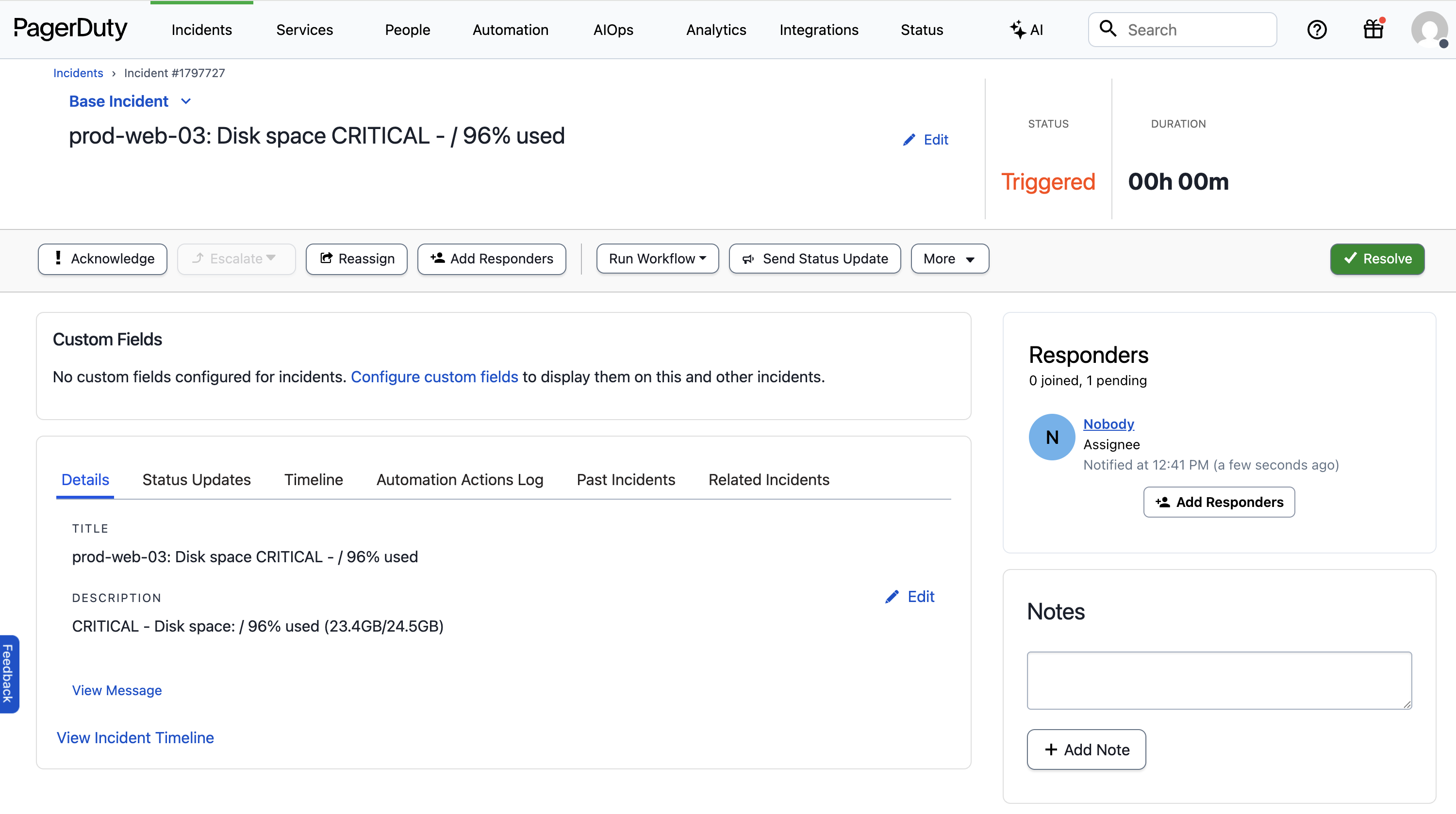 ## Creating A Disk Space Investigation Agent
Let's create an Agent that runs every time we get a critical disk space alert
in PagerDuty. Our Agent will grab the host from the alert,
check disk usage remotely, identify the largest directories and files, and
search recent logs for clues about what consumed the space.
After [installing Unpage](/), create the agent by running:
```bash theme={null}
$ unpage agent create disk_space_alerts
```
A yaml file will open in your `$EDITOR`. Paste the following Agent definition
into the file:
```yaml theme={null}
description: Handle critical disk space alerts
prompt: >
- Extract the host from the PagerDuty alert
- Use shell command: `shell_check_disk_space` to get disk usage and identify largest directories
- Use shell command: `shell_check_large_files` to find large files in common problem directories
- Search SolarWinds for recent disk space warnings or errors from this host
- Create a status update with:
- Which partition is full
- Top directories consuming space
- Largest files in /var/log, /tmp, and docker directories
- Post findings to PagerDuty with add_pagerduty_status_update for manual review and action
tools:
- "shell_check_disk_space"
- "shell_check_large_files"
- "solarwinds_search_logs"
- "pagerduty_post_status_update"
```
Let's dig in to what each section of the yaml file does:
### Description: When the agent should run
The `description` of an Agent is used by the [Router](/concepts/router) to
decide which Agent to run for a given input. In this example we want the Agent
to run only when the alert is about critical disk space issues.
### Prompt: What the agent should do
The `prompt` is where you give the Agent instructions, written in a runbook
format. Make sure any instructions you give are achievable using the tools
you have allowed the Agent to use (see below).
### Tools: What the agent is allowed to use
The `tools` section explicitly grants permission to use specific tools. You can
list individual tools, or use wildcards and regex patterns to limit what the
Agent can use.
To see all of the available tools your Unpage installation has access to, run:
```bash theme={null}
$ unpage mcp tools list
```
In our example we added the `shell_check_disk_space` and `shell_check_large_files`,
which are custom [shell commands](/plugins/shell) that check disk usage and
identify large files on remote instances. Custom shell commands allow you to
extend the functionality of Unpage without having to write a new plugin.
## Defining Custom Tools
To add our custom disk space investigation tools, edit `~/.unpage/profiles/default/config.yaml`
and add the following:
```yaml theme={null}
plugins:
# ...
shell:
enabled: true
settings:
commands:
- handle: check_disk_space
description: Check the disk space of a host.
command: ssh -o StrictHostKeyChecking=no ec2-user@{host} 'df -h && echo "---" && du -h / --max-depth=2 2>/dev/null | sort -hr | head -20'
args:
host: The hostname or IP address of the host to check the disk space for
- handle: check_large_files
description: Check the large files in a host.
command: ssh -o StrictHostKeyChecking=no ec2-user@{host} 'find /var/log /tmp /var/lib/docker -type f -size +100M 2>/dev/null | xargs -I {{}} ls -lh {{}} | sort -k5 -hr | head -20'
args:
host: The hostname or IP address of the host to check the large files for
```
Shell commands have full access to your environment and can run custom scripts
or call internal tools. These commands use SSH to remotely execute disk analysis
on the affected instances. See [shell commands](/plugins/shell) for more details.
## Running Your Agent
With your Agent configured and the custom disk space investigation tools added,
we are ready to test it on a real PagerDuty alert.
### Testing on an existing alert
To test your Agent locally on a specific PagerDuty alert, run:
```bash theme={null}
# You can pass in a PagerDuty incident ID or URL
$ unpage agent run disk_space_alerts --pagerduty-incident Q1DGVOC3O61S10
```
### Listening for webhooks
To have your Agent listen for new PagerDuty alerts as they happen, run
`unpage agent serve` and add the webhook URL to your PagerDuty account:
```bash theme={null}
# Webhook listener on localhost:8000/webhook
$ unpage agent serve
# Webhook listener on your_ngrok_domain/webhook
$ unpage agent serve --tunnel --ngrok-token your_ngrok_token
```
## Example Output
Your Agent will update the PagerDuty alert with:
* Current disk usage percentages for all partitions
* Top 20 directories consuming the most space
* Largest files in common problem directories (/var/log, /tmp, /var/lib/docker)
* Recent log entries from SolarWinds indicating disk space warnings
* Actionable recommendations for immediate space cleanup
## Creating A Disk Space Investigation Agent
Let's create an Agent that runs every time we get a critical disk space alert
in PagerDuty. Our Agent will grab the host from the alert,
check disk usage remotely, identify the largest directories and files, and
search recent logs for clues about what consumed the space.
After [installing Unpage](/), create the agent by running:
```bash theme={null}
$ unpage agent create disk_space_alerts
```
A yaml file will open in your `$EDITOR`. Paste the following Agent definition
into the file:
```yaml theme={null}
description: Handle critical disk space alerts
prompt: >
- Extract the host from the PagerDuty alert
- Use shell command: `shell_check_disk_space` to get disk usage and identify largest directories
- Use shell command: `shell_check_large_files` to find large files in common problem directories
- Search SolarWinds for recent disk space warnings or errors from this host
- Create a status update with:
- Which partition is full
- Top directories consuming space
- Largest files in /var/log, /tmp, and docker directories
- Post findings to PagerDuty with add_pagerduty_status_update for manual review and action
tools:
- "shell_check_disk_space"
- "shell_check_large_files"
- "solarwinds_search_logs"
- "pagerduty_post_status_update"
```
Let's dig in to what each section of the yaml file does:
### Description: When the agent should run
The `description` of an Agent is used by the [Router](/concepts/router) to
decide which Agent to run for a given input. In this example we want the Agent
to run only when the alert is about critical disk space issues.
### Prompt: What the agent should do
The `prompt` is where you give the Agent instructions, written in a runbook
format. Make sure any instructions you give are achievable using the tools
you have allowed the Agent to use (see below).
### Tools: What the agent is allowed to use
The `tools` section explicitly grants permission to use specific tools. You can
list individual tools, or use wildcards and regex patterns to limit what the
Agent can use.
To see all of the available tools your Unpage installation has access to, run:
```bash theme={null}
$ unpage mcp tools list
```
In our example we added the `shell_check_disk_space` and `shell_check_large_files`,
which are custom [shell commands](/plugins/shell) that check disk usage and
identify large files on remote instances. Custom shell commands allow you to
extend the functionality of Unpage without having to write a new plugin.
## Defining Custom Tools
To add our custom disk space investigation tools, edit `~/.unpage/profiles/default/config.yaml`
and add the following:
```yaml theme={null}
plugins:
# ...
shell:
enabled: true
settings:
commands:
- handle: check_disk_space
description: Check the disk space of a host.
command: ssh -o StrictHostKeyChecking=no ec2-user@{host} 'df -h && echo "---" && du -h / --max-depth=2 2>/dev/null | sort -hr | head -20'
args:
host: The hostname or IP address of the host to check the disk space for
- handle: check_large_files
description: Check the large files in a host.
command: ssh -o StrictHostKeyChecking=no ec2-user@{host} 'find /var/log /tmp /var/lib/docker -type f -size +100M 2>/dev/null | xargs -I {{}} ls -lh {{}} | sort -k5 -hr | head -20'
args:
host: The hostname or IP address of the host to check the large files for
```
Shell commands have full access to your environment and can run custom scripts
or call internal tools. These commands use SSH to remotely execute disk analysis
on the affected instances. See [shell commands](/plugins/shell) for more details.
## Running Your Agent
With your Agent configured and the custom disk space investigation tools added,
we are ready to test it on a real PagerDuty alert.
### Testing on an existing alert
To test your Agent locally on a specific PagerDuty alert, run:
```bash theme={null}
# You can pass in a PagerDuty incident ID or URL
$ unpage agent run disk_space_alerts --pagerduty-incident Q1DGVOC3O61S10
```
### Listening for webhooks
To have your Agent listen for new PagerDuty alerts as they happen, run
`unpage agent serve` and add the webhook URL to your PagerDuty account:
```bash theme={null}
# Webhook listener on localhost:8000/webhook
$ unpage agent serve
# Webhook listener on your_ngrok_domain/webhook
$ unpage agent serve --tunnel --ngrok-token your_ngrok_token
```
## Example Output
Your Agent will update the PagerDuty alert with:
* Current disk usage percentages for all partitions
* Top 20 directories consuming the most space
* Largest files in common problem directories (/var/log, /tmp, /var/lib/docker)
* Recent log entries from SolarWinds indicating disk space warnings
* Actionable recommendations for immediate space cleanup
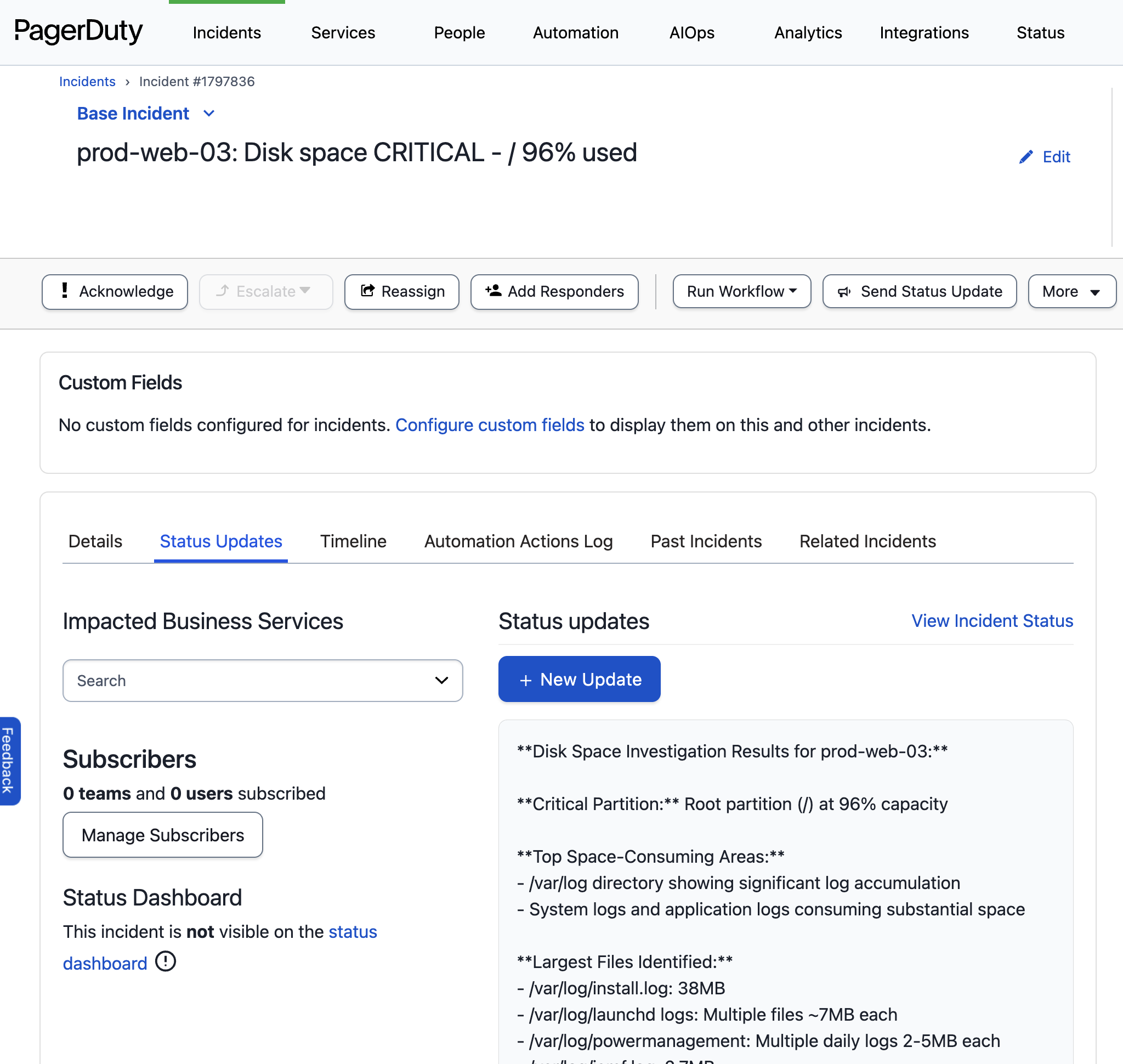 # GitHub Actions Build Failures
Source: https://docs.unpage.ai/examples/failing_gha_build
You can use Unpage to automatically diagnose and fix many common build and
deployment issues, from dependency conflicts to test failures to configuration
errors.
Instead of manually digging through logs and debugging, your agent analyzes the
failure, applies a fix using [Claude Code Headless Mode](https://docs.anthropic.com/en/docs/claude-code/sdk/sdk-headless),
and opens a pull request for your review.
This keeps humans in control of what gets merged while eliminating the tedious
parts of build failure investigation. Your team stays unblocked, deployments
resume faster, and engineers can focus on reviewing solutions rather than hunting
for problems.
## Example Build Failure
# GitHub Actions Build Failures
Source: https://docs.unpage.ai/examples/failing_gha_build
You can use Unpage to automatically diagnose and fix many common build and
deployment issues, from dependency conflicts to test failures to configuration
errors.
Instead of manually digging through logs and debugging, your agent analyzes the
failure, applies a fix using [Claude Code Headless Mode](https://docs.anthropic.com/en/docs/claude-code/sdk/sdk-headless),
and opens a pull request for your review.
This keeps humans in control of what gets merged while eliminating the tedious
parts of build failure investigation. Your team stays unblocked, deployments
resume faster, and engineers can focus on reviewing solutions rather than hunting
for problems.
## Example Build Failure
 ## Creating A GitHub Actions Build Failure Agent
Let's create an Agent that runs every time we get a GitHub Actions build failure
alert. Our Agent will extract the workflow and job details from the
alert, fetch the failing job logs, analyze the specific error, use Claude Code
to automatically fix the issue, and create a pull request with the fix.
After [installing Unpage](/), create the agent by running:
```bash theme={null}
$ unpage agent create failing_gha_build
```
A yaml file will open in your `$EDITOR`. Paste the following Agent definition
into the file:
```yaml theme={null}
description: Investigate a failed GitHub Actions workflow (on a main branch or a release; not relevant to pull request failures)
prompt: >
- Extract the repository name from the PagerDuty alert
- Use `shell_get_last_failing_run` to get the most recent failing GitHub Actions run ID for the repository
- Use `shell_fetch_run_logs` to fetch the complete logs from the failing run
- Use `shell_noninteractive_claude_code_run` to provide the error logs to Claude Code and ask it to fix the error
- If Claude Code successfully made a change, use `shell_commit_and_open_pull_request` to commit that change and open a pull request with Claude Code's explanation of the fix in the description for human review
- If Claude Code did not successfully make a change, log the output and stop - no automated action will be taken and human intervention is required
tools:
- "shell_get_last_failing_run"
- "shell_fetch_run_logs"
- "shell_noninteractive_claude_code_run"
- "shell_commit_and_open_pull_request"
```
Let's dig in to what each section of the yaml file does:
### Description: When the agent should run
The `description` of an Agent is used by the [Router](/concepts/router) to
decide which Agent to run for a given input. In this example we want the Agent
to run only when the alert is about GitHub Actions workflow failures on main
branches or releases, not pull request failures.
### Prompt: What the agent should do
The `prompt` is where you give the Agent instructions, written in a runbook
format. Make sure any instructions you give are achievable using the tools
you have allowed the Agent to use (see below).
### Tools: What the agent is allowed to use
The `tools` section explicitly grants permission to use specific tools. You can
list individual tools, or use wildcards and regex patterns to limit what the
Agent can use.
To see all of the available tools your Unpage installation has access to, run:
```bash theme={null}
$ unpage mcp tools list
```
In our example we added several custom shell commands for GitHub Actions diagnostics:
* `shell_get_last_failing_run`
* `shell_fetch_run_logs`
* `shell_noninteractive_claude_code_run`
* `shell_commit_and_open_pull_request`
These are custom [shell commands](/plugins/shell) that use the [GitHub CLI](https://cli.github.com/) (`gh`),
Claude Code in [Headless Mode](https://docs.anthropic.com/en/docs/claude-code/sdk/sdk-headless),
and standard git commands to interact with GitHub Actions and automate fixes.
Custom shell commands allow you to extend the functionality of Unpage without
having to write a new plugin.
## Defining Custom Tools
To add our custom GitHub Actions analysis and automation tools, edit `~/.unpage/profiles/default/config.yaml`
and add the following:
```yaml theme={null}
plugins:
# ...
shell:
enabled: true
settings:
commands:
- handle: get_last_failing_run
description: Get the most recent failing GitHub Actions run ID for a repository.
command: gh run list --repo {github_repo} --status failure --limit 1 --json databaseId --jq '.[0].databaseId'
args:
github_repo: The GitHub repository in owner/repo format
- handle: fetch_run_logs
description: Fetch complete logs from a specific GitHub Actions run.
command: gh run view {run_id} --repo {github_repo} --log
args:
run_id: The GitHub Actions run ID
github_repo: The GitHub repository in owner/repo format
- handle: noninteractive_claude_code_run
description: Run Claude Code in non-interactive mode to analyze and fix GitHub Actions build errors.
command: |
cd {repo_path} && echo "{log_content}" | claude -p --append-system-prompt "The GitHub Actions build failed. Here are the relevant error logs from the failing run. Please analyze the error and fix the problem in the codebase."
args:
repo_path: The local path to the git repository
log_content: The relevant error logs from the failing GitHub Actions run
- handle: commit_and_open_pull_request
description: Commit changes and open a pull request with the fix.
command: |
cd {repo_path} &&
git checkout -b {head_branch_name} &&
git add -A &&
git commit -m "{commit_message}" &&
git push -u origin {head_branch_name} &&
gh pr create --title "🤖 Automated fix for failing GitHub Actions build" --body "{pr_description}" --base {base_branch_name} --head {head_branch_name} --repo {github_repo}
args:
repo_path: The local path to the git repository
github_repo: The GitHub repo on which to open the pull request
head_branch_name: The name of a branch to which the commit should be pushed
base_branch_name: The name of the target branch for the pull request
commit_message: A commit message to use for the single commit
pr_description: A description for the pull request
```
Shell commands have full access to your environment and can run the GitHub CLI
(`gh`) and git commands. Make sure you have the GitHub CLI installed and
authenticated (`gh auth login`) and that the repository is cloned locally.
See [shell commands](/plugins/shell) for more details.
## Running Your Agent
With your Agent configured and the custom GitHub Actions automation tools added,
we are ready to test it on a real PagerDuty alert.
### Testing on an existing alert
To test your Agent locally on a specific PagerDuty alert, run:
```bash theme={null}
# You can pass in a PagerDuty incident ID or URL
$ unpage agent run failing_gha_build --pagerduty-incident Q1GHA7X8Y2Z9A3
```
### Listening for webhooks
To have your Agent listen for new PagerDuty alerts as they happen, run
`unpage agent serve` and add the webhook URL to your PagerDuty account:
```bash theme={null}
# Webhook listener on localhost:8000/webhook
$ unpage agent serve
# Webhook listener on your_ngrok_domain/webhook
$ unpage agent serve --tunnel --ngrok-token your_ngrok_token
```
## Example Output
Your Agent will:
* Extract the repository name from the alert
* Query GitHub Actions for the most recent failing run ID using `gh run list`
* Fetch complete logs from the failing run using `gh run view --log`
* Use Claude Code to analyze the root cause and attempt an automated fix
* Create a pull request with the automated fix (if successful) for human review
* Provide detailed explanation of what was changed and why in the PR description
* Stop and wait for human intervention if no automated fix could be applied
The Agent transforms a disruptive build failure into an automated investigation
and fix attempt, creating a pull request for human review rather than automatically
merging changes, ensuring code quality while dramatically reducing time to resolution.
## Production Deployment
To deploy this agent to production, see our [Deployment Guide](/howto/deployment-guide).
# Kubernetes Crash Loop Backoff
Source: https://docs.unpage.ai/examples/k8s_crash_loop_backoff
Kubernetes pods stuck in crash loops are among the most urgent production issues
you'll face as an SRE. When a pod continuously fails to start, restarting every
few seconds or minutes, it can take down critical services and leave users unable
to access your application. The crash loop might be caused by application bugs,
missing dependencies, resource constraints, configuration errors, or connectivity
issues to external services.
Every crash loop investigation follows the same tedious pattern: checking pod
status and events, reviewing container logs from current and previous restarts,
examining resource usage to identify OOM kills, verifying configuration and
secrets, and testing connectivity to dependencies. You're frantically switching
between `kubectl` commands while production is down and users are impacted.
## Example Alert
Here is an example Kubernetes crash loop alert our Agent will investigate:
```
[01:23:45 AM] CRITICAL - Pod CrashLoopBackOff
Namespace: production
Pod: api-server-deployment-7d8f6b9c4-x7k2m
Restarts: 15
Last State: Terminated (exit code 1)
```
## Creating A Kubernetes Crash Loop Investigation Agent
Let's create an Agent that runs every time we get a pod crash loop alert. Our
Agent will extract the pod and namespace from the alert,
analyze the pod's status and events, examine container logs from current and
previous restarts, check resource usage for OOM kills, verify configuration
dependencies, and test connectivity to external services.
After [installing Unpage](/), create the agent by running:
```bash theme={null}
$ unpage agent create k8s_crash_loop_backoff
```
A yaml file will open in your `$EDITOR`. Paste the following Agent definition
into the file:
```yaml theme={null}
description: Investigate Kubernetes pods stuck in crash loops
prompt: >
- Extract pod name and namespace from the PagerDuty alert
- Use `shell_kubectl_get_pod` to get current pod status, restart count, and container states
- Use `shell_kubectl_describe_pod` to get detailed pod information and recent events
- Use `shell_kubectl_logs_current` to get current container logs
- Use `shell_kubectl_logs_previous` to get logs from the previous failed container
- Use `shell_kubectl_get_events` to get cluster events related to the pod and namespace
- Use `shell_kubectl_top_pod` to check current resource usage and identify potential OOM issues
- Use `shell_kubectl_get_configmaps` to verify referenced ConfigMaps exist
- Use `shell_kubectl_get_secrets` to verify referenced Secrets exist
- Use search_datadog_logs to search for application errors and stack traces from the pod
- If the pod depends on external services, use get_resource_with_neighbors to identify them
- For each external dependency, use ping or appropriate connectivity tools to verify reachability
- Analyze all collected data to determine the root cause:
- Application crashes (check exit codes and error logs)
- Resource constraints (OOM kills, CPU throttling)
- Configuration issues (missing ConfigMaps/Secrets, bad environment variables)
- Connectivity problems (external service failures, DNS issues)
- Image pull failures (registry authentication, missing tags)
- Create a comprehensive status update including:
- Pod restart count and crash frequency pattern
- Exit codes and termination reasons
- Critical error messages from logs
- Resource usage patterns and OOM evidence
- Missing or invalid configurations
- External dependency status
- Root cause analysis and recommended immediate actions
- Post findings to PagerDuty with pagerduty_post_status_update for immediate remediation
tools:
- "shell_kubectl_get_pod"
- "shell_kubectl_describe_pod"
- "shell_kubectl_logs_current"
- "shell_kubectl_logs_previous"
- "shell_kubectl_get_events"
- "shell_kubectl_top_pod"
- "shell_kubectl_get_configmaps"
- "shell_kubectl_get_secrets"
- "search_datadog_logs"
- "get_resource_with_neighbors"
- "ping"
- "pagerduty_post_status_update"
```
Let's dig in to what each section of the yaml file does:
### Description: When the agent should run
The `description` of an Agent is used by the [Router](/concepts/router) to
decide which Agent to run for a given input. In this example we want the Agent
to run only when the alert is about Kubernetes pod crash loops or CrashLoopBackOff.
### Prompt: What the agent should do
The `prompt` is where you give the Agent instructions, written in a runbook
format. Make sure any instructions you give are achievable using the tools
you have allowed the Agent to use (see below).
### Tools: What the agent is allowed to use
The `tools` section explicitly grants permission to use specific tools. You can
list individual tools, or use wildcards and regex patterns to limit what the
Agent can use.
To see all of the available tools your Unpage installation has access to, run:
```bash theme={null}
$ unpage mcp tools list
```
In our example we added several custom kubectl commands for Kubernetes diagnostics:
* `shell_kubectl_get_pod`
* `shell_kubectl_describe_pod`
* `shell_kubectl_logs_current`
* `shell_kubectl_logs_previous`
* `shell_kubectl_get_events`
* `shell_kubectl_top_pod`
* `shell_kubectl_get_configmaps`
* `shell_kubectl_get_secrets`
These are custom [shell commands](/plugins/shell) that use kubectl to diagnose
pod crash loops. Custom shell commands allow you to extend the functionality of
Unpage without having to write a new plugin.
## Defining Custom Tools
To add our custom Kubernetes analysis tools, edit `~/.unpage/profiles/default/config.yaml`
and add the following:
```yaml theme={null}
plugins:
# ...
shell:
enabled: true
settings:
commands:
- handle: kubectl_get_pod
description: Get detailed pod status including restarts and container states.
command: kubectl get pod {pod_name} -n {namespace} -o wide
args:
pod_name: The name of the pod to inspect
namespace: The Kubernetes namespace containing the pod
- handle: kubectl_describe_pod
description: Get detailed pod description including events and container status.
command: kubectl describe pod {pod_name} -n {namespace}
args:
pod_name: The name of the pod to inspect
namespace: The Kubernetes namespace containing the pod
- handle: kubectl_logs_current
description: Get current container logs from the pod.
command: kubectl logs {pod_name} -n {namespace} --tail=100 --timestamps
args:
pod_name: The name of the pod to get logs from
namespace: The Kubernetes namespace containing the pod
- handle: kubectl_logs_previous
description: Get logs from the previous failed container instance.
command: kubectl logs {pod_name} -n {namespace} --previous --tail=100 --timestamps || echo "No previous container logs available"
args:
pod_name: The name of the pod to get previous logs from
namespace: The Kubernetes namespace containing the pod
- handle: kubectl_get_events
description: Get Kubernetes events related to the pod and namespace.
command: kubectl get events -n {namespace} --field-selector involvedObject.name={pod_name} --sort-by='.lastTimestamp'
args:
pod_name: The name of the pod to get events for
namespace: The Kubernetes namespace to search for events
- handle: kubectl_top_pod
description: Get current resource usage for the pod to identify OOM or resource constraints.
command: kubectl top pod {pod_name} -n {namespace} --containers || echo "Metrics server not available or pod not running"
args:
pod_name: The name of the pod to check resource usage
namespace: The Kubernetes namespace containing the pod
- handle: kubectl_get_configmaps
description: List ConfigMaps in the namespace to verify pod dependencies.
command: kubectl get configmaps -n {namespace}
args:
pod_name: The name of the pod to check ConfigMap references
namespace: The Kubernetes namespace to search
- handle: kubectl_get_secrets
description: List Secrets in the namespace to verify pod dependencies.
command: kubectl get secrets -n {namespace}
args:
pod_name: The name of the pod to check Secret references
namespace: The Kubernetes namespace to search
```
Shell commands have full access to your environment and can run kubectl commands
against your Kubernetes clusters. Make sure your kubectl context is configured
correctly and you have appropriate RBAC permissions. See [shell commands](/plugins/shell)
for more details.
## Running Your Agent
With your Agent configured and the custom Kubernetes analysis tools added,
we are ready to test it on a real PagerDuty alert.
### Testing on an existing alert
To test your Agent locally on a specific PagerDuty alert, run:
```bash theme={null}
# You can pass in a PagerDuty incident ID or URL
$ unpage agent run k8s_crash_loop_backoff --pagerduty-incident Q1K8SLOOP42X9Z
```
### Listening for webhooks
To have your Agent listen for new PagerDuty alerts as they happen, run
`unpage agent serve` and add the webhook URL to your PagerDuty account:
```bash theme={null}
# Webhook listener on localhost:8000/webhook
$ unpage agent serve
# Webhook listener on your_ngrok_domain/webhook
$ unpage agent serve --tunnel --ngrok-token your_ngrok_token
```
## Example Output
Your Agent will update the alert with:
* Current pod status, restart count, and crash frequency analysis
* Container exit codes and termination reasons from recent restarts
* Critical error messages and stack traces from current and previous logs
* Kubernetes events showing scheduling, pulling, or startup failures
* Resource usage patterns indicating OOM kills or CPU throttling
* Verification of ConfigMaps, Secrets, and other configuration dependencies
* External service connectivity test results
* Root cause analysis with specific remediation recommendations
The Agent transforms a frantic crash loop investigation into a structured analysis,
providing the exact information needed to quickly identify whether the issue is
application code, resource constraints, configuration problems, or infrastructure,
enabling faster resolution and reduced downtime.
# Slack Notifications
Source: https://docs.unpage.ai/examples/slack_notifications
Sending timely, context-rich notifications to your team is essential for effective incident response. When alerts fire, your team needs immediate visibility with enough context to understand the situation without diving into multiple monitoring tools.
This example shows how to create an Unpage agent that automatically enriches alerts from your monitoring system and posts detailed notifications to Slack. The agent will analyze incoming alerts, gather additional context, and format clear, actionable messages for your team.
## Use Case
Post messages to a Slack channel as part of your Unpage agents!
## Prerequisites
Before creating this agent, you'll need:
1. [Unpage installed](/) on your system
2. A [Slack webhook URL](/plugins/slack#prerequisites) for your target channel
3. Optionally: Other plugins configured ([Datadog](/plugins/datadog), [AWS](/plugins/aws), etc.) for enrichment
## Creating a Slack Notification Agent
After installing Unpage, create a new agent:
```bash theme={null}
$ unpage agent create slack_alert_notifier
```
A YAML file will open in your `$EDITOR`. Here's an example agent configuration:
```yaml theme={null}
description: Enrich monitoring alerts and post to Slack
prompt: >
You are responding to a monitoring alert. Your job is to:
1. Parse the alert payload to extract:
- Alert severity/priority
- Affected service or resource
- Alert description and any error messages
- Timestamp
2. Gather additional context:
- If the alert mentions specific infrastructure (EC2 instances, databases, etc.),
use the knowledge graph to find related resources
- Check recent metrics if available
- Look for similar recent incidents
3. Format a clear Slack message that includes:
- Alert title and severity (use emojis: 🔴 critical, 🟡 warning, 🟢 info)
- Affected service/resource with links when available
- Summary of the issue
- Key metrics or context you gathered
- Suggested next steps or runbook links if applicable
4. Post the formatted message to the #incidents Slack channel using slack_post_to_incidents
tools:
- "slack_post_to_incidents"
- "graph_*" # Allow graph queries for enrichment
- "datadog_*" # If you have Datadog configured
```
## Configure the Slack Plugin
Make sure your Slack plugin is configured with the webhook URL ([slack webhook documentation](https://docs.slack.dev/messaging/sending-messages-using-incoming-webhooks/)). Run:
```bash theme={null}
$ unpage configure
```
Select the Slack plugin and enter your webhook URL when prompted. Or edit `~/.unpage/profiles/default/config.yaml`:
```yaml theme={null}
plugins:
slack:
enabled: true
settings:
channels:
- name: incidents
description: Post incident updates and alerts
webhook_url: https://hooks.slack.com/services/YOUR/WEBHOOK/URL
```
## Testing Your Agent
### Test with a Sample Alert
Create a test alert payload in JSON format:
```json theme={null}
{
"alert_name": "High CPU Usage",
"severity": "critical",
"service": "web-api",
"description": "CPU usage exceeded 90% for 5 minutes",
"timestamp": "2025-01-15T10:30:00Z",
"instance_id": "i-1234567890abcdef0"
}
```
Save it to a file (e.g., `test_alert.json`) and run:
```bash theme={null}
$ unpage agent run slack_alert_notifier test_alert.json
```
The agent will process the alert and post a message to your Slack channel.
### Test with Live Alerts
For testing with actual monitoring alerts, you can:
1. **Use an existing PagerDuty incident:**
```bash theme={null}
$ unpage agent run slack_alert_notifier https://yourcompany.pagerduty.com/incidents/ABC123
```
2. **Set up a webhook endpoint:**
```bash theme={null}
# Start the webhook server
$ unpage agent serve
# Or with ngrok for external access
$ unpage agent serve --tunnel
```
Then configure your monitoring tool to send webhooks to the provided URL.
## Example Output
When an alert comes in, your agent will post a message to Slack like:
```
🔴 CRITICAL: High CPU Usage on web-api
Service: web-api (EC2 instance i-1234567890abcdef0)
Region: us-east-1
Issue: CPU usage exceeded 90% for 5 minutes
Current CPU: 94.2%
Related Resources:
• Load Balancer: web-api-lb (healthy)
• Database: web-api-db-primary (normal load)
Suggested Actions:
1. Check application logs for errors or unusual activity
2. Review recent deployments (last deploy: 2 hours ago)
3. Consider scaling horizontally if sustained high load
Runbook: https://docs.yourcompany.com/runbooks/high-cpu
```
## Advanced: Multiple Channels
You can configure multiple Slack channels for different alert types:
```yaml theme={null}
plugins:
slack:
enabled: true
settings:
channels:
- name: incidents
description: Critical incidents requiring immediate attention
webhook_url: https://hooks.slack.com/services/YOUR/WEBHOOK/URL1
- name: alerts
description: Warning-level alerts for monitoring
webhook_url: https://hooks.slack.com/services/YOUR/WEBHOOK/URL2
- name: deployments
description: Deployment notifications
webhook_url: https://hooks.slack.com/services/YOUR/WEBHOOK/URL3
```
Then create different agents or use conditional logic in your agent prompts to route to different channels based on severity:
```yaml theme={null}
prompt: >
- Parse the alert to determine severity
- If critical or high: use slack_post_to_incidents
- If warning or info: use slack_post_to_alerts
- Format the message appropriately for the severity level
```
## Integrating with Other Monitoring Tools
This pattern works with any monitoring tool that can send webhooks or has a plugin:
* **Datadog**: Configure Datadog plugin and webhook
* **Grafana**: Send Grafana webhook to Unpage
* **CloudWatch**: Use AWS plugin + CloudWatch alarms
* **Custom scripts**: Any JSON payload sent to the webhook endpoint
See our [Custom Alerts plugin](/plugins/customalerts) documentation for more details on accepting webhooks from any source.
## Production Deployment
For production use, deploy Unpage as a service that continuously listens for webhooks. See our [Deployment Guide](/howto/deployment-guide) for details on:
* Running Unpage in Docker
* Setting up with Kubernetes
* Configuring CI/CD with GitHub Actions
* Monitoring and logging best practices
# SSL Connection Failures
Source: https://docs.unpage.ai/examples/ssl_connection_failure
SSL and TLS connection failures are common, with most SRE teams regularly having
to investigate and respond to these types of alerts. These failures happen for
various reasons—expired certificates, misconfigured cipher suites after deployments,
certificate chain issues, or DNS problems—and they often strike at the worst
times: peak traffic hours, middle of the night, or when your team is already swamped.
What makes these alerts particularly frustrating is the repetitive investigation
required. Each alert demands manually checking certificate expirations, verifying
chains, testing TLS versions, and correlating logs across systems—taking 15-30
minutes per incident. This predictable, procedural work is perfect for automation:
the investigation steps are consistent, the data sources are well-defined, and
the triage decisions follow clear patterns.
In this example, we'll show how to create an SRE agent using Unpage that will
automatically investigate SSL and TLS connection failures, so a human SRE can
resolve production SSL issues faster than ever before.
## Example Alert
Here is the example PagerDuty alert our Agent will investigate:
## Creating A GitHub Actions Build Failure Agent
Let's create an Agent that runs every time we get a GitHub Actions build failure
alert. Our Agent will extract the workflow and job details from the
alert, fetch the failing job logs, analyze the specific error, use Claude Code
to automatically fix the issue, and create a pull request with the fix.
After [installing Unpage](/), create the agent by running:
```bash theme={null}
$ unpage agent create failing_gha_build
```
A yaml file will open in your `$EDITOR`. Paste the following Agent definition
into the file:
```yaml theme={null}
description: Investigate a failed GitHub Actions workflow (on a main branch or a release; not relevant to pull request failures)
prompt: >
- Extract the repository name from the PagerDuty alert
- Use `shell_get_last_failing_run` to get the most recent failing GitHub Actions run ID for the repository
- Use `shell_fetch_run_logs` to fetch the complete logs from the failing run
- Use `shell_noninteractive_claude_code_run` to provide the error logs to Claude Code and ask it to fix the error
- If Claude Code successfully made a change, use `shell_commit_and_open_pull_request` to commit that change and open a pull request with Claude Code's explanation of the fix in the description for human review
- If Claude Code did not successfully make a change, log the output and stop - no automated action will be taken and human intervention is required
tools:
- "shell_get_last_failing_run"
- "shell_fetch_run_logs"
- "shell_noninteractive_claude_code_run"
- "shell_commit_and_open_pull_request"
```
Let's dig in to what each section of the yaml file does:
### Description: When the agent should run
The `description` of an Agent is used by the [Router](/concepts/router) to
decide which Agent to run for a given input. In this example we want the Agent
to run only when the alert is about GitHub Actions workflow failures on main
branches or releases, not pull request failures.
### Prompt: What the agent should do
The `prompt` is where you give the Agent instructions, written in a runbook
format. Make sure any instructions you give are achievable using the tools
you have allowed the Agent to use (see below).
### Tools: What the agent is allowed to use
The `tools` section explicitly grants permission to use specific tools. You can
list individual tools, or use wildcards and regex patterns to limit what the
Agent can use.
To see all of the available tools your Unpage installation has access to, run:
```bash theme={null}
$ unpage mcp tools list
```
In our example we added several custom shell commands for GitHub Actions diagnostics:
* `shell_get_last_failing_run`
* `shell_fetch_run_logs`
* `shell_noninteractive_claude_code_run`
* `shell_commit_and_open_pull_request`
These are custom [shell commands](/plugins/shell) that use the [GitHub CLI](https://cli.github.com/) (`gh`),
Claude Code in [Headless Mode](https://docs.anthropic.com/en/docs/claude-code/sdk/sdk-headless),
and standard git commands to interact with GitHub Actions and automate fixes.
Custom shell commands allow you to extend the functionality of Unpage without
having to write a new plugin.
## Defining Custom Tools
To add our custom GitHub Actions analysis and automation tools, edit `~/.unpage/profiles/default/config.yaml`
and add the following:
```yaml theme={null}
plugins:
# ...
shell:
enabled: true
settings:
commands:
- handle: get_last_failing_run
description: Get the most recent failing GitHub Actions run ID for a repository.
command: gh run list --repo {github_repo} --status failure --limit 1 --json databaseId --jq '.[0].databaseId'
args:
github_repo: The GitHub repository in owner/repo format
- handle: fetch_run_logs
description: Fetch complete logs from a specific GitHub Actions run.
command: gh run view {run_id} --repo {github_repo} --log
args:
run_id: The GitHub Actions run ID
github_repo: The GitHub repository in owner/repo format
- handle: noninteractive_claude_code_run
description: Run Claude Code in non-interactive mode to analyze and fix GitHub Actions build errors.
command: |
cd {repo_path} && echo "{log_content}" | claude -p --append-system-prompt "The GitHub Actions build failed. Here are the relevant error logs from the failing run. Please analyze the error and fix the problem in the codebase."
args:
repo_path: The local path to the git repository
log_content: The relevant error logs from the failing GitHub Actions run
- handle: commit_and_open_pull_request
description: Commit changes and open a pull request with the fix.
command: |
cd {repo_path} &&
git checkout -b {head_branch_name} &&
git add -A &&
git commit -m "{commit_message}" &&
git push -u origin {head_branch_name} &&
gh pr create --title "🤖 Automated fix for failing GitHub Actions build" --body "{pr_description}" --base {base_branch_name} --head {head_branch_name} --repo {github_repo}
args:
repo_path: The local path to the git repository
github_repo: The GitHub repo on which to open the pull request
head_branch_name: The name of a branch to which the commit should be pushed
base_branch_name: The name of the target branch for the pull request
commit_message: A commit message to use for the single commit
pr_description: A description for the pull request
```
Shell commands have full access to your environment and can run the GitHub CLI
(`gh`) and git commands. Make sure you have the GitHub CLI installed and
authenticated (`gh auth login`) and that the repository is cloned locally.
See [shell commands](/plugins/shell) for more details.
## Running Your Agent
With your Agent configured and the custom GitHub Actions automation tools added,
we are ready to test it on a real PagerDuty alert.
### Testing on an existing alert
To test your Agent locally on a specific PagerDuty alert, run:
```bash theme={null}
# You can pass in a PagerDuty incident ID or URL
$ unpage agent run failing_gha_build --pagerduty-incident Q1GHA7X8Y2Z9A3
```
### Listening for webhooks
To have your Agent listen for new PagerDuty alerts as they happen, run
`unpage agent serve` and add the webhook URL to your PagerDuty account:
```bash theme={null}
# Webhook listener on localhost:8000/webhook
$ unpage agent serve
# Webhook listener on your_ngrok_domain/webhook
$ unpage agent serve --tunnel --ngrok-token your_ngrok_token
```
## Example Output
Your Agent will:
* Extract the repository name from the alert
* Query GitHub Actions for the most recent failing run ID using `gh run list`
* Fetch complete logs from the failing run using `gh run view --log`
* Use Claude Code to analyze the root cause and attempt an automated fix
* Create a pull request with the automated fix (if successful) for human review
* Provide detailed explanation of what was changed and why in the PR description
* Stop and wait for human intervention if no automated fix could be applied
The Agent transforms a disruptive build failure into an automated investigation
and fix attempt, creating a pull request for human review rather than automatically
merging changes, ensuring code quality while dramatically reducing time to resolution.
## Production Deployment
To deploy this agent to production, see our [Deployment Guide](/howto/deployment-guide).
# Kubernetes Crash Loop Backoff
Source: https://docs.unpage.ai/examples/k8s_crash_loop_backoff
Kubernetes pods stuck in crash loops are among the most urgent production issues
you'll face as an SRE. When a pod continuously fails to start, restarting every
few seconds or minutes, it can take down critical services and leave users unable
to access your application. The crash loop might be caused by application bugs,
missing dependencies, resource constraints, configuration errors, or connectivity
issues to external services.
Every crash loop investigation follows the same tedious pattern: checking pod
status and events, reviewing container logs from current and previous restarts,
examining resource usage to identify OOM kills, verifying configuration and
secrets, and testing connectivity to dependencies. You're frantically switching
between `kubectl` commands while production is down and users are impacted.
## Example Alert
Here is an example Kubernetes crash loop alert our Agent will investigate:
```
[01:23:45 AM] CRITICAL - Pod CrashLoopBackOff
Namespace: production
Pod: api-server-deployment-7d8f6b9c4-x7k2m
Restarts: 15
Last State: Terminated (exit code 1)
```
## Creating A Kubernetes Crash Loop Investigation Agent
Let's create an Agent that runs every time we get a pod crash loop alert. Our
Agent will extract the pod and namespace from the alert,
analyze the pod's status and events, examine container logs from current and
previous restarts, check resource usage for OOM kills, verify configuration
dependencies, and test connectivity to external services.
After [installing Unpage](/), create the agent by running:
```bash theme={null}
$ unpage agent create k8s_crash_loop_backoff
```
A yaml file will open in your `$EDITOR`. Paste the following Agent definition
into the file:
```yaml theme={null}
description: Investigate Kubernetes pods stuck in crash loops
prompt: >
- Extract pod name and namespace from the PagerDuty alert
- Use `shell_kubectl_get_pod` to get current pod status, restart count, and container states
- Use `shell_kubectl_describe_pod` to get detailed pod information and recent events
- Use `shell_kubectl_logs_current` to get current container logs
- Use `shell_kubectl_logs_previous` to get logs from the previous failed container
- Use `shell_kubectl_get_events` to get cluster events related to the pod and namespace
- Use `shell_kubectl_top_pod` to check current resource usage and identify potential OOM issues
- Use `shell_kubectl_get_configmaps` to verify referenced ConfigMaps exist
- Use `shell_kubectl_get_secrets` to verify referenced Secrets exist
- Use search_datadog_logs to search for application errors and stack traces from the pod
- If the pod depends on external services, use get_resource_with_neighbors to identify them
- For each external dependency, use ping or appropriate connectivity tools to verify reachability
- Analyze all collected data to determine the root cause:
- Application crashes (check exit codes and error logs)
- Resource constraints (OOM kills, CPU throttling)
- Configuration issues (missing ConfigMaps/Secrets, bad environment variables)
- Connectivity problems (external service failures, DNS issues)
- Image pull failures (registry authentication, missing tags)
- Create a comprehensive status update including:
- Pod restart count and crash frequency pattern
- Exit codes and termination reasons
- Critical error messages from logs
- Resource usage patterns and OOM evidence
- Missing or invalid configurations
- External dependency status
- Root cause analysis and recommended immediate actions
- Post findings to PagerDuty with pagerduty_post_status_update for immediate remediation
tools:
- "shell_kubectl_get_pod"
- "shell_kubectl_describe_pod"
- "shell_kubectl_logs_current"
- "shell_kubectl_logs_previous"
- "shell_kubectl_get_events"
- "shell_kubectl_top_pod"
- "shell_kubectl_get_configmaps"
- "shell_kubectl_get_secrets"
- "search_datadog_logs"
- "get_resource_with_neighbors"
- "ping"
- "pagerduty_post_status_update"
```
Let's dig in to what each section of the yaml file does:
### Description: When the agent should run
The `description` of an Agent is used by the [Router](/concepts/router) to
decide which Agent to run for a given input. In this example we want the Agent
to run only when the alert is about Kubernetes pod crash loops or CrashLoopBackOff.
### Prompt: What the agent should do
The `prompt` is where you give the Agent instructions, written in a runbook
format. Make sure any instructions you give are achievable using the tools
you have allowed the Agent to use (see below).
### Tools: What the agent is allowed to use
The `tools` section explicitly grants permission to use specific tools. You can
list individual tools, or use wildcards and regex patterns to limit what the
Agent can use.
To see all of the available tools your Unpage installation has access to, run:
```bash theme={null}
$ unpage mcp tools list
```
In our example we added several custom kubectl commands for Kubernetes diagnostics:
* `shell_kubectl_get_pod`
* `shell_kubectl_describe_pod`
* `shell_kubectl_logs_current`
* `shell_kubectl_logs_previous`
* `shell_kubectl_get_events`
* `shell_kubectl_top_pod`
* `shell_kubectl_get_configmaps`
* `shell_kubectl_get_secrets`
These are custom [shell commands](/plugins/shell) that use kubectl to diagnose
pod crash loops. Custom shell commands allow you to extend the functionality of
Unpage without having to write a new plugin.
## Defining Custom Tools
To add our custom Kubernetes analysis tools, edit `~/.unpage/profiles/default/config.yaml`
and add the following:
```yaml theme={null}
plugins:
# ...
shell:
enabled: true
settings:
commands:
- handle: kubectl_get_pod
description: Get detailed pod status including restarts and container states.
command: kubectl get pod {pod_name} -n {namespace} -o wide
args:
pod_name: The name of the pod to inspect
namespace: The Kubernetes namespace containing the pod
- handle: kubectl_describe_pod
description: Get detailed pod description including events and container status.
command: kubectl describe pod {pod_name} -n {namespace}
args:
pod_name: The name of the pod to inspect
namespace: The Kubernetes namespace containing the pod
- handle: kubectl_logs_current
description: Get current container logs from the pod.
command: kubectl logs {pod_name} -n {namespace} --tail=100 --timestamps
args:
pod_name: The name of the pod to get logs from
namespace: The Kubernetes namespace containing the pod
- handle: kubectl_logs_previous
description: Get logs from the previous failed container instance.
command: kubectl logs {pod_name} -n {namespace} --previous --tail=100 --timestamps || echo "No previous container logs available"
args:
pod_name: The name of the pod to get previous logs from
namespace: The Kubernetes namespace containing the pod
- handle: kubectl_get_events
description: Get Kubernetes events related to the pod and namespace.
command: kubectl get events -n {namespace} --field-selector involvedObject.name={pod_name} --sort-by='.lastTimestamp'
args:
pod_name: The name of the pod to get events for
namespace: The Kubernetes namespace to search for events
- handle: kubectl_top_pod
description: Get current resource usage for the pod to identify OOM or resource constraints.
command: kubectl top pod {pod_name} -n {namespace} --containers || echo "Metrics server not available or pod not running"
args:
pod_name: The name of the pod to check resource usage
namespace: The Kubernetes namespace containing the pod
- handle: kubectl_get_configmaps
description: List ConfigMaps in the namespace to verify pod dependencies.
command: kubectl get configmaps -n {namespace}
args:
pod_name: The name of the pod to check ConfigMap references
namespace: The Kubernetes namespace to search
- handle: kubectl_get_secrets
description: List Secrets in the namespace to verify pod dependencies.
command: kubectl get secrets -n {namespace}
args:
pod_name: The name of the pod to check Secret references
namespace: The Kubernetes namespace to search
```
Shell commands have full access to your environment and can run kubectl commands
against your Kubernetes clusters. Make sure your kubectl context is configured
correctly and you have appropriate RBAC permissions. See [shell commands](/plugins/shell)
for more details.
## Running Your Agent
With your Agent configured and the custom Kubernetes analysis tools added,
we are ready to test it on a real PagerDuty alert.
### Testing on an existing alert
To test your Agent locally on a specific PagerDuty alert, run:
```bash theme={null}
# You can pass in a PagerDuty incident ID or URL
$ unpage agent run k8s_crash_loop_backoff --pagerduty-incident Q1K8SLOOP42X9Z
```
### Listening for webhooks
To have your Agent listen for new PagerDuty alerts as they happen, run
`unpage agent serve` and add the webhook URL to your PagerDuty account:
```bash theme={null}
# Webhook listener on localhost:8000/webhook
$ unpage agent serve
# Webhook listener on your_ngrok_domain/webhook
$ unpage agent serve --tunnel --ngrok-token your_ngrok_token
```
## Example Output
Your Agent will update the alert with:
* Current pod status, restart count, and crash frequency analysis
* Container exit codes and termination reasons from recent restarts
* Critical error messages and stack traces from current and previous logs
* Kubernetes events showing scheduling, pulling, or startup failures
* Resource usage patterns indicating OOM kills or CPU throttling
* Verification of ConfigMaps, Secrets, and other configuration dependencies
* External service connectivity test results
* Root cause analysis with specific remediation recommendations
The Agent transforms a frantic crash loop investigation into a structured analysis,
providing the exact information needed to quickly identify whether the issue is
application code, resource constraints, configuration problems, or infrastructure,
enabling faster resolution and reduced downtime.
# Slack Notifications
Source: https://docs.unpage.ai/examples/slack_notifications
Sending timely, context-rich notifications to your team is essential for effective incident response. When alerts fire, your team needs immediate visibility with enough context to understand the situation without diving into multiple monitoring tools.
This example shows how to create an Unpage agent that automatically enriches alerts from your monitoring system and posts detailed notifications to Slack. The agent will analyze incoming alerts, gather additional context, and format clear, actionable messages for your team.
## Use Case
Post messages to a Slack channel as part of your Unpage agents!
## Prerequisites
Before creating this agent, you'll need:
1. [Unpage installed](/) on your system
2. A [Slack webhook URL](/plugins/slack#prerequisites) for your target channel
3. Optionally: Other plugins configured ([Datadog](/plugins/datadog), [AWS](/plugins/aws), etc.) for enrichment
## Creating a Slack Notification Agent
After installing Unpage, create a new agent:
```bash theme={null}
$ unpage agent create slack_alert_notifier
```
A YAML file will open in your `$EDITOR`. Here's an example agent configuration:
```yaml theme={null}
description: Enrich monitoring alerts and post to Slack
prompt: >
You are responding to a monitoring alert. Your job is to:
1. Parse the alert payload to extract:
- Alert severity/priority
- Affected service or resource
- Alert description and any error messages
- Timestamp
2. Gather additional context:
- If the alert mentions specific infrastructure (EC2 instances, databases, etc.),
use the knowledge graph to find related resources
- Check recent metrics if available
- Look for similar recent incidents
3. Format a clear Slack message that includes:
- Alert title and severity (use emojis: 🔴 critical, 🟡 warning, 🟢 info)
- Affected service/resource with links when available
- Summary of the issue
- Key metrics or context you gathered
- Suggested next steps or runbook links if applicable
4. Post the formatted message to the #incidents Slack channel using slack_post_to_incidents
tools:
- "slack_post_to_incidents"
- "graph_*" # Allow graph queries for enrichment
- "datadog_*" # If you have Datadog configured
```
## Configure the Slack Plugin
Make sure your Slack plugin is configured with the webhook URL ([slack webhook documentation](https://docs.slack.dev/messaging/sending-messages-using-incoming-webhooks/)). Run:
```bash theme={null}
$ unpage configure
```
Select the Slack plugin and enter your webhook URL when prompted. Or edit `~/.unpage/profiles/default/config.yaml`:
```yaml theme={null}
plugins:
slack:
enabled: true
settings:
channels:
- name: incidents
description: Post incident updates and alerts
webhook_url: https://hooks.slack.com/services/YOUR/WEBHOOK/URL
```
## Testing Your Agent
### Test with a Sample Alert
Create a test alert payload in JSON format:
```json theme={null}
{
"alert_name": "High CPU Usage",
"severity": "critical",
"service": "web-api",
"description": "CPU usage exceeded 90% for 5 minutes",
"timestamp": "2025-01-15T10:30:00Z",
"instance_id": "i-1234567890abcdef0"
}
```
Save it to a file (e.g., `test_alert.json`) and run:
```bash theme={null}
$ unpage agent run slack_alert_notifier test_alert.json
```
The agent will process the alert and post a message to your Slack channel.
### Test with Live Alerts
For testing with actual monitoring alerts, you can:
1. **Use an existing PagerDuty incident:**
```bash theme={null}
$ unpage agent run slack_alert_notifier https://yourcompany.pagerduty.com/incidents/ABC123
```
2. **Set up a webhook endpoint:**
```bash theme={null}
# Start the webhook server
$ unpage agent serve
# Or with ngrok for external access
$ unpage agent serve --tunnel
```
Then configure your monitoring tool to send webhooks to the provided URL.
## Example Output
When an alert comes in, your agent will post a message to Slack like:
```
🔴 CRITICAL: High CPU Usage on web-api
Service: web-api (EC2 instance i-1234567890abcdef0)
Region: us-east-1
Issue: CPU usage exceeded 90% for 5 minutes
Current CPU: 94.2%
Related Resources:
• Load Balancer: web-api-lb (healthy)
• Database: web-api-db-primary (normal load)
Suggested Actions:
1. Check application logs for errors or unusual activity
2. Review recent deployments (last deploy: 2 hours ago)
3. Consider scaling horizontally if sustained high load
Runbook: https://docs.yourcompany.com/runbooks/high-cpu
```
## Advanced: Multiple Channels
You can configure multiple Slack channels for different alert types:
```yaml theme={null}
plugins:
slack:
enabled: true
settings:
channels:
- name: incidents
description: Critical incidents requiring immediate attention
webhook_url: https://hooks.slack.com/services/YOUR/WEBHOOK/URL1
- name: alerts
description: Warning-level alerts for monitoring
webhook_url: https://hooks.slack.com/services/YOUR/WEBHOOK/URL2
- name: deployments
description: Deployment notifications
webhook_url: https://hooks.slack.com/services/YOUR/WEBHOOK/URL3
```
Then create different agents or use conditional logic in your agent prompts to route to different channels based on severity:
```yaml theme={null}
prompt: >
- Parse the alert to determine severity
- If critical or high: use slack_post_to_incidents
- If warning or info: use slack_post_to_alerts
- Format the message appropriately for the severity level
```
## Integrating with Other Monitoring Tools
This pattern works with any monitoring tool that can send webhooks or has a plugin:
* **Datadog**: Configure Datadog plugin and webhook
* **Grafana**: Send Grafana webhook to Unpage
* **CloudWatch**: Use AWS plugin + CloudWatch alarms
* **Custom scripts**: Any JSON payload sent to the webhook endpoint
See our [Custom Alerts plugin](/plugins/customalerts) documentation for more details on accepting webhooks from any source.
## Production Deployment
For production use, deploy Unpage as a service that continuously listens for webhooks. See our [Deployment Guide](/howto/deployment-guide) for details on:
* Running Unpage in Docker
* Setting up with Kubernetes
* Configuring CI/CD with GitHub Actions
* Monitoring and logging best practices
# SSL Connection Failures
Source: https://docs.unpage.ai/examples/ssl_connection_failure
SSL and TLS connection failures are common, with most SRE teams regularly having
to investigate and respond to these types of alerts. These failures happen for
various reasons—expired certificates, misconfigured cipher suites after deployments,
certificate chain issues, or DNS problems—and they often strike at the worst
times: peak traffic hours, middle of the night, or when your team is already swamped.
What makes these alerts particularly frustrating is the repetitive investigation
required. Each alert demands manually checking certificate expirations, verifying
chains, testing TLS versions, and correlating logs across systems—taking 15-30
minutes per incident. This predictable, procedural work is perfect for automation:
the investigation steps are consistent, the data sources are well-defined, and
the triage decisions follow clear patterns.
In this example, we'll show how to create an SRE agent using Unpage that will
automatically investigate SSL and TLS connection failures, so a human SRE can
resolve production SSL issues faster than ever before.
## Example Alert
Here is the example PagerDuty alert our Agent will investigate:
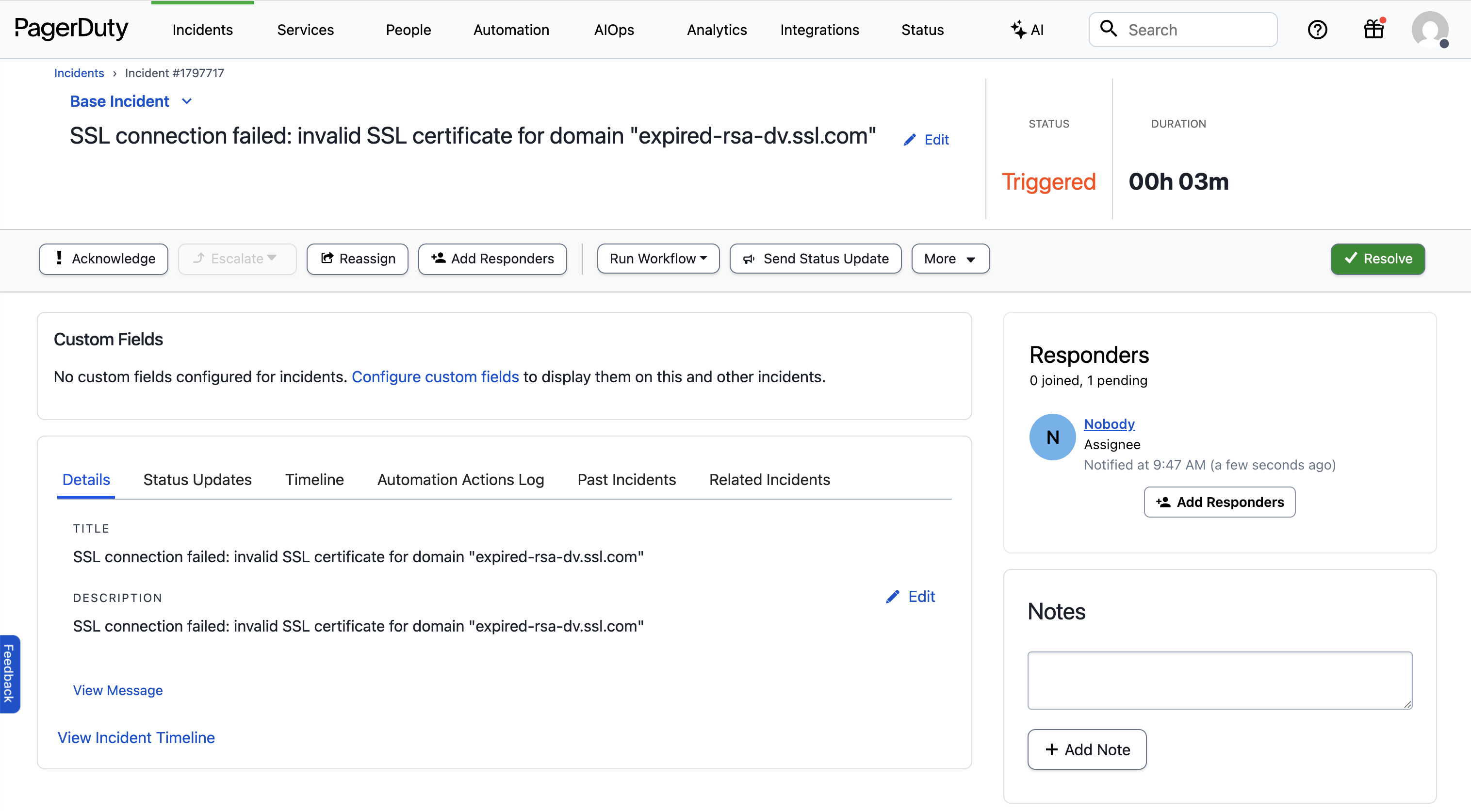 ## Creating An SSL Investigation Agent
Let's create an Agent that runs every time we get an SSL connection alert
in PagerDuty. Our Agent will parse the domain name from the alert and check the
certificate's expiration date. If it's expired, the Agent will post an update
to the PagerDuty incident.
After [installing Unpage](/), create the agent by running:
```bash theme={null}
$ unpage agent create ssl_connection_failures
```
A yaml file will open in your `$EDITOR`. Paste the following Agent definition
into the file:
```yaml theme={null}
description: Investigate SSL/TLS connection failures
prompt: >
- Extract the domain/hostname from the PagerDuty alert about connection failures.
- Use shell command `shell_check_cert_expiration_date` to check the certificate expiration dates
- Parse the certificate dates to determine if the cert is expired or expiring soon
- If certificate is expired or expiring within 24 hours:
- Post high-priority status update to PagerDuty explaining the root cause
- Include the exact expiration date and affected resources
tools:
- "shell_check_cert_expiration_date"
- "pagerduty_post_status_update"
```
Let's dig in to what each section of the yaml file does:
### Description: When the agent should run
The `description` of an Agent is used by the [Router](/concepts/router) to
decide which Agent to run for a given input. In this example we want the Agent
to run only when the alert is about SSL/TLS connection failures.
### Prompt: What the agent should do
The `prompt` is where you give the Agent instructions, written in a runbook
format. Make sure any instructions you give are achievable using the tools
you have allowed the Agent to use (see below).
### Tools: What the agent is allowed to use
The `tools` section explicitly grants permission to use specific tools. You can
list individual tools, or use wildcards and regex patterns to limit what the
Agent can use.
To see all of the available tools your Unpage installation has access to, run:
```bash theme={null}
$ unpage mcp tools list
```
In our example we added the `shell_check_cert_expiration_date`, which is a
custom [shell command](/plugins/shell) that checks the expiration date of SSL
certificates. Custom shell commands allow you to extend the functionality of
Unpage without having to write a new plugin.
## Defining Custom Tools
To add our custom SSL expiration tool, edit `~/.unpage/profiles/default/config.yaml`
and add the following:
```yaml theme={null}
plugins:
# ...
shell:
enabled: true
settings:
commands:
- handle: check_cert_expiration_date
description: Check the expiration date of a certificate.
command: echo | openssl s_client -servername {domain} -connect {domain}:443 2>/dev/null | openssl x509 -noout -dates
args:
domain: The domain to check the certificate for
```
Shell commands have full access to your environment and can run custom scripts
or call internal tools. See [shell commands](/plugins/shell) for more details.
## Running Your Agent
With your Agent configured and the custom SSL expiration tool added, we are
ready to test it on a real PagerDuty alert.
### Testing on an existing alert
To test your Agent locally on a specific PagerDuty alert, run:
```bash theme={null}
# You can pass in a PagerDuty incident ID or URL
$ unpage agent run ssl_connection_failures --pagerduty-incident Q2SJPXSWCX96DA
```
### Listening for webhooks
To have your Agent listen for new PagerDuty alerts as they happen, run
`unpage agent serve` and add the webhook URL to your PagerDuty account:
```bash theme={null}
# Webhook listener on localhost:8000/webhook
$ unpage agent serve
# Webhook listener on your_ngrok_domain/webhook
$ unpage agent serve --tunnel --ngrok-token your_ngrok_token
```
## Example Output
If your Agent finds an expired SSL certificate, it will update the PagerDuty
alert:
## Creating An SSL Investigation Agent
Let's create an Agent that runs every time we get an SSL connection alert
in PagerDuty. Our Agent will parse the domain name from the alert and check the
certificate's expiration date. If it's expired, the Agent will post an update
to the PagerDuty incident.
After [installing Unpage](/), create the agent by running:
```bash theme={null}
$ unpage agent create ssl_connection_failures
```
A yaml file will open in your `$EDITOR`. Paste the following Agent definition
into the file:
```yaml theme={null}
description: Investigate SSL/TLS connection failures
prompt: >
- Extract the domain/hostname from the PagerDuty alert about connection failures.
- Use shell command `shell_check_cert_expiration_date` to check the certificate expiration dates
- Parse the certificate dates to determine if the cert is expired or expiring soon
- If certificate is expired or expiring within 24 hours:
- Post high-priority status update to PagerDuty explaining the root cause
- Include the exact expiration date and affected resources
tools:
- "shell_check_cert_expiration_date"
- "pagerduty_post_status_update"
```
Let's dig in to what each section of the yaml file does:
### Description: When the agent should run
The `description` of an Agent is used by the [Router](/concepts/router) to
decide which Agent to run for a given input. In this example we want the Agent
to run only when the alert is about SSL/TLS connection failures.
### Prompt: What the agent should do
The `prompt` is where you give the Agent instructions, written in a runbook
format. Make sure any instructions you give are achievable using the tools
you have allowed the Agent to use (see below).
### Tools: What the agent is allowed to use
The `tools` section explicitly grants permission to use specific tools. You can
list individual tools, or use wildcards and regex patterns to limit what the
Agent can use.
To see all of the available tools your Unpage installation has access to, run:
```bash theme={null}
$ unpage mcp tools list
```
In our example we added the `shell_check_cert_expiration_date`, which is a
custom [shell command](/plugins/shell) that checks the expiration date of SSL
certificates. Custom shell commands allow you to extend the functionality of
Unpage without having to write a new plugin.
## Defining Custom Tools
To add our custom SSL expiration tool, edit `~/.unpage/profiles/default/config.yaml`
and add the following:
```yaml theme={null}
plugins:
# ...
shell:
enabled: true
settings:
commands:
- handle: check_cert_expiration_date
description: Check the expiration date of a certificate.
command: echo | openssl s_client -servername {domain} -connect {domain}:443 2>/dev/null | openssl x509 -noout -dates
args:
domain: The domain to check the certificate for
```
Shell commands have full access to your environment and can run custom scripts
or call internal tools. See [shell commands](/plugins/shell) for more details.
## Running Your Agent
With your Agent configured and the custom SSL expiration tool added, we are
ready to test it on a real PagerDuty alert.
### Testing on an existing alert
To test your Agent locally on a specific PagerDuty alert, run:
```bash theme={null}
# You can pass in a PagerDuty incident ID or URL
$ unpage agent run ssl_connection_failures --pagerduty-incident Q2SJPXSWCX96DA
```
### Listening for webhooks
To have your Agent listen for new PagerDuty alerts as they happen, run
`unpage agent serve` and add the webhook URL to your PagerDuty account:
```bash theme={null}
# Webhook listener on localhost:8000/webhook
$ unpage agent serve
# Webhook listener on your_ngrok_domain/webhook
$ unpage agent serve --tunnel --ngrok-token your_ngrok_token
```
## Example Output
If your Agent finds an expired SSL certificate, it will update the PagerDuty
alert:
 # Deploy an Agent to a Remote Environment
Source: https://docs.unpage.ai/howto/deployment-guide
Complete guide for deploying Unpage agents to production environments with Docker, PagerDuty integration, and GitHub Actions CI/CD
This guide walks you through deploying Unpage agents to a remote production environment, including containerization, PagerDuty webhook integration, and automated deployment via GitHub Actions.
## Prerequisites
Before you begin, ensure you have basic familiarity with [Unpage concepts](/concepts/agents) and [agent configuration](/commands/agent)
## Containerizing Your Unpage Deployment
This guide covers how to deploy Unpage using Docker. Unpage is a python package and can be deployed using your favorite method for deploying python services!
### Creating a Dockerfile
Create a `Dockerfile` in your desired profile directory (e.g., `~/.unpage/profiles/default`) so it has access to your config.yaml and agent files:
```dockerfile theme={null}
# Use Python 3.12+ as required by Unpage
FROM ghcr.io/astral-sh/uv:python3.13-bookworm-slim
ENV UV_COMPILE_BYTECODE=1 \
UV_PYTHON_DOWNLOADS=0 \
UV_TOOL_DIR=/usr/local/share/uv/tools
# Create a new user to run the container as
RUN useradd -m unpage
# Create the unpage profile
RUN mkdir -p /home/unpage/.unpage/profiles/default/ \
&& chown -R unpage:unpage /home/unpage/.unpage
# Install unpage
RUN apt update -y \
&& apt install -y \
build-essential \
curl \
;
RUN curl -fsSL https://install.unpage.ai | bash \
&& unpage --version
# Copy your agent configurations and config files
COPY --chown=unpage:unpage config.yaml /home/unpage/.unpage/profiles/default/config.yaml
COPY --chown=unpage:unpage ./agents/ /home/unpage/.unpage/profiles/default/agents/
# Switch to the new user
USER unpage
WORKDIR /home/unpage
EXPOSE 5678
CMD ["unpage", "agent", "serve", "--host", "0.0.0.0", "--port", "5678"]
```
### Docker Compose Configuration
For local development and testing, create a `docker-compose.yml`:
```yaml theme={null}
version: '3.8'
services:
unpage:
build: .
ports:
- "5678:5678"
environment:
- UNPAGE_PROFILE=default
# Add your environment-specific variables
- PAGERDUTY_API_KEY=${PAGERDUTY_API_KEY}
- AWS_ACCESS_KEY_ID=${AWS_ACCESS_KEY_ID}
- AWS_SECRET_ACCESS_KEY=${AWS_SECRET_ACCESS_KEY}
- LLM_API_KEY=${LLM_API_KEY}
volumes:
# Mount config file and agents directory for development
- ./config.yaml:/root/.unpage/profiles/default/config.yaml
- ./agents:/root/.unpage/profiles/default/agents
restart: unless-stopped
```
### Configuration Management
Create a production-ready `config.yaml`:
```yaml theme={null}
plugins:
core:
enabled: true
networking:
enabled: true
aws:
enabled: true
llm:
enabled: true
settings:
model: claude-4-sonnet-20250514
api_key: ${LLM_API_KEY}
pagerduty:
enabled: true
settings:
api_key: ${PAGERDUTY_API_KEY}
from_email: alerts@yourcompany.com
shell:
enabled: true
settings:
# Add your custom shell commands here
commands: []
```
## PagerDuty Integration
### Setting Up PagerDuty Webhooks
# Deploy an Agent to a Remote Environment
Source: https://docs.unpage.ai/howto/deployment-guide
Complete guide for deploying Unpage agents to production environments with Docker, PagerDuty integration, and GitHub Actions CI/CD
This guide walks you through deploying Unpage agents to a remote production environment, including containerization, PagerDuty webhook integration, and automated deployment via GitHub Actions.
## Prerequisites
Before you begin, ensure you have basic familiarity with [Unpage concepts](/concepts/agents) and [agent configuration](/commands/agent)
## Containerizing Your Unpage Deployment
This guide covers how to deploy Unpage using Docker. Unpage is a python package and can be deployed using your favorite method for deploying python services!
### Creating a Dockerfile
Create a `Dockerfile` in your desired profile directory (e.g., `~/.unpage/profiles/default`) so it has access to your config.yaml and agent files:
```dockerfile theme={null}
# Use Python 3.12+ as required by Unpage
FROM ghcr.io/astral-sh/uv:python3.13-bookworm-slim
ENV UV_COMPILE_BYTECODE=1 \
UV_PYTHON_DOWNLOADS=0 \
UV_TOOL_DIR=/usr/local/share/uv/tools
# Create a new user to run the container as
RUN useradd -m unpage
# Create the unpage profile
RUN mkdir -p /home/unpage/.unpage/profiles/default/ \
&& chown -R unpage:unpage /home/unpage/.unpage
# Install unpage
RUN apt update -y \
&& apt install -y \
build-essential \
curl \
;
RUN curl -fsSL https://install.unpage.ai | bash \
&& unpage --version
# Copy your agent configurations and config files
COPY --chown=unpage:unpage config.yaml /home/unpage/.unpage/profiles/default/config.yaml
COPY --chown=unpage:unpage ./agents/ /home/unpage/.unpage/profiles/default/agents/
# Switch to the new user
USER unpage
WORKDIR /home/unpage
EXPOSE 5678
CMD ["unpage", "agent", "serve", "--host", "0.0.0.0", "--port", "5678"]
```
### Docker Compose Configuration
For local development and testing, create a `docker-compose.yml`:
```yaml theme={null}
version: '3.8'
services:
unpage:
build: .
ports:
- "5678:5678"
environment:
- UNPAGE_PROFILE=default
# Add your environment-specific variables
- PAGERDUTY_API_KEY=${PAGERDUTY_API_KEY}
- AWS_ACCESS_KEY_ID=${AWS_ACCESS_KEY_ID}
- AWS_SECRET_ACCESS_KEY=${AWS_SECRET_ACCESS_KEY}
- LLM_API_KEY=${LLM_API_KEY}
volumes:
# Mount config file and agents directory for development
- ./config.yaml:/root/.unpage/profiles/default/config.yaml
- ./agents:/root/.unpage/profiles/default/agents
restart: unless-stopped
```
### Configuration Management
Create a production-ready `config.yaml`:
```yaml theme={null}
plugins:
core:
enabled: true
networking:
enabled: true
aws:
enabled: true
llm:
enabled: true
settings:
model: claude-4-sonnet-20250514
api_key: ${LLM_API_KEY}
pagerduty:
enabled: true
settings:
api_key: ${PAGERDUTY_API_KEY}
from_email: alerts@yourcompany.com
shell:
enabled: true
settings:
# Add your custom shell commands here
commands: []
```
## PagerDuty Integration
### Setting Up PagerDuty Webhooks