> ## Documentation Index
> Fetch the complete documentation index at: https://docs.unpage.ai/llms.txt
> Use this file to discover all available pages before exploring further.
# PagerDuty
Our PagerDuty integration allows [Agents](/concepts/agents) to learn about, filter, and
take action on incidents happening in your infrastructure.
* **pagerduty\_get\_incident\_details**: Retrieve incident details by ID
* **pagerduty\_get\_alert\_details\_for\_incident**: Get alert details for an incident
* **pagerduty\_post\_status\_update**: Post a status update to an incident
* **pagerduty\_resolve\_incident**: Resolve an incident
## Prerequisites
To configure the PagerDuty integration you'll need to generate a PagerDuty
API key.
In the top right corner of the PagerDuty UI, hover over your profile image
and click on "My Profile".
Then open the "User Settings" tab:
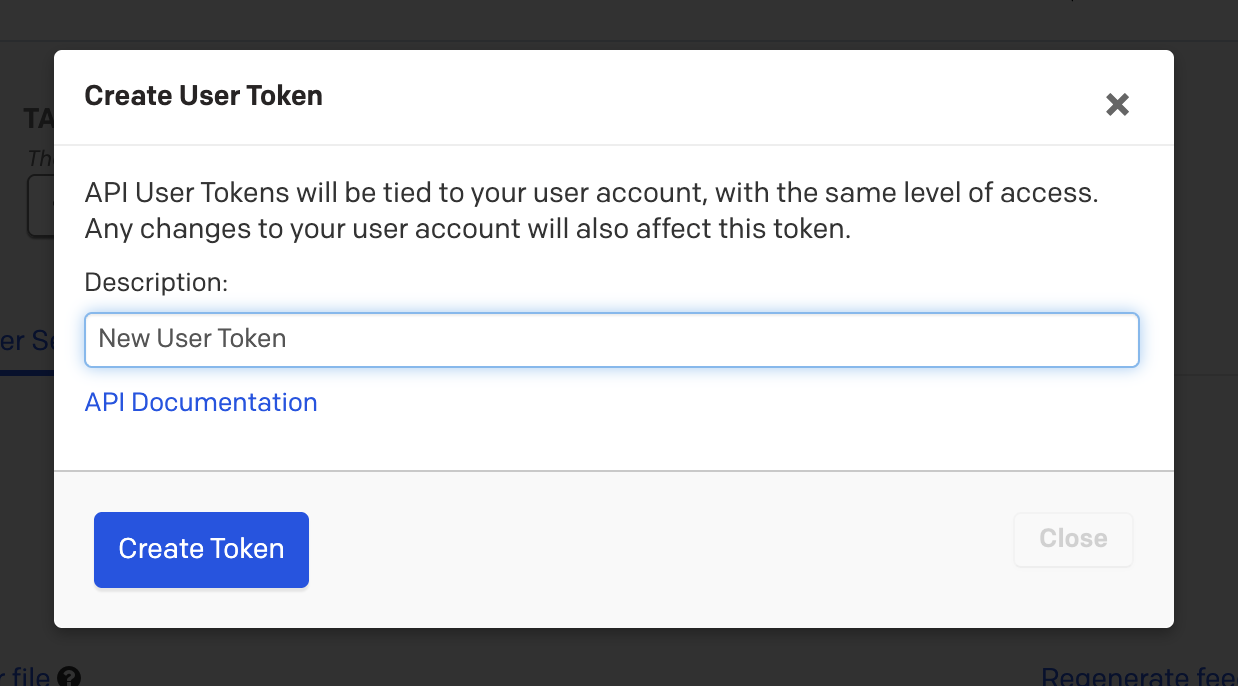
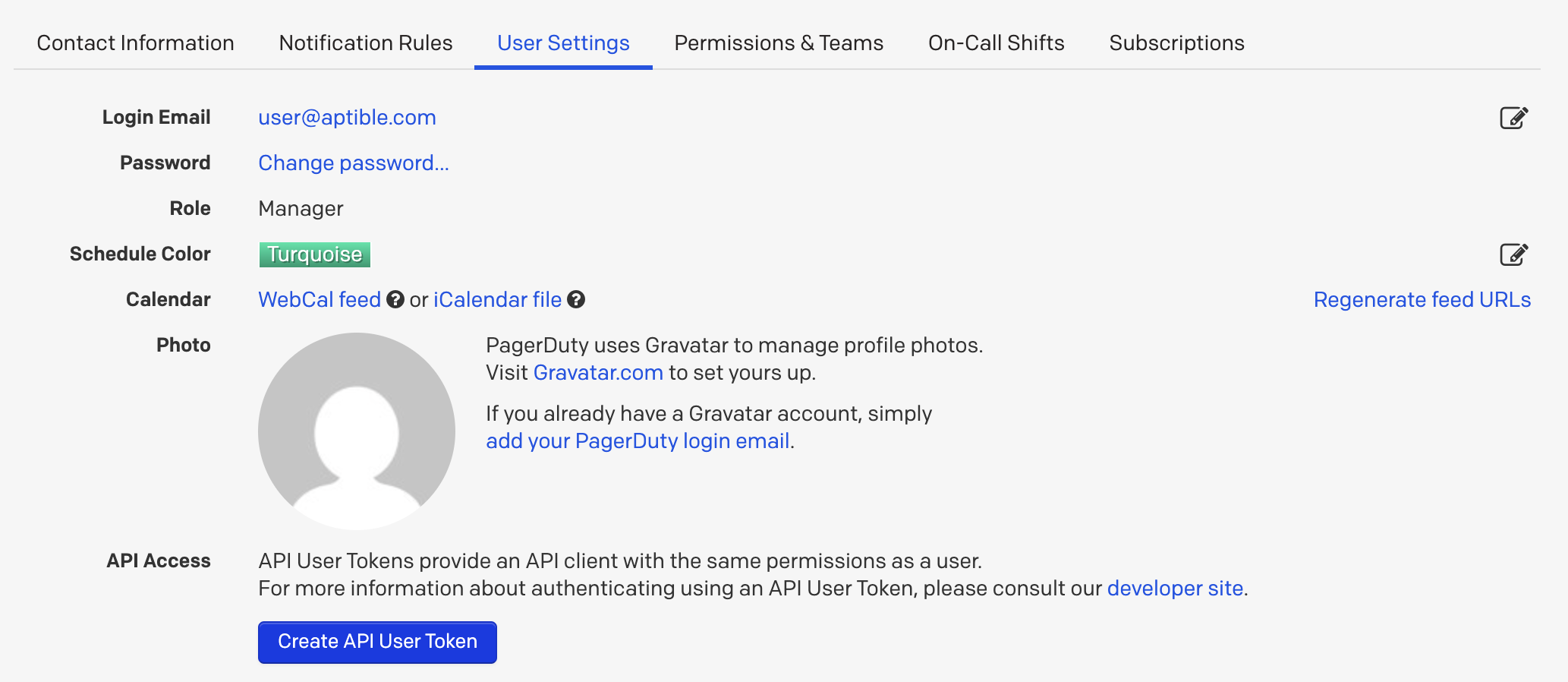 Click on "Create API User Token":
 ## Configuration
Configure the PagerDuty plugin by running `uv run unpage configure` or by editing
the `~/.unpage/profiles//config.yaml` file:
```yaml theme={null}
plugins:
# ...
pagerduty:
enabled: true
settings:
api_key: # required
from_email: # optional
```
## Developing Agents
Your Agents can react to PagerDuty incidents by adding context from your
[Knowledge Graph](/concepts/knowledge-graph), pulling [Metrics](/plugins/metrics),
or running custom [Shell Commands](/plugins/shell).
Learn more about [Creating Agents](/concepts/agents).
### Running Locally
You can test your Agents locally on past or current PagerDuty incidents by
passing in a PagerDuty incident URL as the payload to `unpage agent run`:
```bash theme={null}
uv run unpage agent run https://youraccount.pagerduty.com/incidents/Q179JHZ8AMBVDO
```
Unpage will fetch the incident automatically and send it to your Agent. The
Agent thought process, tool calls, and output will be printed to `stdout`.
### Webhooks
Agent workflows can run automatically by configuring PagerDuty to send webhooks
to your [Unpage Server](/commands/agent#subcommand%3A-serve).
In the top navigation hover over "Integrations" and then click on
"Generic Webhooks (v3)".
Click on "+ New Webhook"
The **Webhook URL** should be the hostname of your running Unpage Server,
with a path of `/webhook` (like `https://unpage.yourdomain.com/webhook`).
During development you can tunnel to your local Unpage instance using ngrok by
running `uv run unpage agent serve --tunnel` (see [Unpage Server](/commands/agent#subcommand%3A-serve)
for details).
The **Event Subscriptions** should be whatever events you want to run Agent
workflows on, for example `incident.triggered`.
Unpage will now receive webhooks from PagerDuty and send them to the
[Router](/concepts/router), which will decide which [Agent](/concepts/agents) workflow to run.
For production deployments with PagerDuty integration, see our [Deployment Guide](/howto/deployment-guide) for complete setup instructions including Docker configuration and GitHub Actions CI/CD.
## Tools
The PagerDuty plugin provides the following tools to Agents and MCP Clients:
Get a PagerDuty incident by ID, including all alert details.
**Arguments**
The ID of the PagerDuty incident. Typically a string of uppercase letters and
numbers. For example "PGR0VU2", "PF9KMXH", or "Q2K78SNJ5U1VE1".
**Returns** `dict`: The incident JSON payload, including all alert details.
## Configuration
Configure the PagerDuty plugin by running `uv run unpage configure` or by editing
the `~/.unpage/profiles//config.yaml` file:
```yaml theme={null}
plugins:
# ...
pagerduty:
enabled: true
settings:
api_key: # required
from_email: # optional
```
## Developing Agents
Your Agents can react to PagerDuty incidents by adding context from your
[Knowledge Graph](/concepts/knowledge-graph), pulling [Metrics](/plugins/metrics),
or running custom [Shell Commands](/plugins/shell).
Learn more about [Creating Agents](/concepts/agents).
### Running Locally
You can test your Agents locally on past or current PagerDuty incidents by
passing in a PagerDuty incident URL as the payload to `unpage agent run`:
```bash theme={null}
uv run unpage agent run https://youraccount.pagerduty.com/incidents/Q179JHZ8AMBVDO
```
Unpage will fetch the incident automatically and send it to your Agent. The
Agent thought process, tool calls, and output will be printed to `stdout`.
### Webhooks
Agent workflows can run automatically by configuring PagerDuty to send webhooks
to your [Unpage Server](/commands/agent#subcommand%3A-serve).
In the top navigation hover over "Integrations" and then click on
"Generic Webhooks (v3)".
Click on "+ New Webhook"
The **Webhook URL** should be the hostname of your running Unpage Server,
with a path of `/webhook` (like `https://unpage.yourdomain.com/webhook`).
During development you can tunnel to your local Unpage instance using ngrok by
running `uv run unpage agent serve --tunnel` (see [Unpage Server](/commands/agent#subcommand%3A-serve)
for details).
The **Event Subscriptions** should be whatever events you want to run Agent
workflows on, for example `incident.triggered`.
Unpage will now receive webhooks from PagerDuty and send them to the
[Router](/concepts/router), which will decide which [Agent](/concepts/agents) workflow to run.
For production deployments with PagerDuty integration, see our [Deployment Guide](/howto/deployment-guide) for complete setup instructions including Docker configuration and GitHub Actions CI/CD.
## Tools
The PagerDuty plugin provides the following tools to Agents and MCP Clients:
Get a PagerDuty incident by ID, including all alert details.
**Arguments**
The ID of the PagerDuty incident. Typically a string of uppercase letters and
numbers. For example "PGR0VU2", "PF9KMXH", or "Q2K78SNJ5U1VE1".
**Returns** `dict`: The incident JSON payload, including all alert details.
Get the details of the alert(s) for a PagerDuty incident.
**Arguments**
The ID of the PagerDuty incident. Typically a string of uppercase letters and
numbers. For example "PGR0VU2", "PF9KMXH", or "Q2K78SNJ5U1VE1".
**Returns** `list[dict]`: The list of alert details.
Post a status update to a PagerDuty incident.
**Arguments**
The ID of the PagerDuty incident. Typically a string of uppercase letters and
numbers. For example "PGR0VU2", "PF9KMXH", or "Q2K78SNJ5U1VE1".
The status update to post.
**Returns** `None`
Resolve a PagerDuty incident.
**Arguments**
The ID of the PagerDuty incident. Typically a string of uppercase letters and
numbers. For example "PGR0VU2", "PF9KMXH", or "Q2K78SNJ5U1VE1".
An optional message to include with the resolution.
**Returns** `None`